
 Share
Share
 Print
Print
|
|
|
|
|


Issue an S/N to the Exchange Order Out
The next step is to issue a S/N to the Exchange Order Out Issue. Fill in the P/N (part number) field with the applicable part, and click on the Find  button.
Find a part in the appropriate Ship Location and Condition.
Select the desired item once so that the Hand  pointer appears to the left of the record.
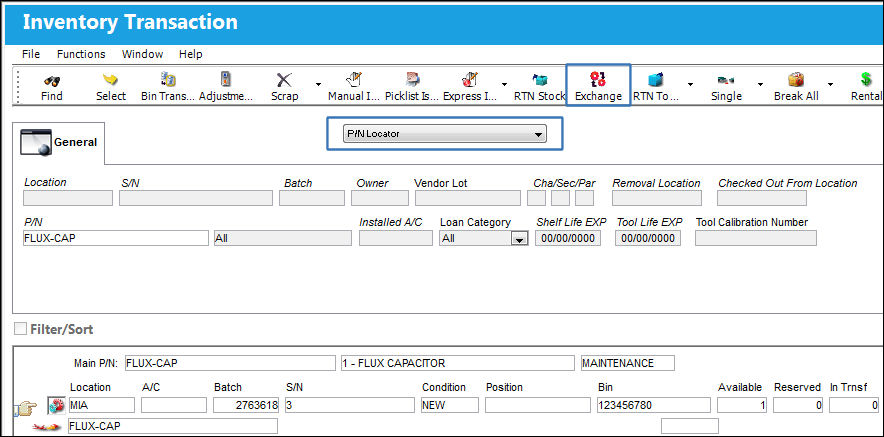
Select the Exchange  button to display the following screen:
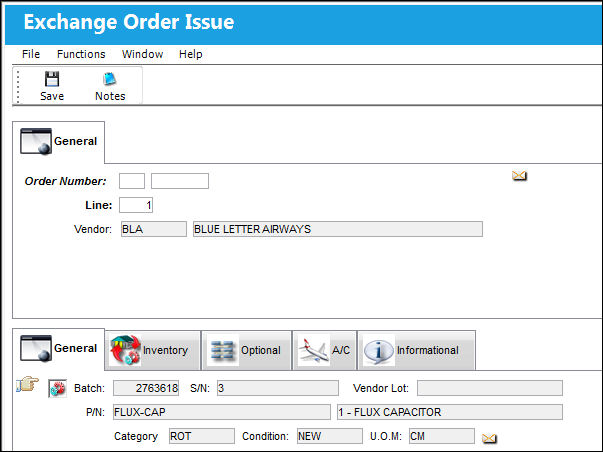
The following information/options are available in this window:
_____________________________________________________________________________________
Order Number
Type of Order. By order type, certain receiving and financial behaviors will be assigned to the order at receiving of the various Order Types. These order types exist under the Orders or Customer Orders Modules exclusively. All Order Types are Hard Coded into the programming syntax. An auto-generated unique sequential number is assigned to each order. All Order Types which exist under the Order Module will receive their number for the following configuration:
 POSEQ - (Orders Next Sequence Number) - Next number for an Order. The start number is set at implementation. The Config Number field is used.
Line
The specific Line item of the Order. Each Line item could represent a different part included in the same order.
_____________________________________________________________________________________
Select the Save  button to save all information.
The system will now prompt the user to pass the item to the Packing and Shipping module for further processing.
Please see the Packing and Shipping Training Manual for additional information.
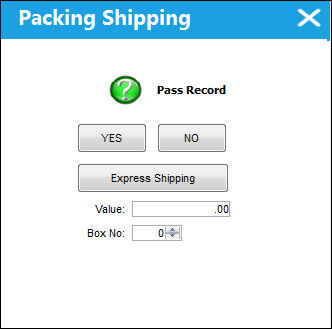
First, enter the value and box number information. Then, select Yes to pass the record to Packing and Shipping.
To cancel, select No. For faster service, select Express Shipping.
The Exchange Issued Print Preview is displayed, as follows:
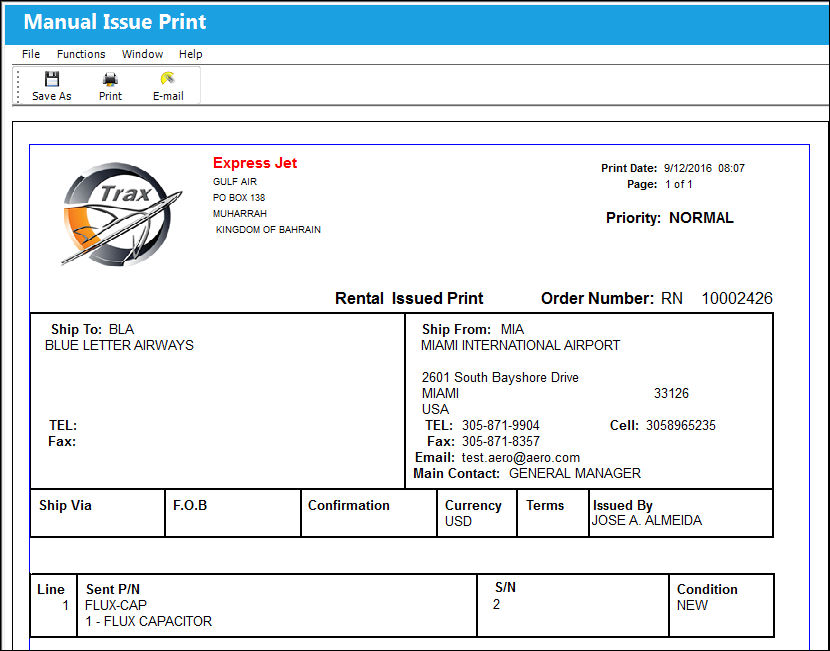
The user will have the option of Printing  or E-mailing
  this document. Select the Exit button to close.
The system will ask if the user requires to send the unit to Packing and Shipping. Answer as required.
If the exchange item is issued, the order itself will not go to close status. If the exchange unit has not been received, the order will still appear on the Open Order and the Unfulfilled Exchange Order report, until the exchange unit is received.
Share
Print
|
©1997-2026 Trax USA Corp. All rights reserved. This manual may not be copied, photocopied, reproduced, translated, or converted to any electronic or machine-readable form, in whole or in part, without prior written approval from Trax USA Corp. |
 |