
 Share
Share
 Print
Print
|
|
|
|
|


Import Help Reference Button, via Control Panel

The Import Help Reference  button allows users to update the mapping system between Trax and the Online Help Manuals. This ensures that clicking the Help
  button in any window will redirect the user to the corresponding manual.
Note: Switch  HELPFILE must be set to Yes in order to link the object codes to your Online Help.
To update the Mapping system, first download the Online Help Mapping text file from here. The file is called "Online Help (TRAX) - object codes." This file contains a list of all windows in Trax and the individual HTML codes corresponding to each help topic that explains the window in question.
Next, this file needs to be uploaded to TRAX as a text delimited file using the Import Help Reference button via the Control Panel, which can be found in the System Administration module.
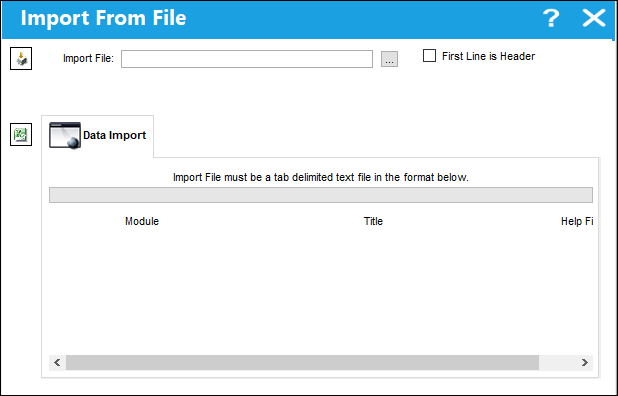
From the Control Panel window, select the Import Help Reference button. The Import From File window appears.
Select the Browse  button.
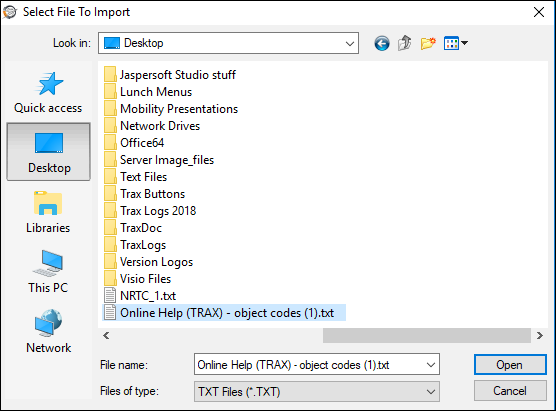
Select the mapped file (titled: "Online Help (TRAX) - object codes" by default). Be sure the file is saved as a (.txt) file.
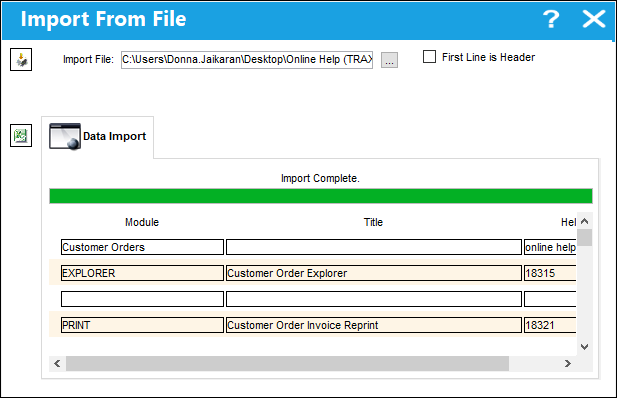
Complete all of the Import steps.
For information regarding how to Import a file, refer to Importing a File via Import Button of the System Standards Training Manual.
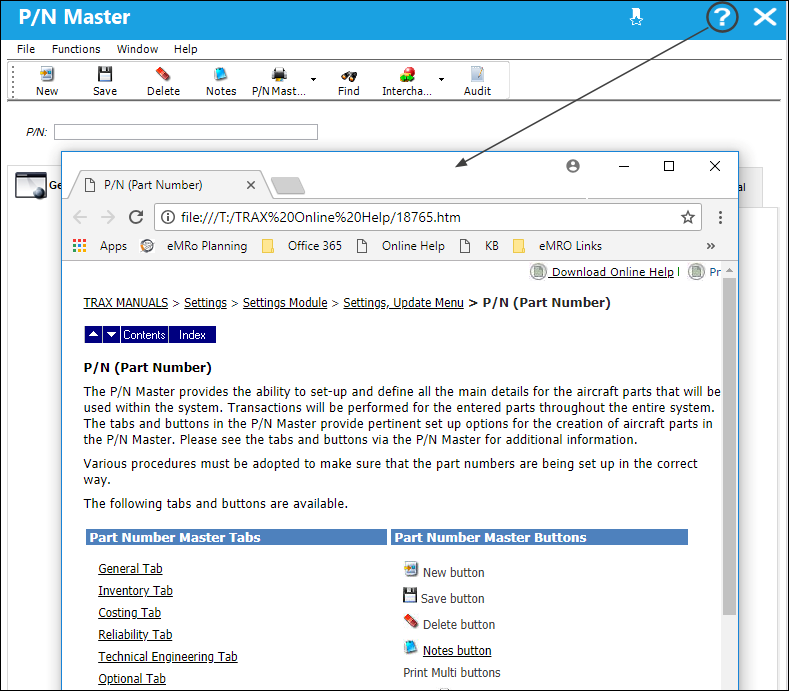
Once the import is complete, the user may navigate to their Trax Production environment Select the Help button from any window in Trax.
Share
Print
|
©1997-2026 Trax USA Corp. All rights reserved. This manual may not be copied, photocopied, reproduced, translated, or converted to any electronic or machine-readable form, in whole or in part, without prior written approval from Trax USA Corp. |
 |