
 Share
Share
 Print
Print
|
|
|
|
|


Control Panel
The Control Panel allows the user to specify the items in the system that will have security “activated”. When security is activated for an item, every individual user must have security privileges granted/denied to the particular item. Security privileges are granted/denied via System Administration/Explorer/Security Explorer.
For proper security set up, perform the following steps.
- Use the Control Panel to specify the items that will have security activated. Please refer to the Control Panel section for additional related information.
- Set up Wall items via the Control Panel. Please refer to the Wall Security section for additional related information.
- When security is activated for an item, every individual user must have security privileges granted/denied to the particular item (via the Security Explorer). Please refer to the Security Explorer section for additional related information.
Go to System Administration/Update/Control Panel. All modules within the system will appear in the list.
The user can double click on the items to access one “layer” further into the program.
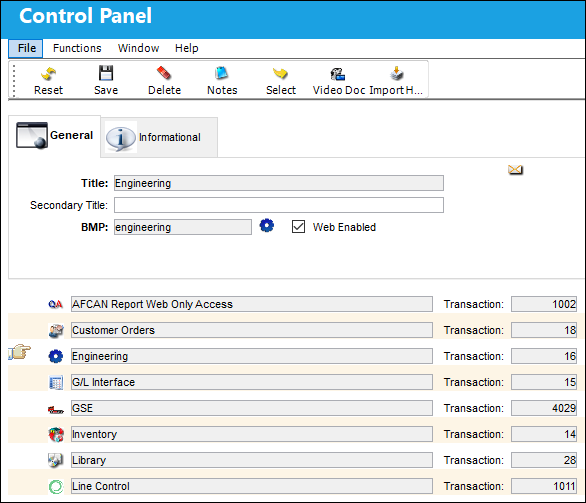
Confirm that the Hand  pointer is pointing to the module with which you want to work by clicking on the module. In the following example, the user will select the Engineering module.
Click on the Select  button to view/edit the related data or just double click:
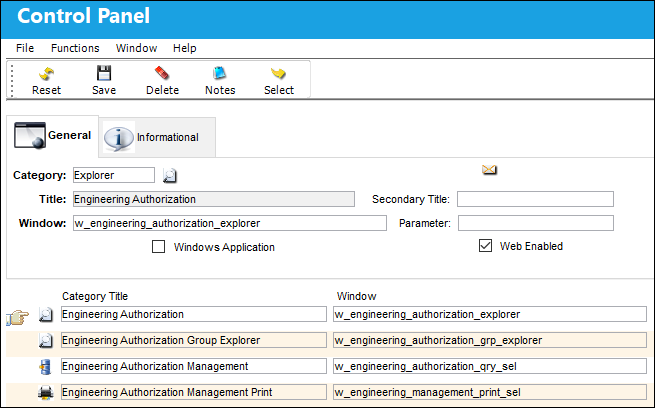
The following information/options are available in this window:
_____________________________________________________________________________________
Category
Select the category for the new entry:
Explorer  - A window that lists categorical information where users can assign functionality (i.e. security, authorization, etc.) to employees, codes, transactions, etc.
Print  - A window used to generate print documents. This information cannot be created, edited, or updated.
Query  - A window where users can enter information to view details but cannot create, edit, or update the information.
Update  - Used to enter, create, or update all types of information, transactions, orders, etc. Most windows are categorized as Update windows.
Title
The title of the application that will be displayed throughout TRAX.
Secondary Title
The optional title for the application.
Window
The path that will open the application.
Parameter
The limitation of the application. (for example: 'printers' for the Printers and Faxes application)
Windows Application
Select the checkbox if what is being added is a Windows Application.
Web Enabled checkbox
This checkbox is designed for Trax USA Corp. internal usage only. It does not have any functionality in the TRAX application.
Web Print Selection button
This button is designed for Trax USA Corp. internal usage only. It does not have any functionality in the TRAX application.
Wall Capability radio buttons
When 'Yes' is selected, the Wall checkbox will appear. It indicates if Wall security for this item is activated.
These particular radio buttons are only applicable for TRAX personnel. Wall functionality cannot be edited by TRAX customers through this window.
Wall security is an additional layer of security protection for specific transactions. When activated, it will require that additional passwords be entered for those transactions. Wall security is functional only for specific transactions throughout the system (i.e. checking the Wall checkbox here does not ensure that Wall protection is available for the item). Only system administrators should be permitted to set up Wall Security. Please refer to the Wall Security section for additional related information.
Additional checkboxes
Additional non standard checkboxes may appear on the window. In this example, the A/C Type Series Control checkbox allows to specify if security privileges will be granted/denied at the A/C Type/Series level (checked) or if access will be automatically granted for all A/C Type/Series (unchecked).
_____________________________________________________________________________________
Choose an item, confirm that the Hand pointer is pointing to it, and double click.
TRAX displays the following:
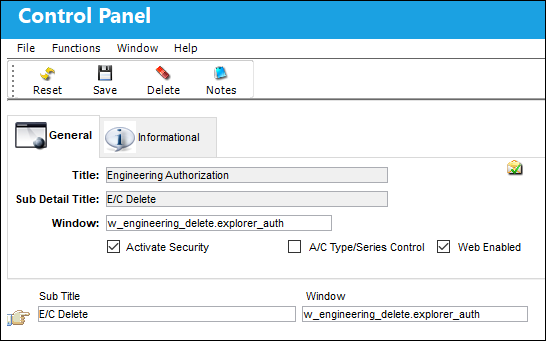
The following information/options are available in this window:
_____________________________________________________________________________________
Title
Title of the module.
Sub Detail Title
Name of the Tab in the module.
Window
Actual name in TRAX of the window.
Activate Security checkbox
Check the Activate Security checkbox to require security privileges to this item. If checked, every individual user must have security privileges granted/denied to the particular item. The item will appear in the list of items in the Security Explorer. If unchecked, every user will automatically have security access granted to the item and the item will not appear in the list via the Security Explorer.
Security access is granted/denied via the Security Explorer (System Administration/ Explorer/ Security Explorer).
Additional checkboxes
Additional non standard checkboxes may appear on the window. In this example, the A/C Type Series Control checkbox allows to specify if security privileges will be granted/denied at the A/C Type/Series level (checked) or if access will be automatically granted for all A/C Type/Series (unchecked).
_____________________________________________________________________________________
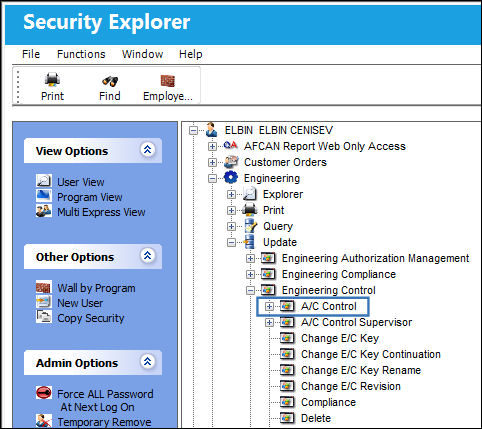
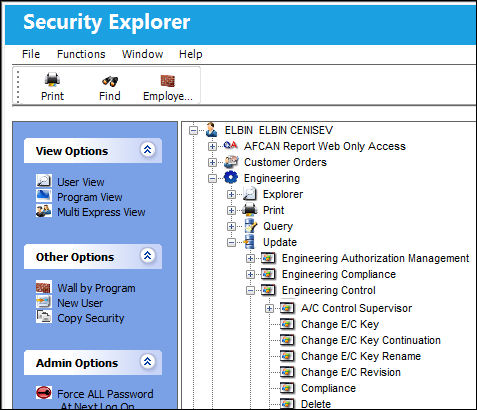
The following is an example of the functionality with the Activate Security checkbox checked and unchecked.
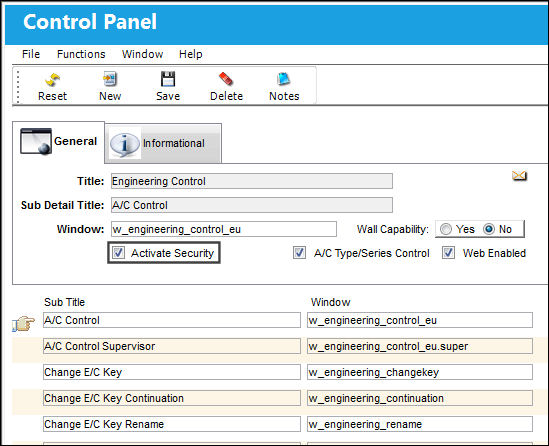
If checked, every individual user must have security privileges granted/denied to the particular item. The item will appear in the list of items in the Security Explorer.
If unchecked, every user will automatically have security access granted to the item and the item(s) will not appear in the list via the Security Explorer.
In this example, the A/C Control option is displayed in the above screen when the Activate Security button is selected.
However, if not selected, this feature is no longer displayed:
Share
Print
|
©1997-2026 Trax USA Corp. All rights reserved. This manual may not be copied, photocopied, reproduced, translated, or converted to any electronic or machine-readable form, in whole or in part, without prior written approval from Trax USA Corp. |
 |