
 Share
Share
 Print
Print
|
|
|
|
|


TRAX Job Printer Manager

The Trax Job Printer Manager window allows users to view and manage all information related to Work Pack Print jobs that were generated through the external Report Server. Once a print is generated through the Work Pack Print window, the details for the print job, like the current progress, status, and technical information are displayed here. This window also allows users to print and email Work Pack Prints.
 This window works in conjunction with the Work Pack Print external report server. If the Report Server functionality is not being used in TRAX Version 11, then this window will not work. For more information on this Report Server functionality, refer to the Work Order Pack Print - Report Server via the Production Training Manual.
When selected, the window opens up as follows. Select a job at the bottom of the window to view more details in the top of the window.
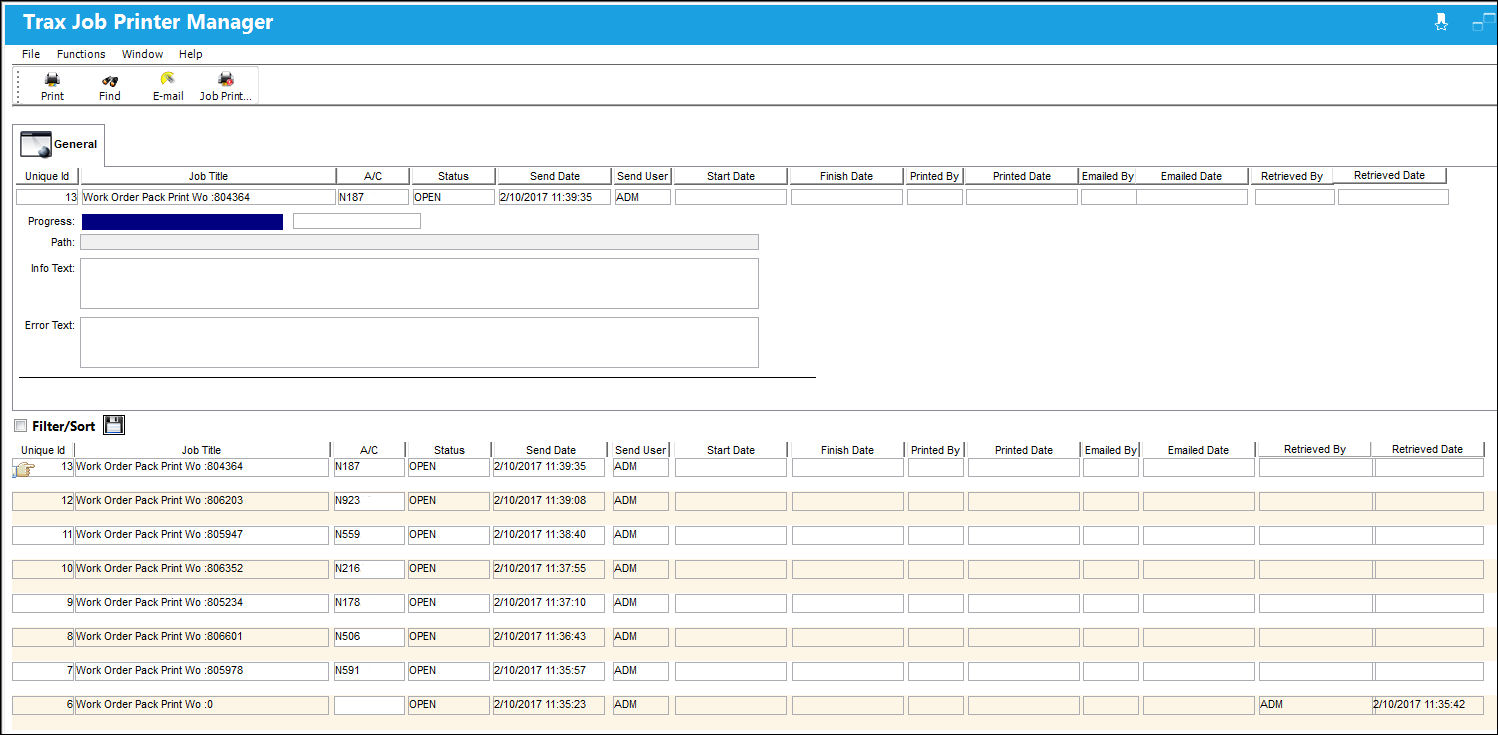
 This window is security-controlled via System Administration/ Update/ Trax Job Printer Manager. Further, only users with Supervisor Access will be allowed to view print jobs other than their own. This Supervisor Access is security controlled via System Administration/ Update/ Trax Job Printer Manager/ Supervisor Access. For additional information refer to the Security Explorer via the System Administration Training Manual.
The following information is displayed from this window:
_____________________________________________________________________________________
A/C
The individual aircraft tail number.
Unique Id
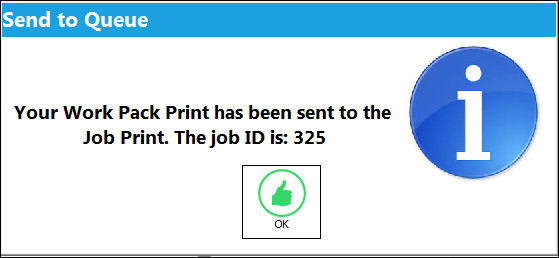
This is a unique reference for each print job sent to the Trax Job Printer Manager. When the print is requested after selecting the Send to Queue  button from the Work Pack Print window, a prompt appears with this identification number:
Job Title
The name of the job including the Work Order number.
Status
The current status of the print job. The options are:
Completed - Indicates that the print has been generated successfully. At this point a PDF copy of the print can be found in the Path listed in the below field. The PDF can also be printed or emailed.
In Progress - Indicates that the print is currently being generated.
Failed - Indicates that the print job failed. Error details are then listed in the Error Text field.
Send Date
The date and time that the print job was requested from the Work Pack Print window.
Send User
The user who requested the print job from the Work Pack Print window.
Start Date
The date and time that the job started generating.
Finish Date
The date and time that the job finished generating.
Printed By
The user who sent the PDF of the selected job to the configured printer.
Printed Date
The date the PDF of the selected job was sent the the configured printer.
Emailed By
The user who emailed the PDF of the selected job to the desired user(s).
Retrieved By
The user who last retrieved (opened by double clicking) the PDF from this window
Retrieved Date
The date date the PDF of the selected job was last retrieved (opened by double clicking).
Emailed Date
The date the PDF of the selected job was emailed to the desired user(s).
Progress
This progress bar indicates the current progress, or rate at which the job is being printed.
Path
The path to the directory where PDFs of the print jobs will be sent. This path is specified in the Config Other field via Switch  PRINTDIR. For additional information, refer to Switch PRINTDIR of the System Administration Switches Manual.
Info Text
Displays technical information regarding the Task Cards being printed through the job. This data is displayed once the job is finished generating.
Error Text
This field allows the user to view any errors associated to the job. This is beneficial because the user can view the error as the job is in progress an can cancel the job if necessary. The user does not have to wait until the job has been completed in order to review print errors.
Delete  button
The Delete button allows users to delete job records in the queue.
This button is security controlled System Administration/ Update/ Trax Job Printer Manager/ Delete record and file. For additional information refer to the Security Explorer via the System Administration Training Manual.
_____________________________________________________________________________________
The Print  button sends the PDF of the selected job to the configured printer.
The Find  button refreshes the job data in the window.
The Email  button emails the PDF of the selected job to the desired user(s).
Share
Print
|
©1997-2026 Trax USA Corp. All rights reserved. This manual may not be copied, photocopied, reproduced, translated, or converted to any electronic or machine-readable form, in whole or in part, without prior written approval from Trax USA Corp. |
 |