
 Share
Share
 Print
Print
|
|
|
|
|


Work Order Pack Print - Report Server
As part of TRAX’s initiative to highlight efficiency, advancements have been made to the Work Pack Print that will help streamline worksite production. By running the Work Pack Print from an external report server, the time it takes to create a print of the work package is greatly reduced. By generating the Work Pack Print on this report server and not within the application, users are allowed to continue using TRAX to its full capacity while the print is being created. The time it takes for the print to be created is also greatly minimized. Refer to the Report Server Performance Metrics for more details. Further, when the prints are completed, they can be managed and organized by select users.
This Report Server functionality is available from TRAX Version X and forward.
- the Work Pack Print report server functionality is integrated seamlessly within the TRAX application. Once the print job is requested, real-time job info can be accessed from the new Trax Job Printer Manager window.
- the Work Pack Print report server functionality is accessed via web browser. The browser connects directly to the report server and your TRAX Production database. All from this same browser window, the print job is requested and real-time job info is displayed.
In both methods, however, the layout of the Work Pack Print and all of the options from the window are available. See below for more information on each method.
Note: Additional information is available through the topic regarding the Report Server Technical Specifications.
Whether generated from TRAX or from a browser, all prints are sent to a shared directory that is configured through System Administration Switch  PRINTDIR. In order for this report server functionality to work, . For more information refer to Switch PRINTDIR via the System Administration Switches Manual.
 Work Pack Print - Report Server
Version 11 and Forward Method:
Beginning in version 11, Work Pack Prints are requested from the Work Order Pack Print window in the application. Once requested, the job is sent to the report server for processing.
To request a print, select the Send to Queue  button. By selecting this button, the print job will be handled by the report server, not the TRAX application.
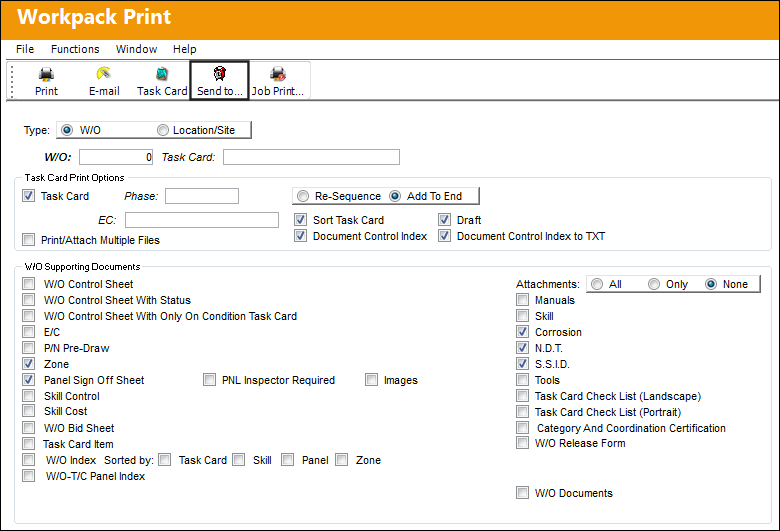
The Send to Queue button is only available when Switch PRINTDIR is set to Yes.
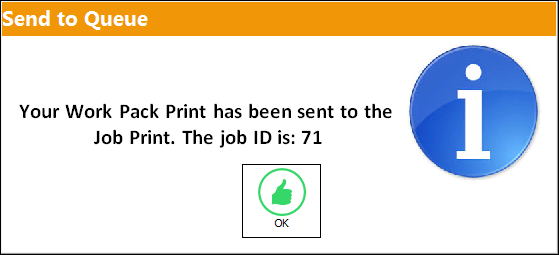
When requested, the following prompt comes up. Notice the unique ID number assigned to each job.
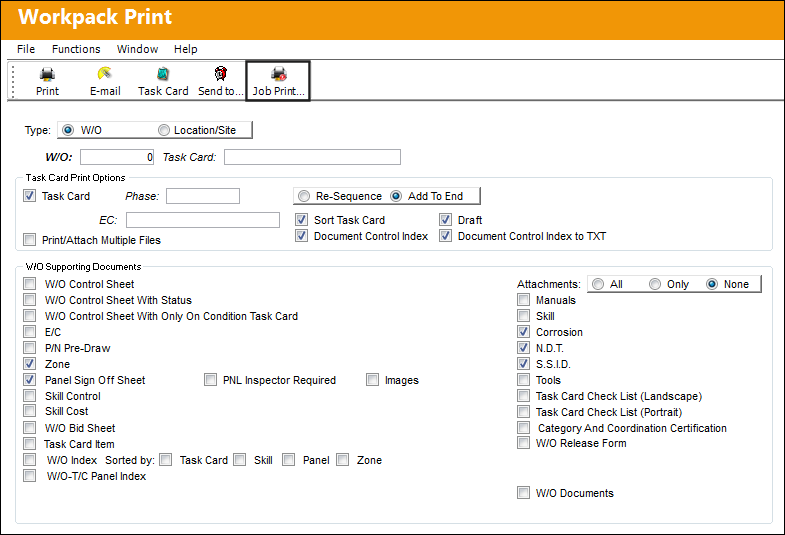
The print job's details can be seen from the System Administration/ Update/ Trax Job Printer Manager window, or by selecting the Job Print Manager  button.
All Work Pack Print jobs are listed from this window, including the current status.
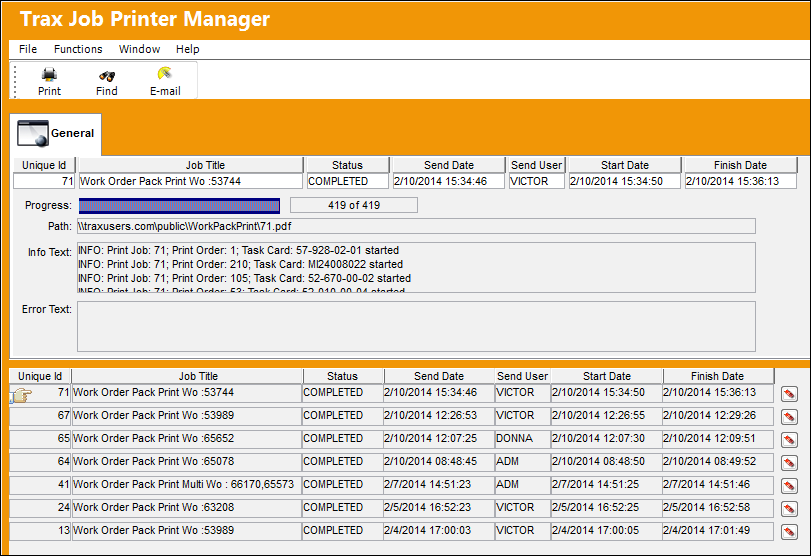
This window and several of the option within the window are security-controlled. For detailed information on this window, refer to the Trax Job Printer Manager via the System Administration Training Manual.
 Users can also access the Trax Job Print Manager by selecting the Job Print Manager
  button in the Workpack Print window.
From this window, the Work Pack Print can be printed, emailed, or deleted.
A PDF copy of the print can be accessed through the directory indicated in the Path field.
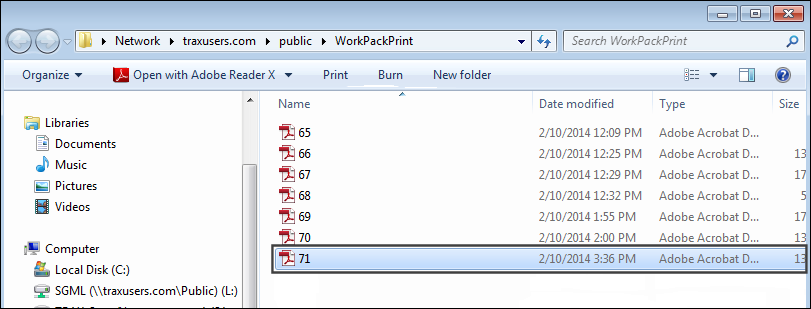
The Path field is specified through Switch PRINTDIR.
Version X Browser Method:
For TRAX Version X, Work Pack Prints are requested from a web browser that connects to the report server. Once requested, the job is sent to the report server for processing.
Notice at the top of the browser the URL connects to the configured server. All of the same fields from the Work Pack Print in the application are also available from the browser option.
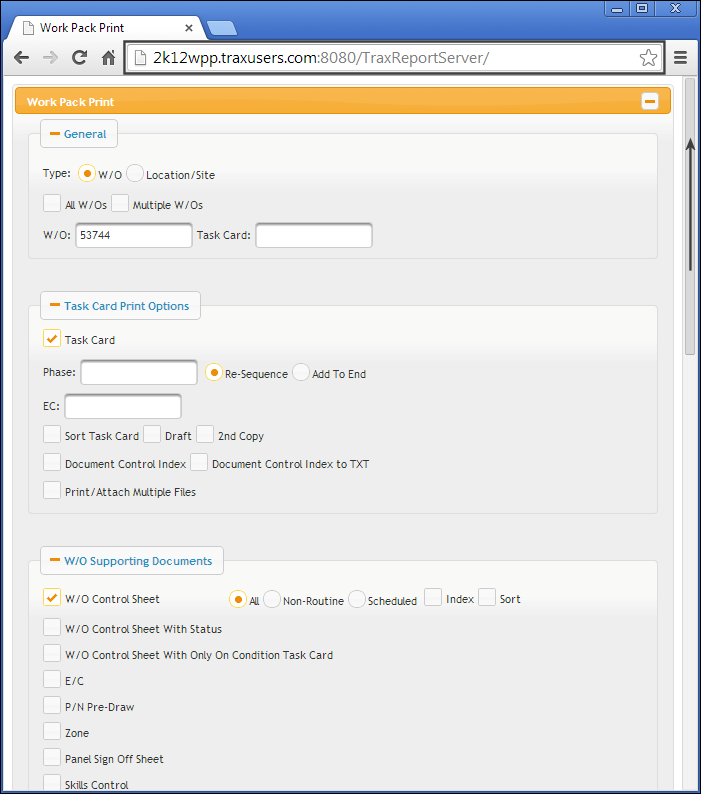
When selected, the Multiple W/Os checkbox allows users to print multiple Work Orders in the Work Pack Print.
At the bottom of the window, there is the Submit button and the Print Jobs section. Select the Submit button once all selections have been made and the print is ready to be generated. The Print Jobs section lists all Work Pack Print jobs and their current statuses.
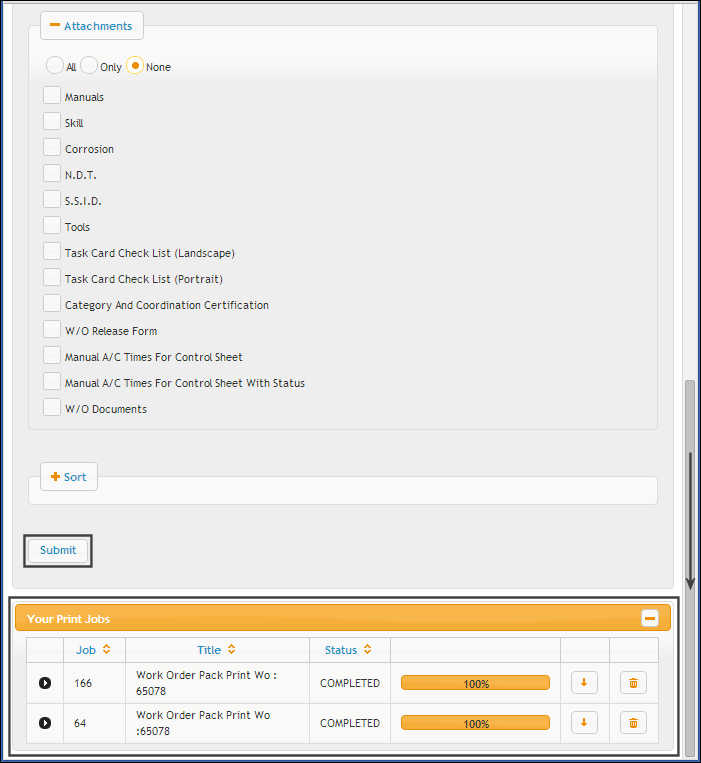
When expanded, the Print Jobs section appears as follows.
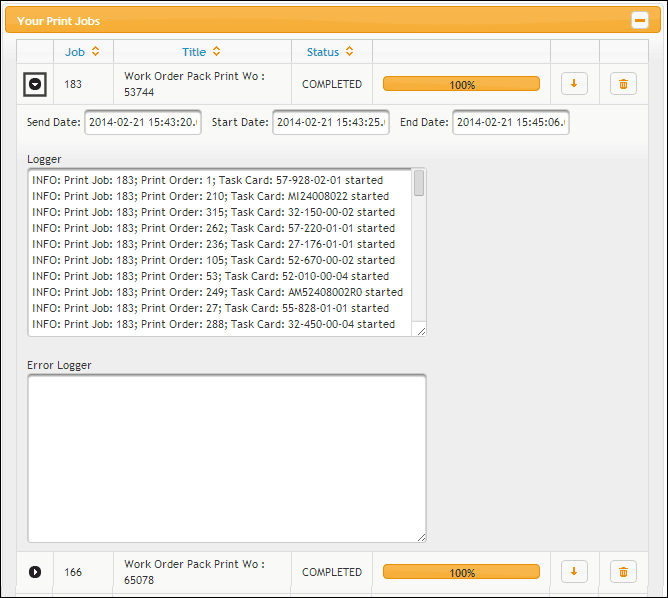
The following information/options are available in this window:
_____________________________________________________________________________________
Expand  button
Select to view more information on the print job.
Job
This is a unique reference for each print job sent to the Work Pack Print report server.
Title
The name of the job including the Work Order number.
Status
The current status of the print job. The options are:
Completed - Indicates that the print has been generated successfully. At this point a PDF copy of the print can be found in the Path listed in the below field. The PDF can also be printed or emailed.
In Progress - Indicates that the print is currently being generated.
Failed - Indicates that the print job failed. Error details are then listed in the Error Text field.
Status bar
This progress bar indicates the current progress or rate at which the job is being printed.
Download  button
This button allows users to download the PDF of the Work Pack Print.
Delete  button
This button allows users to delete job records in the queue.
Send Date
The date and time that the print job was requested from the Work Pack Print window. This field is only displayed when the Expand button is selected.
Start Date
The date and time that the job started generating. This field is only displayed when the Expand button is selected.
End Date
The date and time that the job finished generating. This field is only displayed when the Expand button is selected.
Logger
Displays technical information regarding the Task Cards being printed through the job. This data is displayed once the job is finished generating. This field is only displayed when the Expand button is selected.
Error Logger
This field allows the user to view any errors associated to the job. This is beneficial because the user can view the error as the job is in progress an can cancel the job if necessary. The user does not have to wait until the job has been completed in order to review print errors. This field is only displayed when the Expand button is selected.
_____________________________________________________________________________________
Once the Print has been created, the PDF can be accessed from the shared directory specified through Switch PRINTDIR.
Share
Print
|
©1997-2026 Trax USA Corp. All rights reserved. This manual may not be copied, photocopied, reproduced, translated, or converted to any electronic or machine-readable form, in whole or in part, without prior written approval from Trax USA Corp. |
 |