
 Share
Share
 Print
Print
|
|
|
|
|


W/O Pack Print
The Work Order Pack Print is used to organize work packages that detail the work required to be performed. The worksite manager can specify the day/shift's work details by a variety of parameters (like by W/O, Task Card, Location, Date, etc.). How the printed selections are organized can then also be customized to fit what is most convenient for a given worksite (like sequence orders and work checklists).
The Work Pack Print can be accessed from two locations: either directly via Production/ Print/ Work Order Pack Print or from the Work Order Detail window.
TRAX displays the the Work Pack Print window as follows:
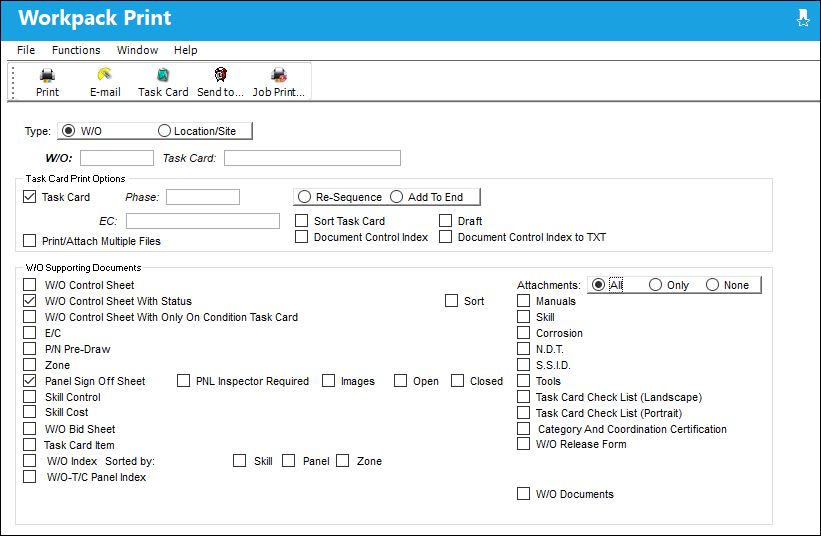
 : Many of the options in this window are security-controlled via Production/ Print/ W/O Pack Print. For more information refer to the Security Explorer.
 : The Print
  button button is security controlled via Production/ Print/ W/O Pack Print/ W/O Pack Print Button. For more information refer to the Security Explorer via the System Administration Training Manual.
Note: The E-mail  button is security controlled via Production/ Print/ W/O Pack Print/ W/O Pack Print Email Button. For more information refer to the Security Explorer via the System Administration Training Manual.
Note: The Send to Queue  button is security controlled via Production/ Print/ W/O Pack Print/ W/O Pack Print Send to Queue Button. For more information refer to the Security Explorer via the System Administration Training Manual.
The following information/options are available in this window:
_____________________________________________________________________________________
Type
The type of criteria used to specify the work that must be printed. The options are W/O (which allows users to narrow down the work that needs to be performed by Work Orders) and Location/Site (which allows users to narrow down the work that needs to be performed by Location and Site).
W/O radio button
Selecting W/O allows users to narrow down the work that needs to be printed by Work Order. This radio button is selected by default. If the Print button was selected from the Work Order window, the Work Order number will automatically be entered in the W/O field. Otherwise, select the Work Order required to be printed.
When the W/O radio button is selected, the following options appear to help narrow down the print results:
All W/O checkbox - Select the All W/O checkbox to specify a date range for Work Orders to be printed. When this checkbox is selected, the From Date and To Date fields become available. When selected the W/O field disappears.
This checkbox is only available when Production Switch  ALLWOPACKP is set to Yes. For more information refer to the Production Switches Manual.
W/O - The Work Order used to categorize, manage, and schedule work requirements for aircraft maintenance.
Task Card - The Task Card / Job Card that details the scheduled maintenance work. If this Task Card is not specified, all of the Task Cards that are associated to the W/O will be printed.
Location/Site radio button
Choose to print all Task Cards for a Location/Site. When selected, the W/O, Task Card, and All W/O checkbox disappear. When selected, the following options appear to help narrow down the print results.
Location - The Location for maintenance events, inventory stores, orders, transactions, or training events.
Site - The Site where the work is to be carried out (if applicable).
Category - The Work Order Category that will be printed.
W/O Status - Select a W/O Status to print by.
From Date - To Date fields - Enter a date range in these fields to specify the Work Orders that will be printed.
_____________________________________________________________________________________
Task Card Print Options:
_____________________________________________________________________________________
Task Card checkbox
Select this checkbox to choose a Work Order Task Card to define the print. When the Task Card checkbox is selected, the following options appear:
Phase - The Phase selection allows only certain Phases of the Work Order Task Cards to be printed (for example, the Pre-dock Task Cards for the check).
E/C - The Engineering Control that specifies aircraft or component scheduled maintenance intervals.
Re-Sequence radio button - Select this checkbox to add Task Card to sequence and re-sequence the set as necessary.
Add To End radio button - Select this checkbox to add the Task Card to the end of existing sequence.
Sort Task Card checkbox - Select this checkbox to specify your own sort order for the Task Card data output by the printer. Task Cards are normally sorted in the 'sort order' field from the Task Card itself. If you select the Sort Task Card parameter, a sort selection box will only appear when you click the Print button, you can then change the required sort order and click OK.
Document Control Index checkbox - Select this checkbox to include an index of all documents included in the Task Card.
Draft checkbox - Select this checkbox to have the printouts stamped with the word “DRAFT." This allows for the printouts to be used strictly for informational purposes.
This is customized functionality that requires a modification to the stylesheet. In order to utilize this 'DRAFT' feature, create a Modification web log with Customer Support.
Document Control Index to TXT checkbox - Select this checkbox to include an index of all documents included in the Task Card in a .txt file.
Print/Attach Multiple Files checkbox 
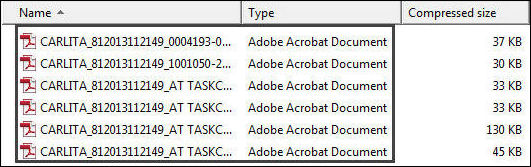
Select this checkbox to print each of a Work Order's Task Cards separated into individual PDF files. If sent directly to a printer with a built-in stapler, each file will be collated and stapled/attached together to maximize efficiency. For example, the below Work Order has six Task Cards associated to it. When the Print/Attach Multiple Files checkbox is selected, each Task Card is printed in a separate PDF file as shown below:
_____________________________________________________________________________________
W/O Supporting Documents:
Select any of the following checkboxes that customize the organization of the print:
_____________________________________________________________________________________
W/O Control Sheet
Includes the W/O Control Sheet which allows managers to verify that all of the work was signed off on.
When the W/O Control Sheet checkbox is selected, the following radio buttons and checkboxes appear:

W/O Control Sheet With Status
Select to include W/O Control sheet with Status.
When the W/O Control Sheet With Status checkbox is selected, the Sort checkbox appears.
W/O Control Sheet With Only On Condition Task Card
Select to include W/O Control Sheet With Only On Condition Task Card.
When the W/O Control Sheet With Status checkbox is selected, the Sort checkbox appears.
E/C
The Engineering Control that specifies aircraft or component scheduled maintenance intervals.
P/N Pre-Draw
Select to include P/N Pre-Draw.
Zone
Select to include Zone.
Panel Sign Off Sheet
Organizes all Task Cards for a given Panel. This makes it convenient for a mechanic who is working on a Panel to accomplish all work to be performed for that panel at the same time before the panel is replaced. When the Panel Sign Off Sheet checkbox is selected, the following checkboxes appear:
PNL Inspector Required checkbox - When selected, the workpack print will indicate that a Panel Inspector must inspect the work performed on the panel.
Images checkbox - When selected, an image of the panel will be included in the Workpack as a reference.
Open checkbox  When selected, an area for the date and signature of an authorizer will be made available on the print to indicate that a panel has been opened.
Note: This checkbox is a customized request and may not be available for all customers.
Closed checkbox When selected, an area for the date and signature of an authorizer will be made available on the print to indicate that a panel has been closed.
Note: This checkbox is a customized request and may not be available for all customers.
Skill Control
Select to include Skill Control.
Skills Cost
Select to include Skills Cost.
W/O Bid Sheet
Select to include W/O Bid Sheet.
Task Card Item
Select to include Task Card Item.
When the Task Card Item checkbox is selected, the Sort checkbox appears.
W/O Index
Select to include W/O Index.
When the W/O Index checkbox is selected, the following checkboxes appear:

W/O-T/C Panel Index
Select to include W/O-T/C Panel Index.
W/O-Export To WICS
Select to include W/O-Export To WICS.
W/O-Send To IDMR
Select to include W/O-Send To IDMR.
Attachment (All/Only/None) radio buttons
Select one of the following radio buttons regarding attachments:
All - Select to include 'All' attachments
Only - Select to include 'Only' or selected attachments
None - Select to include no attachments
Manuals
Select to include Manuals.
Skill
Select to include Skill.
Corrosion
Select to include Corrosion.
N.D.T.
Select to include N.D.T.
S.S.I.D.
Select to include S.S.I.D.
Tools
Select to include Tools.
Task Card Check List (Landscape)
Select to include Task Card Check List (Landscape).
When the Task Card check List (Landscape) checkbox is selected, the Sort checkbox appears.
Task Card Check List (Portrait)
Select to include a checklist of all Task Cards.
When the Task Card check List (Landscape) checkbox is selected, the Sort checkbox appears.
Category And Coordination Certification
Select to include Category And Coordination Certification.
W/O Documents
Select to include W/O Documents.
When the W/O Documents checkbox is selected, all documents associated to the Work Order will be printed. For an example, refer to the W/O Document Control Button, via the A/C Master, Auto W/O Tab, of the Settings Training Manual.
_____________________________________________________________________________________
Progress Bar:
The Current Progress bar and Overall Progress bar have been added to the Workpack Print window.
The Task Card  button is available to view the T/C(s) associated to the specified W/O.
Additional information relevant to the functionality of this window can be viewed in the topic regarding the Work Order Pack Print - Report Server.
Share
Print
|
©1997-2026 Trax USA Corp. All rights reserved. This manual may not be copied, photocopied, reproduced, translated, or converted to any electronic or machine-readable form, in whole or in part, without prior written approval from Trax USA Corp. |
 |