
 Share
Share
 Print
Print
|
|
|
|
|


From the A/C Master, Auto W/O tab, select the W/O Document Control  button:
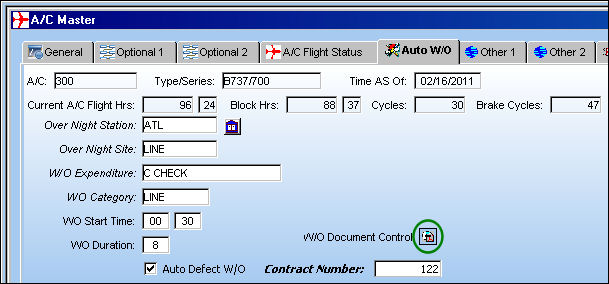
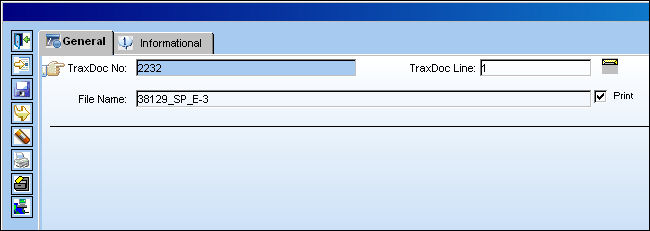
TRAX displays the following window. Attach a TraxDoc document and save.
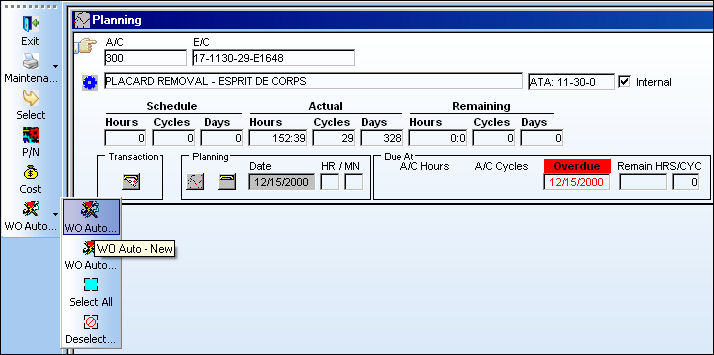
Go to Planning/Query/A/C Planning Query.
Run the A/C Planning Query for A/C 300.
Select the WO Auto New  button to generate a Work Order for this aircraft and maintenance event.
Create and save the Work Order.
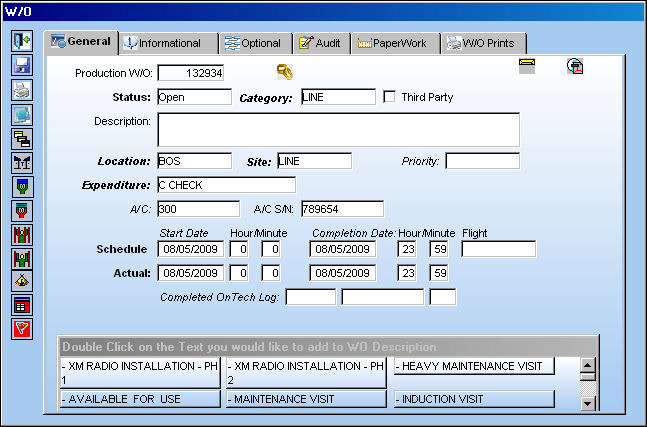
Go to Production/Update/W/O.
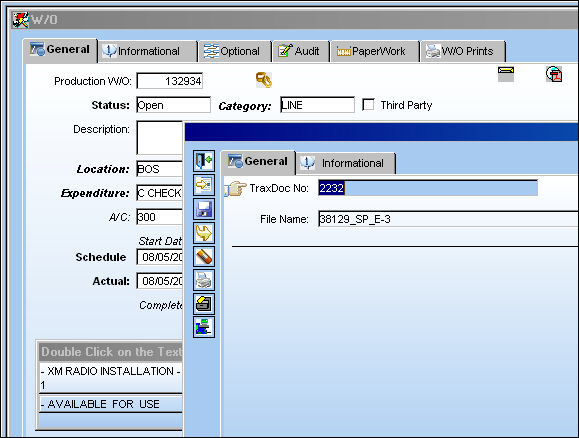
From the Work Order Detail, General tab, select the Document Control button.
The TraxDoc link was brought over from the A/C Master as shown below:
From the Work Order Detail, General tab, select the Print  button.
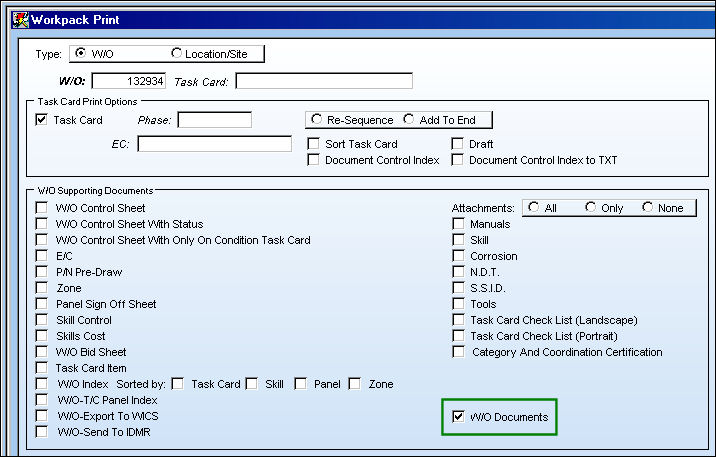
TRAX displays the Workpack Print window.
When the W/O Documents checkbox is selected, all documents associated to the Work Order will be printed.
For additional information regarding the Workpack Print, refer to Work Order Pack Print, via the Production, Update Menu of the Production Training Manual.
Share
Print
|
©1997-2026 Trax USA Corp. All rights reserved. This manual may not be copied, photocopied, reproduced, translated, or converted to any electronic or machine-readable form, in whole or in part, without prior written approval from Trax USA Corp. |
 |