
 Share
Share
 Print
Print
|
|
|
|
|



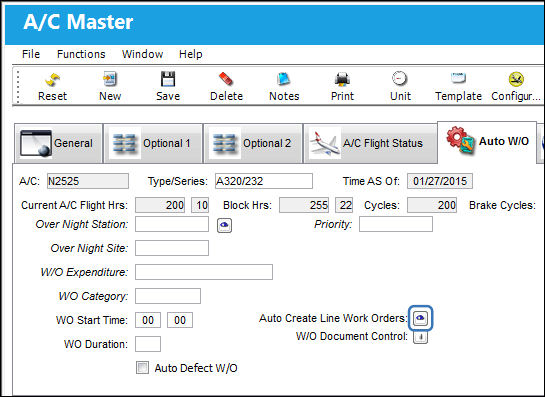
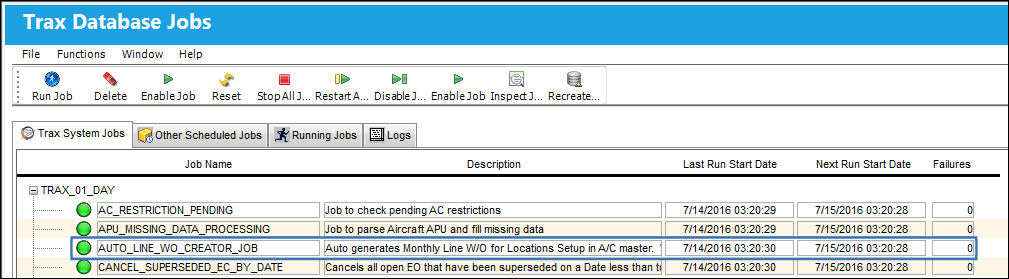
The Auto Create Line Work Orders  button allows the user to set up the default parameters for a Line Work Order per aircraft. Users may set up one or multiple Line Work Orders for an aircraft. Once the parameters have been set up, Line Work Orders will be created three days before the end of every month via Trax Database Jobs.
There is also an option to manually create the Line Work Orders via the Auto Line W/O Generation  button. For additional information, refer the the Auto Line W/O Generation Button which can be found in the Work Order section of the Production Training Manual.
From the Aircraft Master, Auto W/O tab, select the Auto Create Line Work Orders button.
The Auto Create Line Work Orders window is displayed. Enter all relevant information to create a Line Work Order.
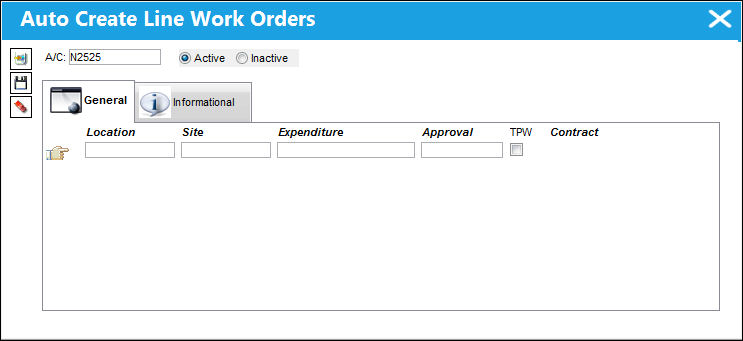
The following information/options are available in this window:
_____________________________________________________________________________________
A/C
The Aircraft that the Line W/Os will be created for.
Active / Inactive radio buttons
These radio buttons determine whether or not the Line W/Os will be created at the end of the month for the selected Aircraft. When 'Active' is selected the Line W/Os for the configured Locations (below) will be created for that A/C at the end of the month. When 'Inactive' is selected the Line W/Os will not be created for those Locations at the end of the month. 'Active' is selected by default.
Location
The Location for maintenance events, inventory stores, orders, transactions, or training events.
Site
The Site where the work is to be carried out (if applicable).
Expenditure
Choose which expenditure code will be associated with this Work Order. The Expenditure Code related to this Work Order and all associated Task Cards Work Order. All material issues, labor actuals and expenses performed against this Task Card impacts this Expenditure Code financially. If the Expenditure Code is not captured in the Task Card, the system will search for the Expenditure Code associated to the Engineering Control (E/C) which brought the Task Card onto the work package and will impact the Expenditure Codes accordingly. If the E/C does not have a defined Expenditure Code, the system will use the Work Order Expenditure Code to capture and record all financial impacts. Financial transactions are recorded and available for view via the Journal Interface/Query/Journal Entry Query. Expenditure Codes may be created via G/L Interface/Update/Journal Entries Expenditure in the Creating a New Expenditure Code. For more information, please refer to the Creating a New Expenditure Code section of the G/L Interface manual.
This code is mandatory in the Work Order. The user will not be able to create the Work Order without defining the Expenditure Code in the Work Order.
Approval
The W/O Release Approval Code.
TPW (Third Party Work) checkbox
If the W/O is for a Third Party, then the Third Party Flag should be selected. The system will automatically go to the Customer Orders Window upon Save. If the aircraft is in the A/C Master, and is identified with the ownership control and is 'Managed', the Third Party Checkbox will default upon selecting that A/C. For more information, please refer to the A/C Master, Other 1 Tab of the Settings manual. Selecting this checkbox will allow the Contract field to be displayed and it will be mandatory.
Contract - The Contract number that will be linked to the Third Party Work Order.
_____________________________________________________________________________________
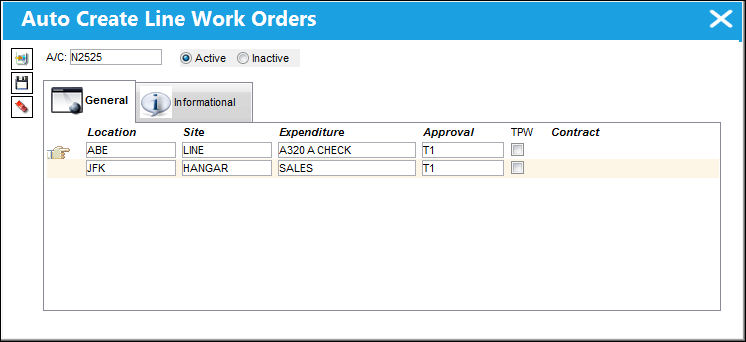
The user may only set up one Line Work Order per location for an aircraft.
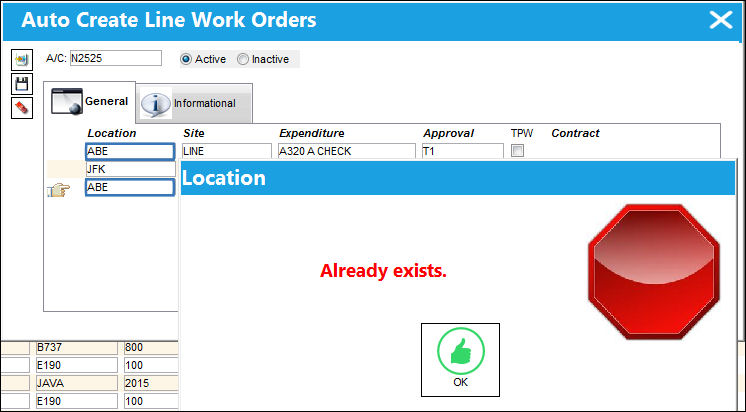
Now that the default parameters have been set up, the Line Work Orders will be auto created via Trax Database Jobs.
Share
Print
|
©1997-2026 Trax USA Corp. All rights reserved. This manual may not be copied, photocopied, reproduced, translated, or converted to any electronic or machine-readable form, in whole or in part, without prior written approval from Trax USA Corp. |
 |