
 Share
Share
 Print
Print
|
|
|
|
|


The Cancel Reserved Items  button can be used to remove parts from a reserved status (for example, a more urgent AOG requirement exists for a part that is allocated to an existing Work Order).
From the W/O Reservation Control window, select the Cancel Reserved Items button.
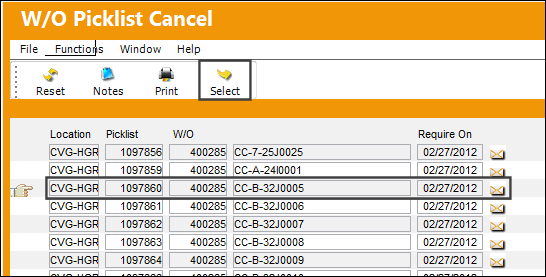
TRAX displays the following window which shows all Picklists that have been created for the Work Order. Select the Picklist record to be removed.
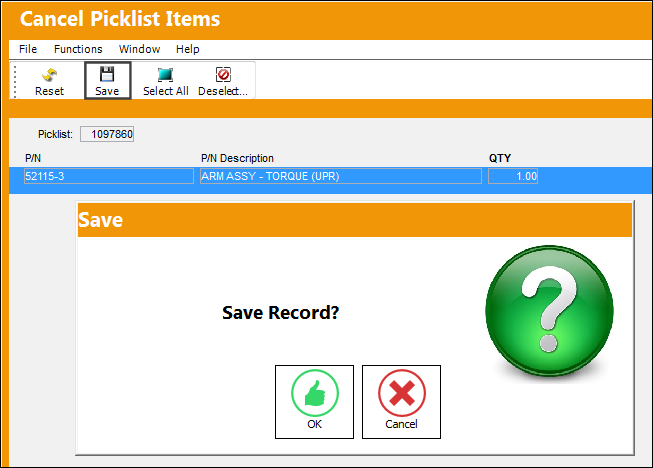
The following window will then appear. This window will show each individual item that is reserved on the Picklist. Select the items to remove by clicking on them to highlight them as shown. Once all items have been selected, select the Save  button. The items will then be removed from the Picklist.
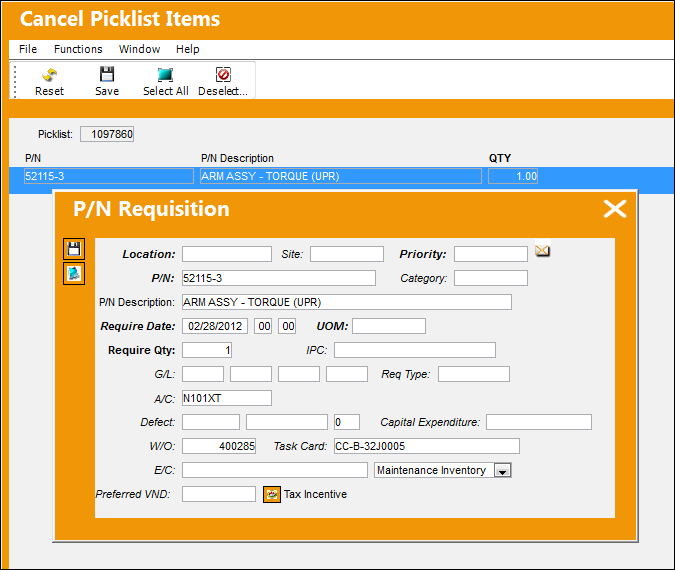
The user removing the items will need to make sure that a suitable alternative is provided. The following P/N Requisition prompt appears to help ensure that a replacement part is secured in place of the canceled Picklist item.
Share
Print
|
©1997-2026 Trax USA Corp. All rights reserved. This manual may not be copied, photocopied, reproduced, translated, or converted to any electronic or machine-readable form, in whole or in part, without prior written approval from Trax USA Corp. |
 |