
 Share
Share
 Print
Print
|
|
|
|
|


The Picklist button can be found when creating a new Work Order and in Production/ Update/ Work Order Reservation Control.
The Picklistbutton will automatically reserve inventory parts for a Work Order. The Picklist will be created and can be printed at this stage or later if required.
The system can generate Picklists for materials that are required to complete the Work Order. Click on the Picklistbutton to automatically generate Picklists for the selected Work Order. If required, Individual Picklists can be created via Inventory/Update/Picklist Creation.
Parts on the Task Cards must be effective to the aircraft that they are being reserved for, otherwise they will not appear on the Picklist. Work Orders that do not contain effectivity will reserve all P/N's regardless. The items on the Picklist can only be issued to the Work Order that they have been reserved for.
When the Picklistbutton is used, Picklists for any Sub-Work Orders associated with the currently selected Work Order will be automatically created also.
The following steps are involved in the Work Order Reservation Control process.
Via Engineering/Update/Task Card - The Task Card is created. Parts are placed on the Task Card (via Engineering/Update/Task Card/P/N button). The parts on the Task Card will be the parts that appear on the Picklist. Picklists will be generated only for Task Cards that are on the currently selected Work Order. Please refer to the Engineering manual for additional information regarding creating a Task Card and associating parts if required.
Via Production/Update/Work Order - The Work Order is created.
Via Production/Update/Work Order - Following creation of the Work Order, any materials or labor that are required for the work can be automatically reserved. The time of reservation will depend on company policy. For example, a heavy maintenance check may be reserved one month in advance, while a light maintenance check may be one week in advance. The Picklist is created for the Work Order using the Picklistbutton. The parts on the Task Card will be the parts that appear on the Picklist. Picklists for any Sub-Work Orders associated with the currently selected Work Order will be automatically created also.
Via Inventory/Update/Inventory Transaction - The Picklist Issue  button is used to issue the Picklist to the Work Order. Any associated costs will be allocated to that work.
Go to Production/ Update/ W/O Reservation Control
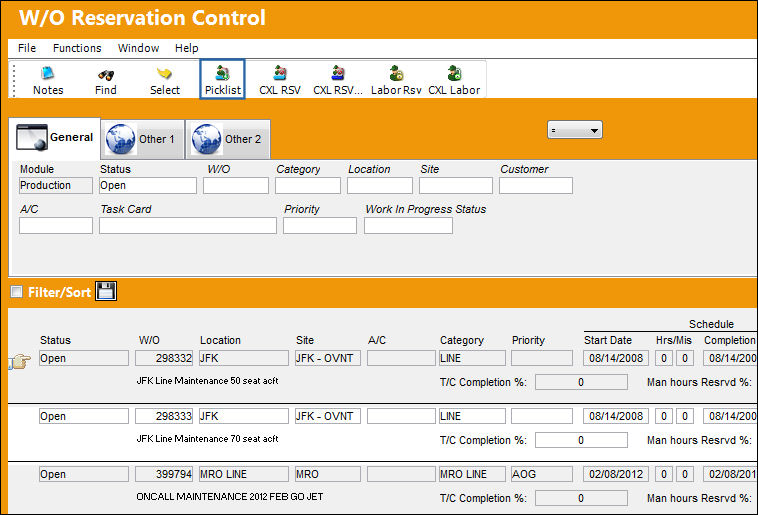
Select the Picklist button to automatically generate Picklists for the selected Work Order.
The user may create individual picklists via Inventory/ Update/ Picklist Creation.
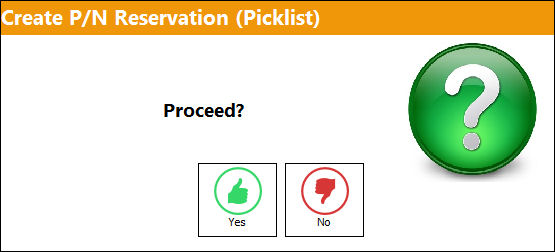
The Create P/N Reservation (Picklist) pop-up appears. Select 'Yes'.
The user may be asked for the relevant Location from which the Picklist should be created, Delivery Location and Delivery Site.
A progress gauge will display to show how the reservation is progressing.
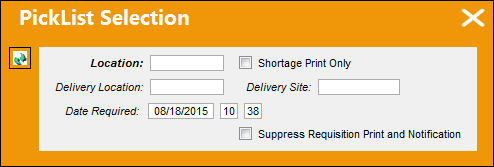
The following information/options are available in this window:
_____________________________________________________________________________________
Location
The inventory location the user wants to issue parts from.
Delivery Location
The location to which the part(s) is being delivered.
Date Required
The date that the item(s) is/are required by.
Shortage Print Only checkbox
Delivery Site
Site to which part(s) will be delivered.
Suppress Requisition Print and Notification checkbox
_____________________________________________________________________________________
The system will then print Picklists for the materials it has found available in stores.
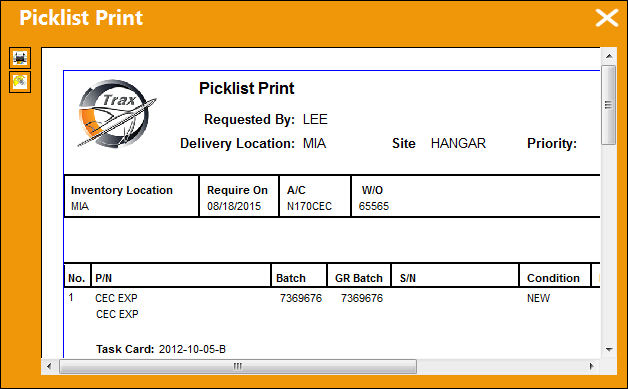
Any items that are not available will either have requisitions created automatically and/or a print of “shortage” items will be created (depending on configuration switch).
The Stores personnel will collect the items from the Picklists and issue them to the Work Order as required.
Share
Print
|
©1997-2026 Trax USA Corp. All rights reserved. This manual may not be copied, photocopied, reproduced, translated, or converted to any electronic or machine-readable form, in whole or in part, without prior written approval from Trax USA Corp. |
 |