
 Share
Share
 Print
Print
|
|
|
|
|


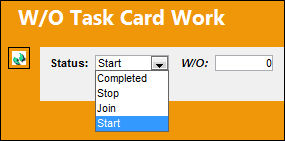
Select status START, enter the Work Order and Task Card and select the Find  button.
The following window will display:
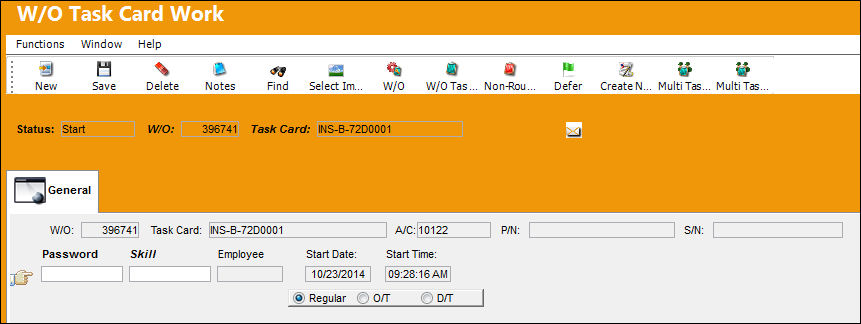
The user must enter their Password to sign-on to the Task Card. Please refer to the System Administration manual for information regarding setting up Wall Security that is available for this option. The system will verify the users license qualification to make sure that they have the correct license and that the license is not expired. If more than one person needs to sign-on to the same Task Card at the same time, select the New  button and the system will add more lines to allow more personnel to sign on. Click on the Save
  button when finished. The system will now count time against that Task Card. If any additional data must be added, it should be done at this point. The data that is available for entry is as follows:
_____________________________________________________________________________________
Notes  button
Any progress notes or findings on the Task Card can be entered by clicking on this button.
P/N Inst/Rmv  button
If a component change took place, click this button and enter the component change data.
Non-Routine  button
If the user requires to raise a Non-Routine Task Card from the current findings, click on this button.
Multi Task Card  button
Click the Multi Task Card button to add a Task Card to an existing Work Group. Please refer to the Multi Task Card button section for additional information.
Delete  button
Select this button to delete the selected employee's sign-on record, which indicates that the employee worked on the W/O T/C at a certain time.
 This button is security controlled via Production/ Update/ W/O Task Card Work In Progress/ W/O Task Card Work Delete. For more information refer to the Security Explorer via the System Administration Training Manual.
_____________________________________________________________________________________
Multi Task Card Sign Off - Click the Multi Task Card Sign Off button to sign off of multiple Task Cards at once. Please refer to the Multi Task Card Sign Off section for additional information.
Once you have entered the required data and clicked on the Select  button (if applicable), then you can select the Save button.
If Stop was chosen for the card, then the status of the card will go to Open. If Completed was chosen for the card, then the status of the card will go to Closed.
Once all Task Cards have been completed for a Work Order, the status of a Work Order will automatically be set to Completed.
Share
Print
|
©1997-2026 Trax USA Corp. All rights reserved. This manual may not be copied, photocopied, reproduced, translated, or converted to any electronic or machine-readable form, in whole or in part, without prior written approval from Trax USA Corp. |
 |