
 Share
Share
 Print
Print
|
|
|
|
|


From the Employee Master screen, users can setup the biometric data for the employees. This can be used instead of or in addition to the Wall Password.
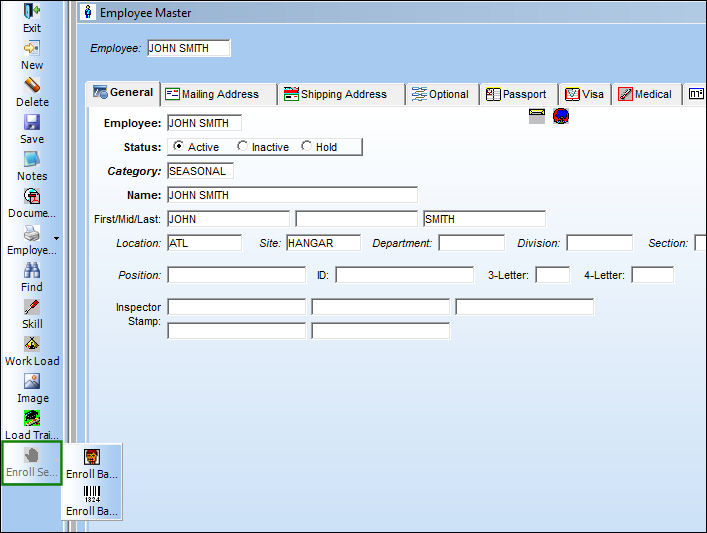
TRAX displays the Employee Master Window as shown below. Select the Enroll Fingerprint  button as highlighted below:
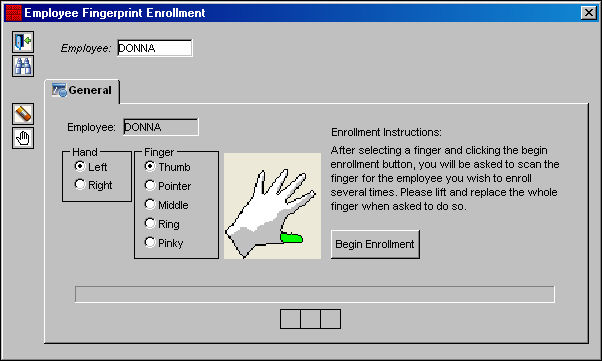
TRAX displays the Employee Fingerprint Enrollment Window:
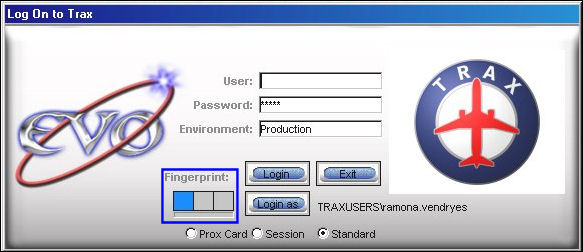
The Security sign in screen also uses the biometric facility. The screen will show the status of the scanner.
- Blue light - active and waiting for scan.
- Yellow lights - scan in progress.
- Green lights - user authenticated.
- Red lights - user not authenticated.
The ‘Wall Password’ feature also contains the biometric indicator as follows:

The biometric indicator is only activated if a biometric scanner is attached to the PC session.
Share
Print
|
©1997-2026 Trax USA Corp. All rights reserved. This manual may not be copied, photocopied, reproduced, translated, or converted to any electronic or machine-readable form, in whole or in part, without prior written approval from Trax USA Corp. |
 |