
 Share
Share
 Print
Print
|
|
|
|
|


From the Employee Master screen, users can setup the Proximity Reader for the employees (which can be used instead of or in addition to the Wall Password).
The user must have security to use the Proximity Card Enroll Badge in the Employee Master via Settings.
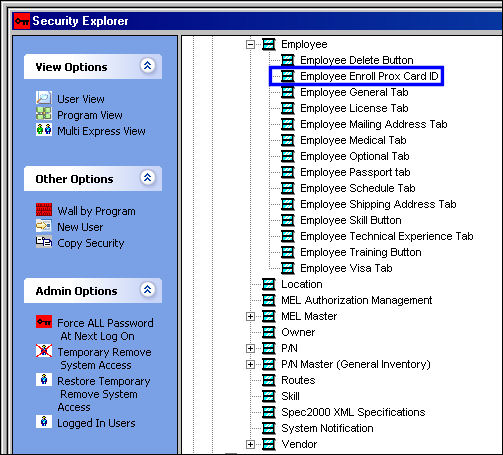
Go to Settings/Update/Employee Master
TRAX displays the Employee Master Window. Find an already existing employee, or create a new one.
For additional information on how to enter a new employee, refer to the Employee Master, General Tab.
Select the Enroll Badge  button as highlighted below:
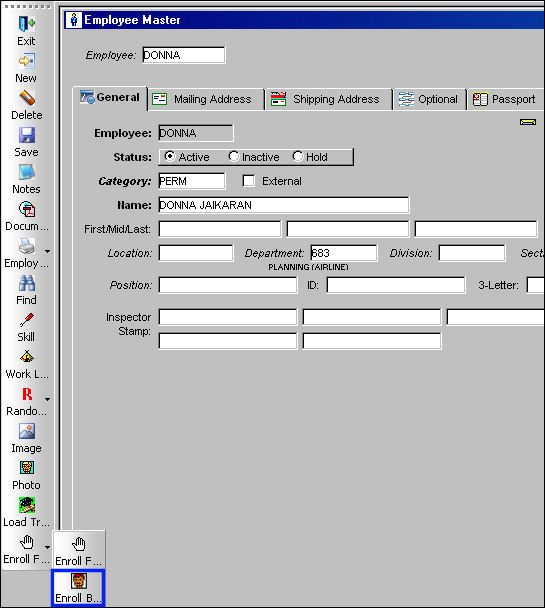
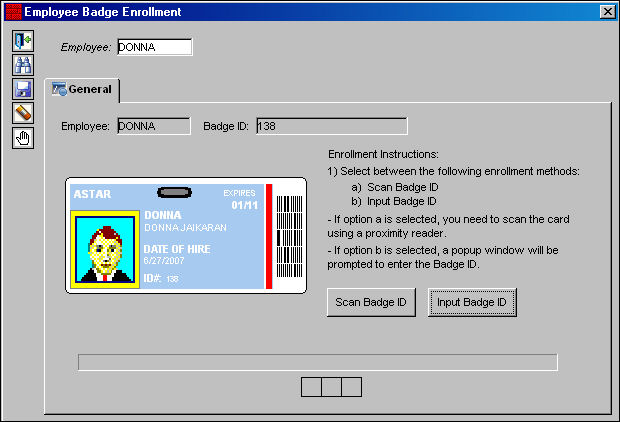
TRAX displays the Employee Badge Enrollment window. Select either option a) Scan Badge ID, or option b) Input Badge ID.
Option A) Scan Badge ID:
Select the Scan Badge ID button.
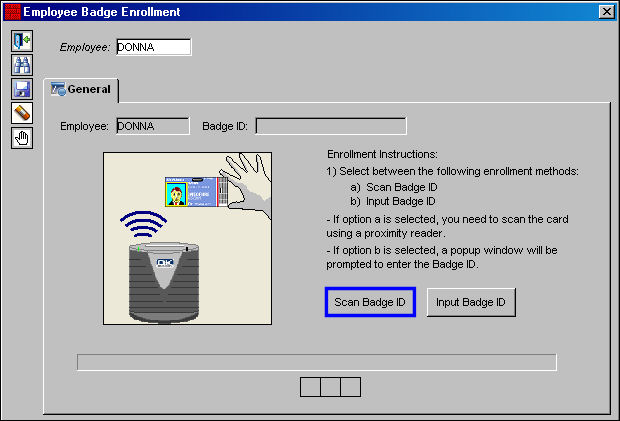
The user must scan the card on the Proximity Card sensor that has been installed on the PC. A blue light will appear on the bottom of the screen showing the user when to scan the card.
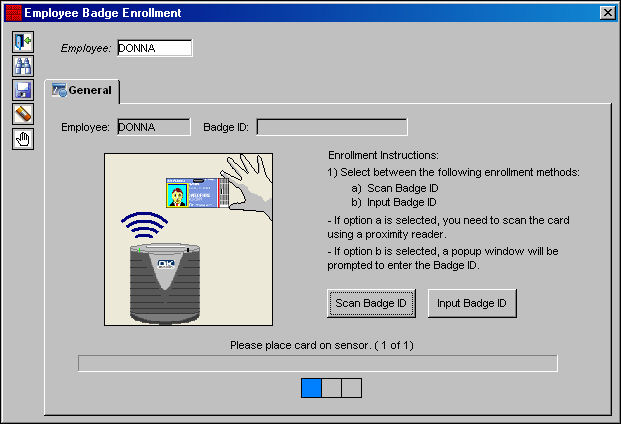
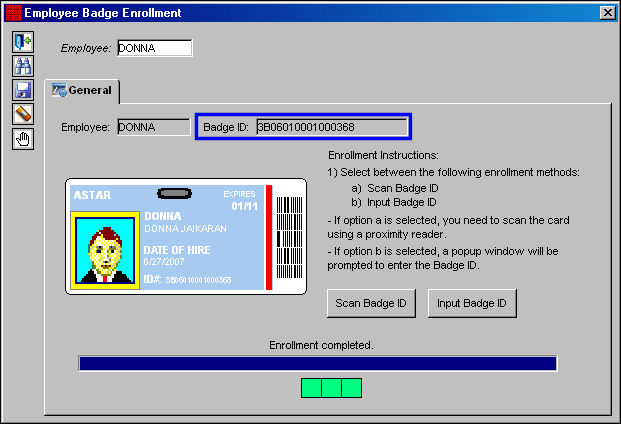
Once the card is scanned, the Badge ID will appear as shown below, and the enrollment will appear completed at the bottom of the screen. Go to the TRAX Log On window.
The Badge scanner will appear on the Log On to TRAX window. Select the Prox Card radio button. Scan the card once more.
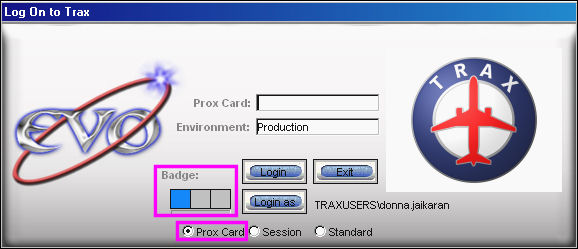
The screen will show the status of the reader:
- Blue light - active and waiting for scan.
- Yellow lights - scan in progress.
- Green lights - user authenticated.
- Red lights - user not authenticated.
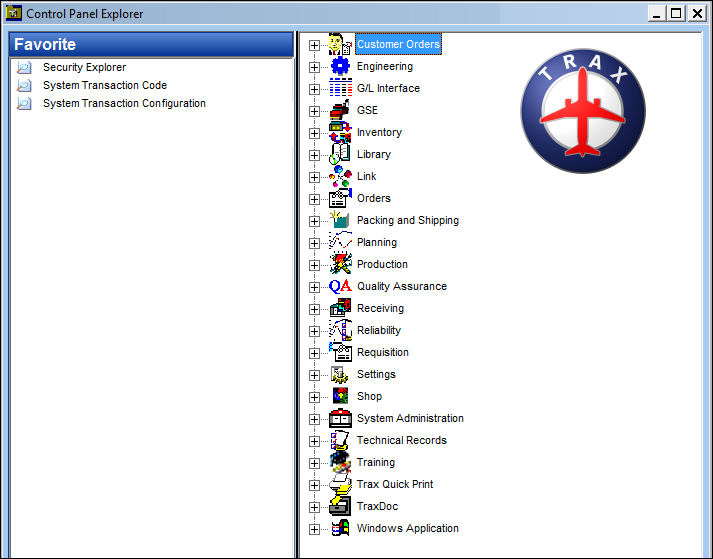
The user is signed in and The TRAX control panel is displayed below:
Option B) Input Badge ID:
Select the Input Badge ID button.
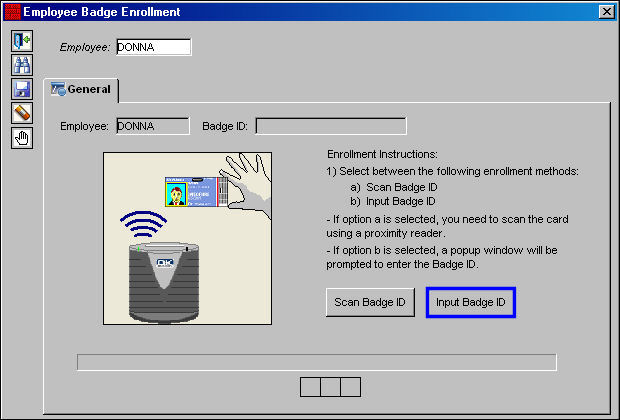
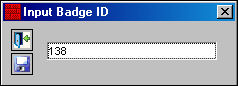
The Input Badge ID window appears. Enter Badge ID and select the Save  button.
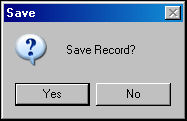
The Save prompt will appear. Select 'Yes.'
The employee's badge and ID appear in the following window. Select the Save button. Go to the TRAX Log On window.
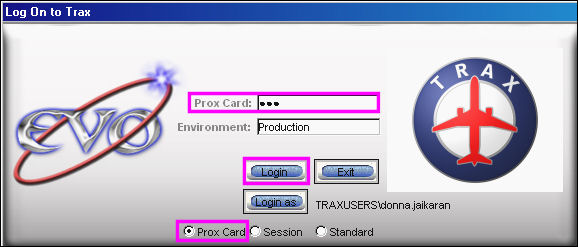
Select the Prox Card radio button and enter the Prox Card sign in for the above user. Select the Login button.
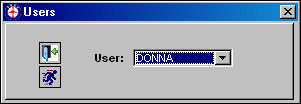
The Users pop-up appears. Select the Run  button.
The user is signed in and the TRAX control panel is displayed below:
Share
Print
|
©1997-2026 Trax USA Corp. All rights reserved. This manual may not be copied, photocopied, reproduced, translated, or converted to any electronic or machine-readable form, in whole or in part, without prior written approval from Trax USA Corp. |
 |