
 Share
Share
 Print
Print
|
|
|
|
|


InvoiceWorks Purchase Orders and Inbound Notification
InvoiceWorks Purchase Orders
TRAX can send Purchase Orders out, using the InvoiceWorks XML format. The format can be found at:
http://www.ipayables.com/interfaces.html
This is useful for vendors where they will send you invoices electronically. You must first send them the purchase orders so they can invoice you using the same PO number you gave them.
Until further notice, please be sure to use the XSD’s that TRAX provides in order to send the XML messages.
The XSD to see is:
InvoiceWorks.xsd
The function within the XSD is:
queryRecords_Purchase_Order
To do the interface, build an object with the XSD and send the data to the function:
sendInterfaceMessage
In the Interface_Audit webservice, which is located at: http://weblogs.trax.aero/WebModuleTraxInterface/services/Interface_Audit?wsdl
Where weblogs.trax.aero is your TRAX interface server.
In order to use this interface, you must also request that TRAX send you a trigger to put on the database that will send the records to InvoiceWorks.
Notifications for Purchase Orders Inbound
The interface could be set to send e-mails or notes as the incoming purchase orders updates are being performed to inform users of exceptions rose during this process.
Service:
Purchase_Orders
Description:
By setting up System Transaction Code “INVOICEWORKS_PO_INBOUND” as follows:
On TRAX\SETTINGS\EXPLORER\SYSTEM TRANSACTION CODE
Expand the Settings section
Create a New record on “Interface API”:
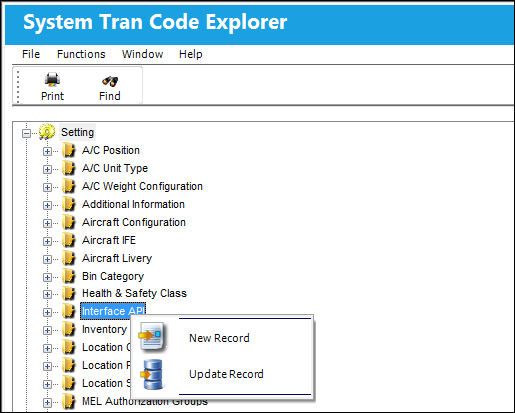
Insert the System Code: “INVOICEWORKS_PO_INBOUND” and a description for the code then add the e-mail addresses and user names that these notices are intended to.
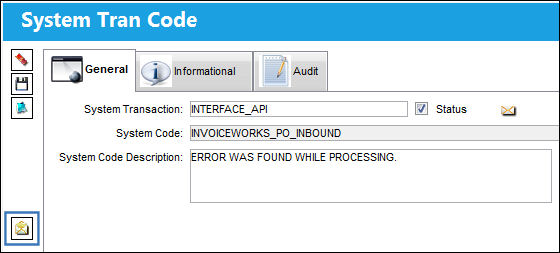
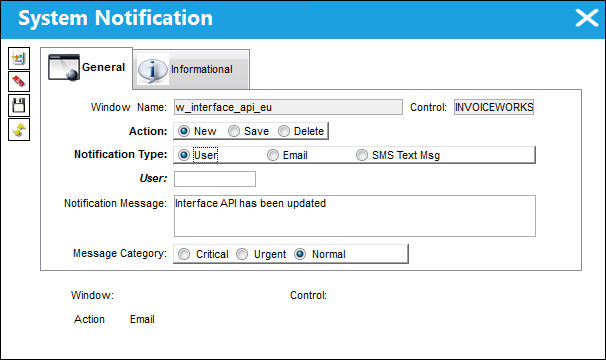
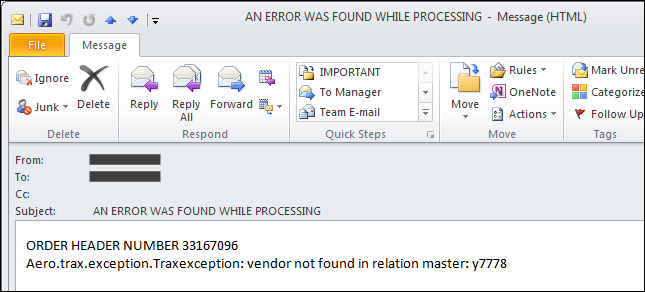
You will receive an e-mail or message with this format informing you of exceptions rose by the update:
Share
Print
|
©1997-2026 Trax USA Corp. All rights reserved. This manual may not be copied, photocopied, reproduced, translated, or converted to any electronic or machine-readable form, in whole or in part, without prior written approval from Trax USA Corp. |
 |