
 Share
Share
 Print
Print
|
|
|
|
|


Import Button, via P/N Initial Multi Load
The Import  button is used to quickly import parts that belong to a customer or vendor into Inventory in TRAX. This option allows the vendor to create a digital file listing these parts and related information for the import of parts that are owned by a customer or vendor, but will be managed within the TRAX system.
First, the user must prepare the file. For information regarding how to prepare the import file, refer to Preparing File For Import, via the Import Button of the System Standards Training Manual.
Criteria for Owned P/Ns file:
Release |
Column Name |
Data Type |
Limitation |
Path |
|
Part Number |
Alphanumeric |
35 |
Inventory/ Update/ P/N Initial Multi Load/ General tab |
|
Serial Number |
Alphanumeric |
20 |
Inventory/ Update/ P/N Initial Multi Load/ General tab |
|
Description |
Alphanumeric |
50 |
Inventory/ Update/ P/N Initial Multi Load/ General tab |
|
Qty |
Numeric |
6 |
Inventory/ Update/ P/N Initial Multi Load/ General tab |
|
Condition |
Alphanumeric |
8 |
Inventory/ Update/ P/N Initial Multi Load/ General tab |
|
Shelf Life |
Numeric |
8 |
Inventory/ Update/ P/N Initial Multi Load/ General tab |
|
Stock UOM |
|
|
|
|
P/N Software |
|
|
|
|
AWB |
Alphanumeric |
30 |
Inventory/ Update/ P/N Initial Multi Load/ General tab |
|
P/N Control 01 |
Alphanumeric |
8 |
Settings/ P/N Master/ P/N Control |
|
Actual Hours/Minutes 01 |
Alphanumeric |
20 |
Settings/ P/N Master/ P/N Control |
|
Actual Cycles 01 |
Numeric |
6 |
Settings/ P/N Master/ P/N Control |
|
Actual Days 01 |
Numeric |
6 |
Settings/ P/N Master/ P/N Control |
|
Reset Date 01 |
Numeric |
8 |
Settings/ P/N Master/ P/N Control |
|
Schedule Date 01 |
Numeric |
8 |
Inventory/ update/ Inventory Transaction, Inventory Transaction Detail/ Control button |
|
P/N Control 02 |
Alphanumeric |
8 |
Settings/ P/N Master/ P/N Control |
|
Actual Hours/Minutes 02 |
Alphanumeric |
20 |
Settings/ P/N Master/ P/N Control |
|
Actual Cycles 02 |
Numeric |
6 |
Settings/ P/N Master/ P/N Control |
|
Actual Days 02 |
Numeric |
6 |
Settings/ P/N Master/ P/N Control |
|
Reset Date 02 |
Numeric |
8 |
Settings/ P/N Master/ P/N Control |
|
Schedule Date 02 |
Numeric |
8 |
Inventory/ update/ Inventory Transaction, Inventory Transaction Detail/ Control button |
|
P/N Control 03 |
Alphanumeric |
8 |
Settings/ P/N Master/ P/N Control |
|
Actual Hours/Minutes 03 |
Alphanumeric |
20 |
Settings/ P/N Master/ P/N Control |
|
Actual Cycles 03 |
Numeric |
6 |
Settings/ P/N Master/ P/N Control |
|
Actual Days 03 |
Numeric |
6 |
Settings/ P/N Master/ P/N Control |
|
Reset Date 03 |
Numeric |
8 |
Settings/ P/N Master/ P/N Control |
|
Schedule Date 03 |
Numeric |
8 |
Inventory/ update/ Inventory Transaction, Inventory Transaction Detail/ Control button |
|
P/N Control 04 |
Alphanumeric |
8 |
Settings/ P/N Master/ P/N Control |
|
Actual Hours/Minutes 04 |
Alphanumeric |
20 |
Settings/ P/N Master/ P/N Control |
|
Actual Cycles 04 |
Numeric |
6 |
Settings/ P/N Master/ P/N Control |
|
Actual Days 04 |
Numeric |
6 |
Settings/ P/N Master/ P/N Control |
|
Reset Date 04 |
Numeric |
8 |
Settings/ P/N Master/ P/N Control |
|
Schedule Date 04 |
Alphanumeric |
8 |
Inventory/ update/ Inventory Transaction, Inventory Transaction Detail/ Control button |
|
P/N Control 05 |
Alphanumeric |
8 |
Settings/ P/N Master/ P/N Control |
|
Actual Hours/Minutes 05 |
Alphanumeric |
20 |
Settings/ P/N Master/ P/N Control |
|
Actual Cycles 05 |
Numeric |
6 |
Settings/ P/N Master/ P/N Control |
|
Actual Days 05 |
Numeric |
6 |
Settings/ P/N Master/ P/N Control |
|
Reset Date 05 |
Numeric |
8 |
Settings/ P/N Master/ P/N Control |
|
Schedule Date 05 |
Numeric |
8 |
Inventory/ update/ Inventory Transaction, Inventory Transaction Detail/ Control button |
|
Z-Log Hrs |
Numeric |
6 |
Inventory/ Update/ Inventory Transaction, Inventory Transaction Detail/ PN Total Time Breakdown button |
|
Z-Log Min |
Numeric |
6 |
Inventory/ Update/ Inventory Transaction, Inventory Transaction Detail/ PN Total Time Breakdown button |
|
Z-Log Cycles |
Numeric |
6 |
Inventory/ Update/ Inventory Transaction, Inventory Transaction Detail/ PN Total Time Breakdown button |
|
Z-Log Days |
Numeric |
6 |
Inventory/ Update/ Inventory Transaction, Inventory Transaction Detail/ PN Total Time Breakdown button |
|
Z-Log Date |
Numeric |
6 |
Inventory/ Update/ Inventory Transaction, Inventory Transaction Detail/ PN Total Time Breakdown button |
|
Accrual Hours |
Numeric |
6 |
Inventory/ update/ Inventory Transaction, Inventory Transaction Detail |
|
Accrual Cycles |
Numeric |
6 |
Inventory/ update/ Inventory Transaction, Inventory Transaction Detail |
|
Accrual Days |
Numeric |
6 |
Inventory/ update/ Inventory Transaction, Inventory Transaction Detail |
|
Birthdate |
Numeric |
6 |
Inventory/ update/ Inventory Transaction, Inventory Transaction Detail |
|
Vendor Lot |
Alphanumeric |
20 |
Inventory/ update/ Inventory Transaction, Inventory Transaction Detail |
|
Approved Certification |
Alphanumeric |
30 |
Inventory/ update/ Inventory Transaction, Inventory Transaction Detail |
|
Approved Certification Number |
Alphanumeric |
30 |
Inventory/ update/ Inventory Transaction, Inventory Transaction Detail |
|
Approved Certification Original |
Alphanumeric |
10 |
Inventory/ update/ Inventory Transaction, Inventory Transaction Detail |
|
Tag NO |
Alphanumeric |
50 |
Inventory/ update/ Inventory Transaction, Inventory Transaction Detail |
|
NHA P/N |
Alphanumeric |
35 |
Inventory/ update/ Inventory Transaction, Inventory Transaction Detail |
|
NHA S/N |
Alphanumeric |
35 |
Inventory/ update/ Inventory Transaction, Inventory Transaction Detail |
|
NLA Position |
Alphanumeric |
20 |
Inventory/ update/ Inventory Transaction, Inventory Transaction Detail |


TRAX displays the following:
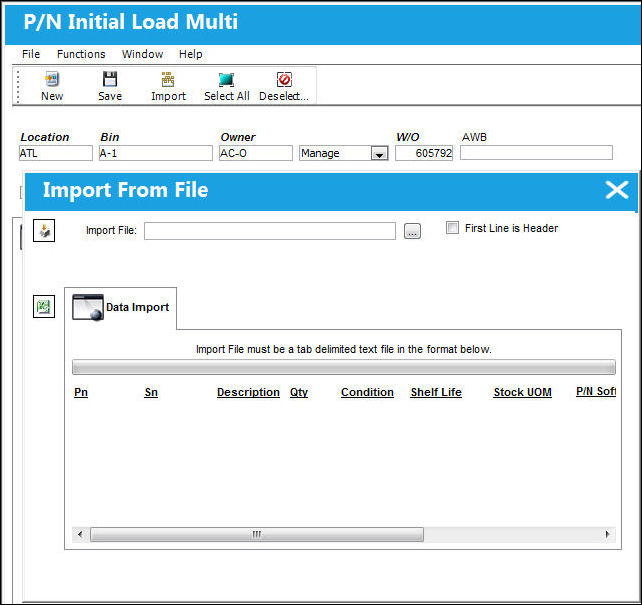
Complete all of the Import steps.
For information regarding how to Import a file, refer to Importing a File via Import Button of the System Standards Training Manual.
TRAX displays the P/N Initial Load Multi Screen as follows, with the newly imported information:
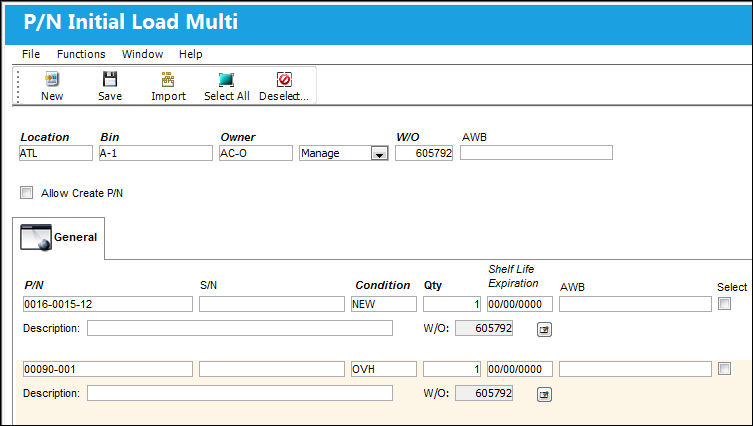
There is no limit to the number of parts that may be added or imported via text file using this option. However, it is best to make sure that as much information about the part is entered for the benefit of later use of the part.
To confirm the part listing in Inventory, go to Inventory/ Update/Inventory Transaction. Enter the P/N in the P/N field and press the Find  button.
TRAX displays the part, revealing the 'MANAGE' flag.
Share
Print
|
©1997-2026 Trax USA Corp. All rights reserved. This manual may not be copied, photocopied, reproduced, translated, or converted to any electronic or machine-readable form, in whole or in part, without prior written approval from Trax USA Corp. |
 |