
 Share
Share
 Print
Print
|
|
|
|
|


Employee Schedule Self-Management, Absence Schedule
Employees can use the Absence Schedule to view and/or schedule absences.
Select the New  button.
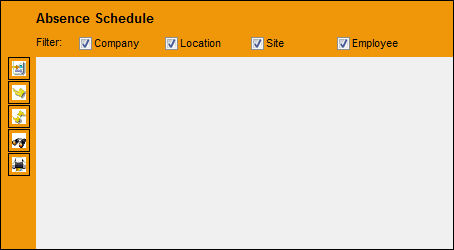
The Print  button is available in this section to generate relevant reports, as necessary.
The following information/options are available in this window:
_____________________________________________________________________________________
Company/Location/Site/Employee checkbox
Select one or more checkbox to filter for absence schedules.
_____________________________________________________________________________________
TRAX displays the following window.
Enter the information to create the absence schedule.
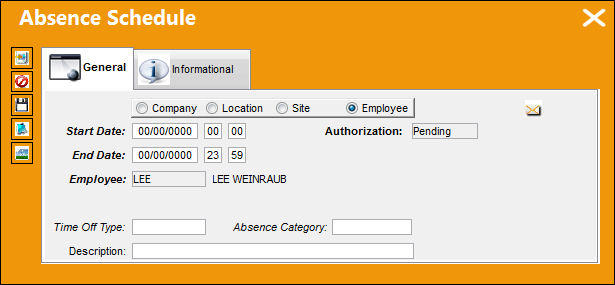
The following information/options are available in this window:
_____________________________________________________________________________________
Company/Location/Site/Employee radio buttons
Select one of the radio buttons to indicate the type of absence.
Start Date
Enter the date and time the absence will begin on.
Authorization
The authorization status of the absence:
- Accepted
- Pending
- Rejected
End Date
Enter the date and time the absence will end on.
Employee
The name of the employee who the absence is for. This will automatically default to the name of the employee who self assigned their own schedule. Employee's may not view schedules for anyone other than themselves.
Time Off Type
Select the type of time off.
Absence Category
Select the Absence Category Type.
Description
Enter a description for the absence schedule.
_____________________________________________________________________________________
The following are available for additional functionality:
- Absence Schedule, Informational Tab
- Cancel button
- Notes button
- Image button
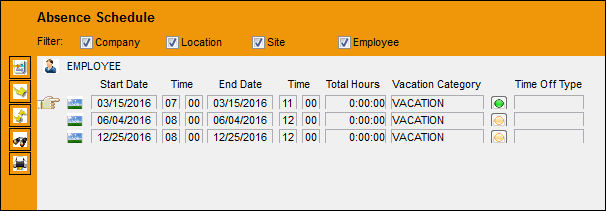
Upon saving and exiting the window, the absence will be recorded as shown below:
_____________________________________________________________________________________
Accepted Authorization  button
This button illustrates that the status of the request is 'Accepted.'
Select the Accepted Authorization button to view authorization information:
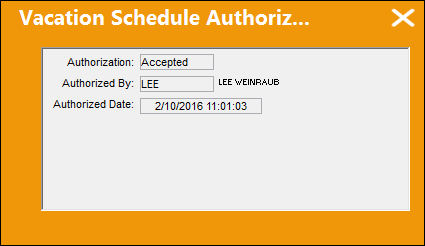
Pending Authorization  button
This button illustrates that the status of the request is 'Pending' authorization.
Select the Pending Authorization button to view the authorization information:
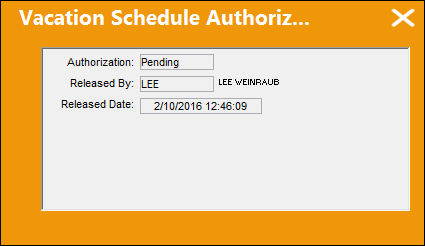
For information regarding the Authorization process of an absence request, refer to the Absence Schedule Authorization Explorer via the Planning Training manual.
Rejected Authorization  button
This button illustrates that the status of the request was 'Rejected.'
Select the Rejected Authorization button to view the authorization information:
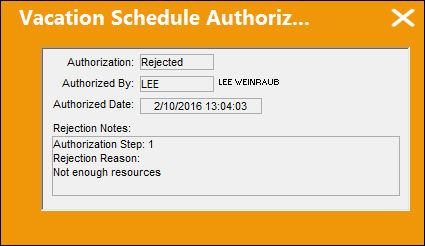
Once a request has been rejected via the Absence Schedule Authorization Explorer and appears rejected in the Absence Schedule, the user must make the necessary adjustments to have this request go to pending or accepted authorization.
For information regarding the Authorization process of an absence request, refer to the Absence Schedule Authorization Explorer via the Planning Training manual.
_____________________________________________________________________________________
Share
Print
|
©1997-2026 Trax USA Corp. All rights reserved. This manual may not be copied, photocopied, reproduced, translated, or converted to any electronic or machine-readable form, in whole or in part, without prior written approval from Trax USA Corp. |
 |