
 Share
Share
 Print
Print
|
|
|
|
|


Employee Schedule Self-Management, Override Schedule
The Override Schedule allows employees to override scheduling requests, cancel requests and or make changes to an existing schedule (i.e. coming in late, leaving early, etc.) The Override Schedule will not allow an employee to change from one scheduled shift to another (i.e. Night Shift to Daily Shift). This type of request must go through the authorization process.
In the following example, this employee has a set schedule and would like to work his scheduled five hours on the selected date (06/07/2009) but would like to come in later in the day.
For an example of how an Overtime schedule override works, see below.
First, select the Expandable  button beside the desired date. The breakdown for that date is displayed. Select (highlight) any part of the day. Since this override will affect the entire day and not just a portion, it does not matter which portion of the day (hour) is selected.
From the Override Schedule window, select the New  button.
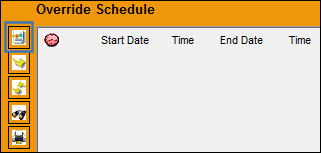
The Print  button is available in this section to generate relevant reports, as necessary.
The Man Hours Schedule Override window appears.
Most of the information is auto-populated from the date and time selected to be overridden.
Right click in the Transaction Type field and select a transaction type.
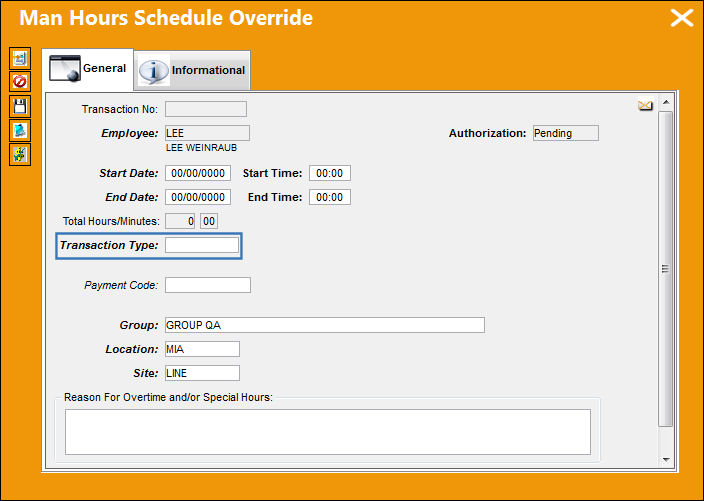
The following information/options are available in this window:
_____________________________________________________________________________________
Transaction No.
A system generated sequential number used to track transactions.
Employee
The employee whose schedule is being overridden.
Authorization
The status of the authorization for the override request (accepted, pending, rejected).
Transaction Type
Select a transaction type. If the transaction type selected requires authorization, the override request must be go through the authorization process. For information regarding the various Transaction Types, refer to Employee Attendance Transaction Type via the Planning Transaction Code Manual. For information regarding the authorization process, refer to the Schedule Override Authorization Explorer via the Planning Training Manual.
When the 'TIMECHG' or 'ADDTIME' transaction types are selected, the Daily Pattern field appears.
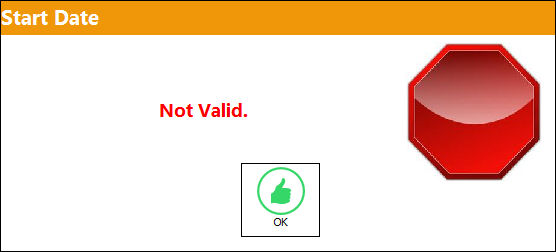
When the 'CHANGE' transaction type is selected, and the Start Date/Time and End Date/Time have not been populated, TRAX will display the following error:
Payment Code
This field determines how a user will be paid for their overtime. This field can first be inserted by a supervisor in the Man Hours Schedule Override window and can then be updated by the user in the Employee Schedule Self-Management window. (See below for detailed information.)
Daily Pattern
Select a Daily Shift Pattern schedule. For additional information regarding the Daily Shift Pattern, refer to Daily Shift Pattern via the Planning Training manual.
Group
The group the employee belongs to.
Start Date
The start date of the override request.
Start Time
The start time of the override request.
Location
The Location for maintenance events, inventory stores, orders, transactions, or training events.
End Date
The end date of the override request.
End Time
The end time of the override request.
Site
The Site where the work is to be carried out (if applicable).
Total Hours/Minutes
The total hours and minutes scheduled to be worked.
Reason For Overtime &/or Special Hours
Enter a reason for the requested overtime, special hours or time change.
_____________________________________________________________________________________
The following are also available for additional functionality:
- Man Hours Schedule Override, Informational Tab
- Cancel button
- Notes button
- Pay Validate button
Once a transaction type is selected, select the Save  button.
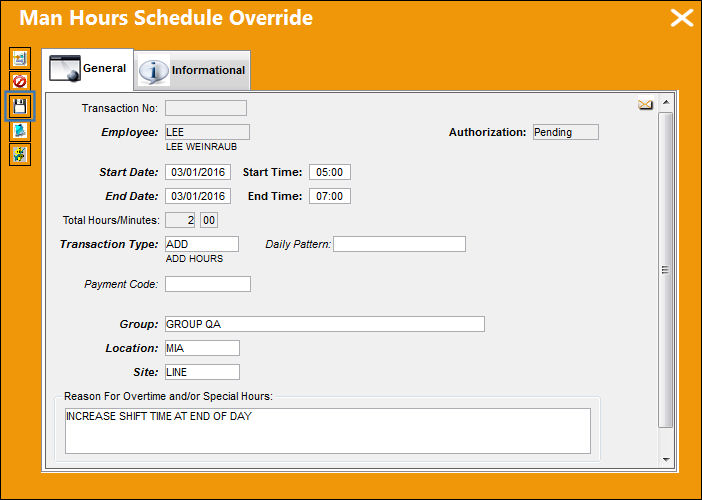
Populate all mandatory and optional information.
Select the Save button to save the override record. The Save prompt appears. Select 'OK.'
Exit out of the Man Hours Schedule Override window.
The override record appears in the Override Schedule window as shown below:
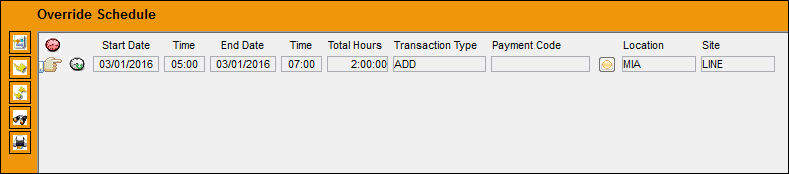
The following information/options are available in this window:
_____________________________________________________________________________________
Break  icon
icon
This icon indicates that the override request is for a scheduled break.
_____________________________________________________________________________________
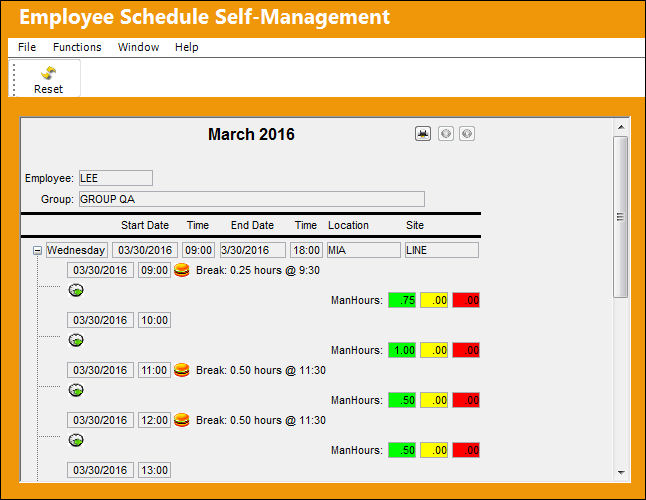
Because the transaction type selected was 'TIMECHG' the request was accepted immediately. The employees schedule was updated to reflect the override request.
Share
Print
|
©1997-2026 Trax USA Corp. All rights reserved. This manual may not be copied, photocopied, reproduced, translated, or converted to any electronic or machine-readable form, in whole or in part, without prior written approval from Trax USA Corp. |
 |