
 Share
Share
 Print
Print
|
|
|
|
|


Once a self assignment is available, select the New  button from the Override Schedule window.
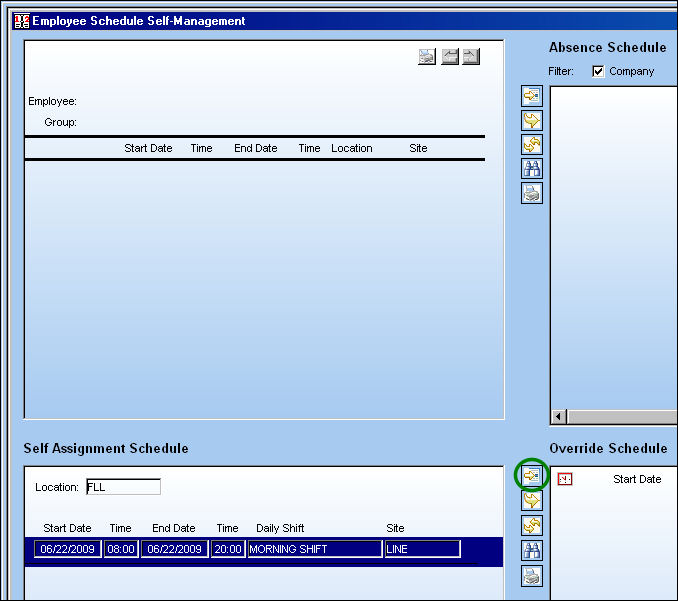
TRAX displays the Man Hours Schedule Override window.
Review the information in this window and select the Save  button. The Save prompt will appear. Select 'OK.'
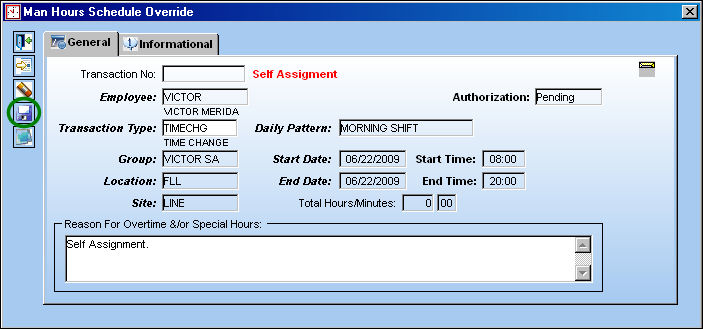
For additional information regarding the above window and the Override Schedule window, refer to Override Schedule via Employee Schedule Self Management which can be found in the Planning Training manual.
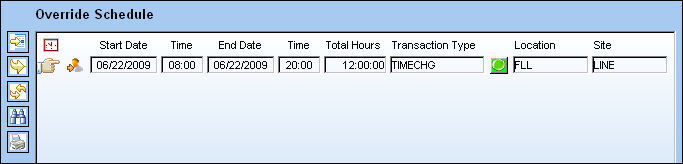
The override record appears in the Override Schedule window as shown below:
The self assignment now appears on the employees schedule as shown below:
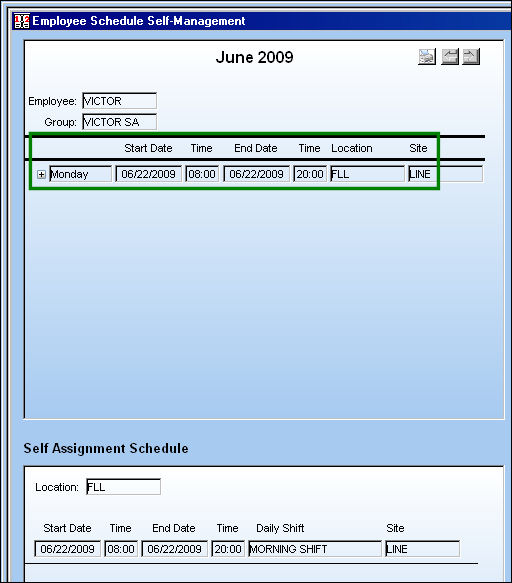
If the user would like to request a time change for this self assignment, they can do so via the Override Schedule option. Once the override request has been authorized, it will appear in the above window.
For information regarding multiple schedules, refer to Multiple Schedules via Self Assignment Schedule which can be found in the Planning Training manual.
Share
Print
|
©1997-2026 Trax USA Corp. All rights reserved. This manual may not be copied, photocopied, reproduced, translated, or converted to any electronic or machine-readable form, in whole or in part, without prior written approval from Trax USA Corp. |
 |