
 Share
Share
 Print
Print
|
|
|
|
|


Once all of the set up steps have been completed, the schedule can now be generated.
For information regarding the set up steps for the self assignment, refer to Set Up - Self Assignment Schedule via Self Assignment Schedule which can be found in the Planning Training manual.
To generate the self assignment schedule, follow the below steps:
1. Generate the Self Assignment.
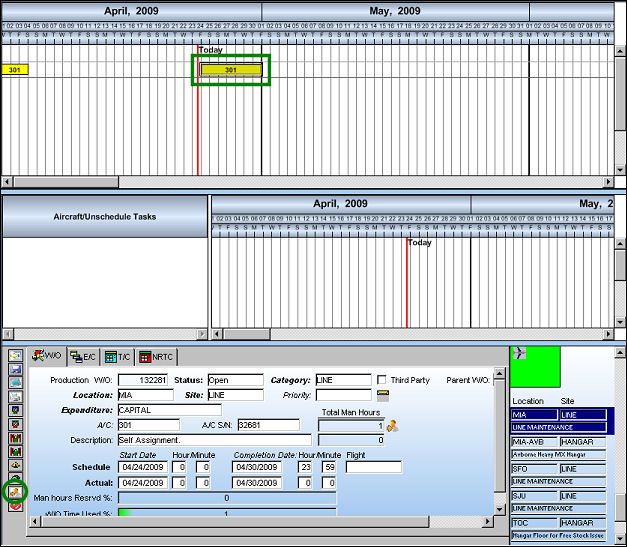
a. Go to Planning/Query/A/C Planning Query.
b. Locate the Work Order by using the A/C and Location buttons in the Display Control Area.
c. Select the Self Assignment  button.
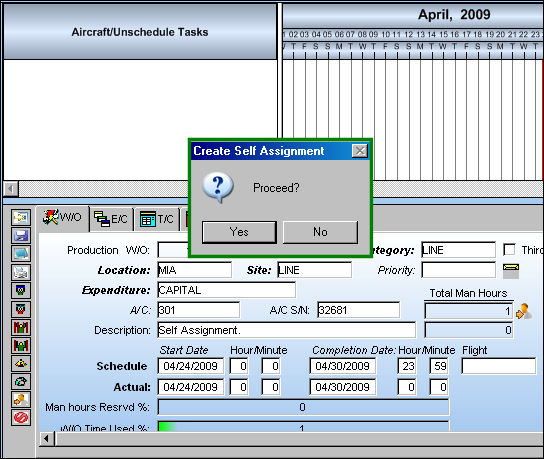
The following prompt appears.
d. Select 'Yes.'
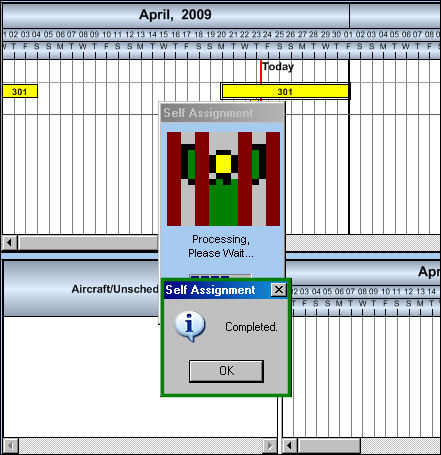
e. Once the Self Assignment has been completed, select 'OK.'
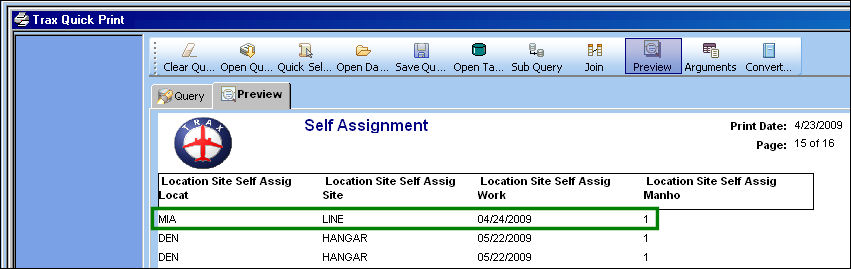
The user may view the records created in TRAX Quick Print.
For information on how to view prints, refer to the Preview Button via the Quick Print Buttons which can be found in the Quick Print Training manual.
Now that the self assignment schedule has been generated, it can be viewed. To view the schedule go to View Self Assignment Schedule via Self Assignment Schedule which can be found in the Planning Training manual.
Share
Print
|
©1997-2026 Trax USA Corp. All rights reserved. This manual may not be copied, photocopied, reproduced, translated, or converted to any electronic or machine-readable form, in whole or in part, without prior written approval from Trax USA Corp. |
 |