
 Share
Share
 Print
Print
|
|
|
|
|


Schedule Override Authorization Explorer
The Man Hours Schedule Override Authorization Explorer allows the user to review, reserve, accept, and/or reject vacation requests that have been released for authorization. The authorization process can be as simple as a one step authorization, or as complex as the user would like, such as a five or ten step authorization process. The actual authorization configuration process is user-defined based upon each users' individual business process needs, and can be set up via the Absence Category System Transaction Codes.
Once an absence request has been released for authorization via the Override Schedule option, go to Planning/Explorer/Schedule Override Authorization Explorer.
TRAX displays all override requests:
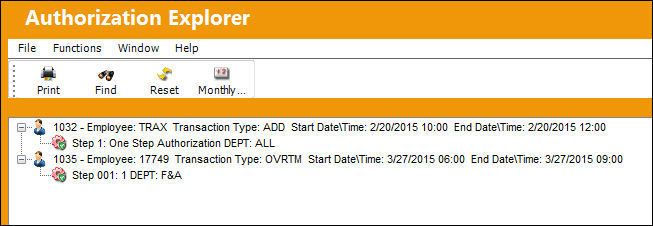
In the Schedule Override Authorization process, there are no Parallel or Parent Child Authorization Steps, so steps must be accepted in order. For example Authorization Step 001, followed by 002, then 003 and so on, until all the Authorization Steps have been accepted.
_____________________________________________________________________________________
Current/Pending Step  icon
icon
The current open Schedule Override Authorization Step(s) that is pending acceptance.
Green Status  icon
icon
A Schedule Override Authorization Step that has been accepted.
Red Status  icon
icon
A Schedule Override Authorization Step that is pending prior steps to be accepted. These steps cannot be accepted until the prior step(s) have been accepted.
Reset  button
Select the Reset button to refresh any authorization steps that have been performed.
_____________________________________________________________________________________
The Monthly OT  button is also available for additional functionality.
To authorize the first Step, select and right click the Authorization Step. In this example it is Authorization Step 001.
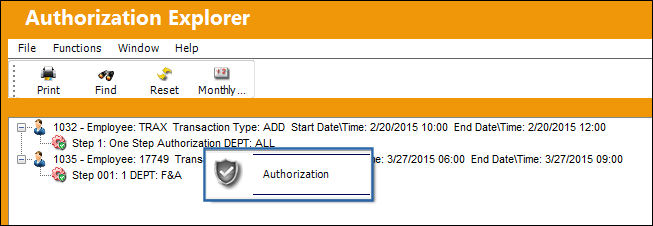
The authorization option becomes available. Select the Authorization button.
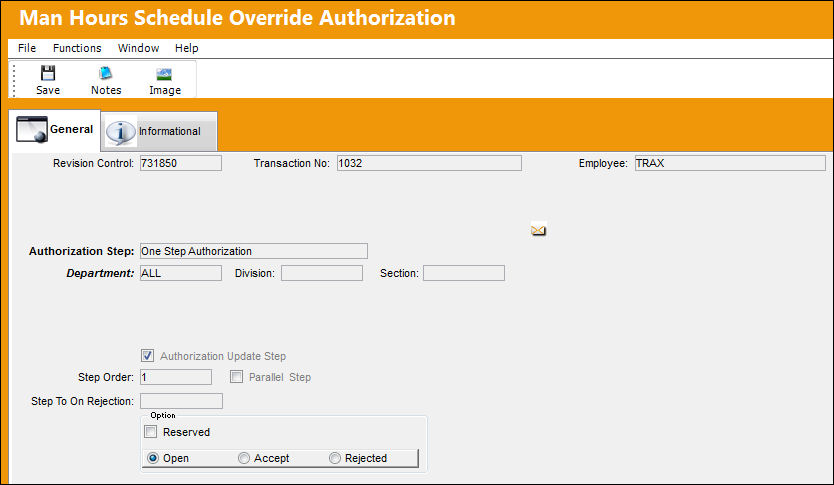
TRAX displays the Man Hours Schedule Override Authorization window:
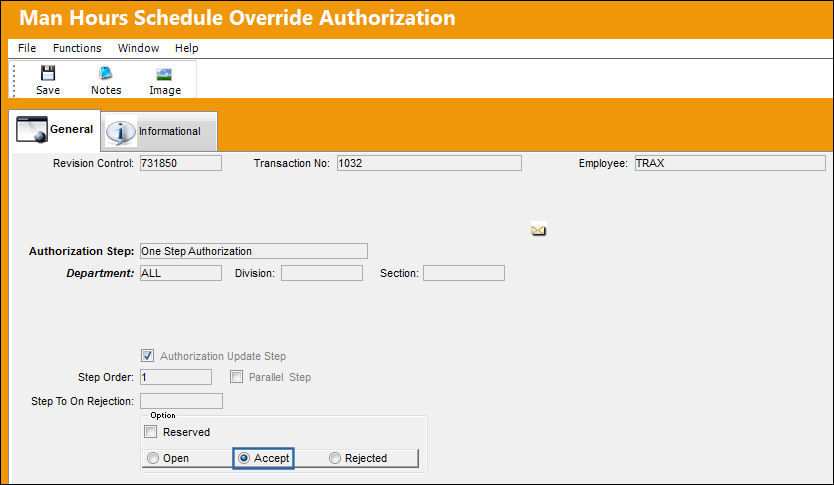
Select the 'Accept' radio button and select the Save  button. The Save prompt appears. Select 'OK.'
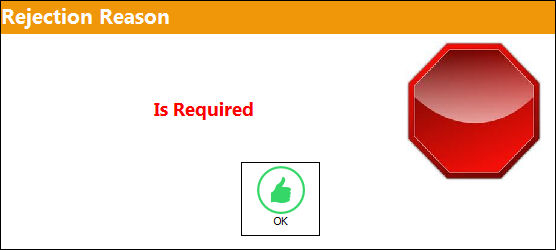
The user may also choose to reject an Absence Schedule Authorization Step. Select the Rejected radio button and select the Save button. When rejecting an Authorization Step, the Rejection Reason field shows in the window. It is mandatory to populate the reason then rejecting an Authorization Step. The user also has the option to Reserve a Rejected Authorization Step.
If a user rejects an Authorization Step and does not enter a Rejection Reason, the following prompt will appear and a reason must be entered:
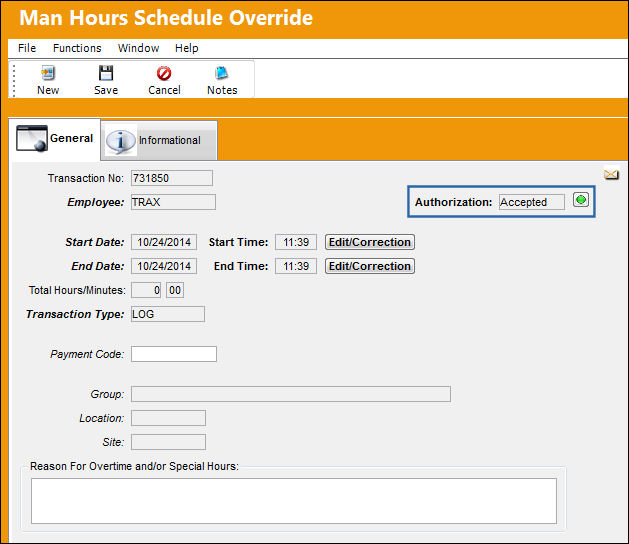
Once all authorization steps are authorized, the absence request will change from 'Pending' to 'Accepted.'
The Override request has changed from 'Pending' to 'Accepted' in the Override Schedule window as shown below:
Share
Print
|
©1997-2026 Trax USA Corp. All rights reserved. This manual may not be copied, photocopied, reproduced, translated, or converted to any electronic or machine-readable form, in whole or in part, without prior written approval from Trax USA Corp. |
 |