
 Share
Share
 Print
Print
|
|
|
|
|


The Man Hours Schedule Override is used to adjust an employee's schedule for any given workday. Users can specify the time and date of the override as well as define the reason for the schedule adjustment. The Override window can be accessed through the Man Hour Schedule Planner window.
To begin, right-click on the employee's green schedule in the Work Schedule Calendar portion of the window. The Wall Password prompt will appear.
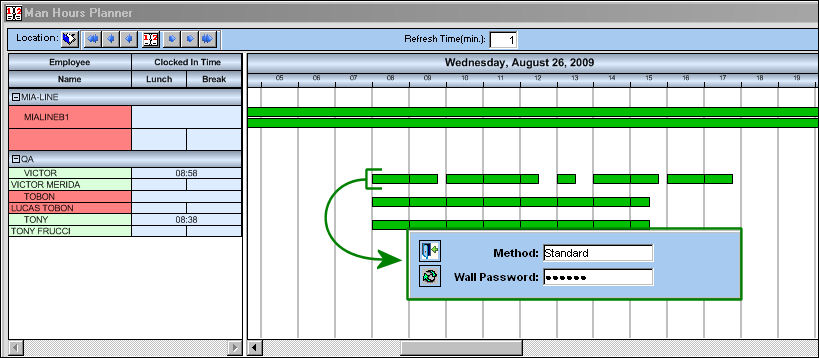
Once the Wall Password is entered the Man Hours Schedule Override window appears.
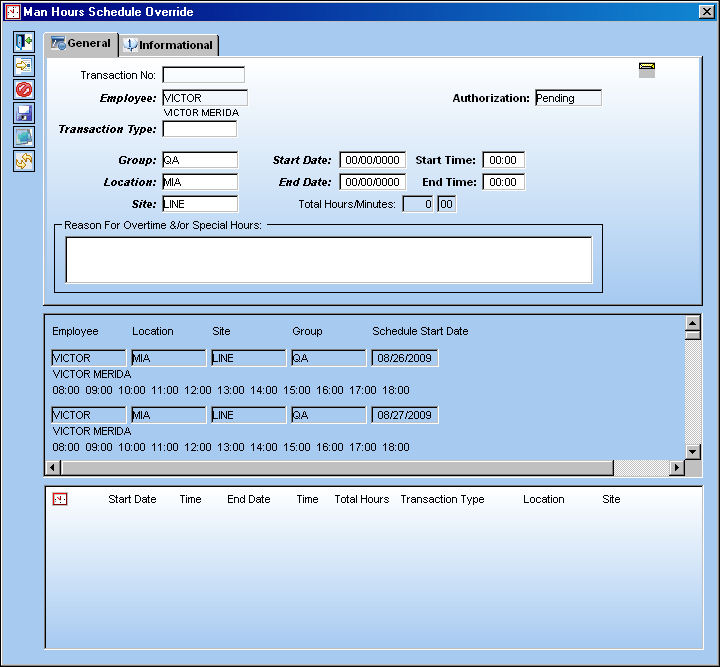
The following information/options are available in this window:
_____________________________________________________________________________________
Transaction No.
The sequential number for each override transaction.
Employee
The Employee whose schedule is being overridden.
Authorization
The Authorization status for the override transaction.
Transaction Type
The type of override being created. The options are as follows:
- Hazmat
- Other
- Overtime
- Personal
- Self Assignment
- Time Change
When the Time Change transaction type is selected the Daily Pattern field appears. The Daily Pattern refers to the previously created daily shift pattern that will replace the currently scheduled pattern.

Group
The work group that the Employee belongs to as created and modified through the Man Hours Schedule window.
Location
The Location for maintenance events, inventory stores, orders, transactions, or training events. The Location of the Employee and Group.
Site
The Site where the work is to be carried out (if applicable).
Start Date/Time
The start date and time of the schedule override.
End Date/Time
The end date and time of the schedule override.
Total Hours/Minutes
The total amount of time the override will take.
Reason for Override &/or Special Hours
A free text field provided for an explanation of the reason for the override.
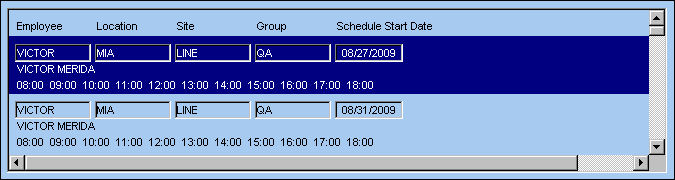
Override Schedule Date/Time field
This portion of the Override window displays the different available daily options for rescheduling. Users can select the day and schedule they would like the override to affect. Once selected the Start and End Date/Time fields will be auto-populated with the chosen information.
Override Transactions field
Once the Overrides are saved, the transactions are listed in this field.
_____________________________________________________________________________________
Select a Transaction Type. For this example the 'Time Change' Transaction Type is used. When entered, the Daily Pattern field appears. Populate the Daily Pattern field with a previously created pattern via the Daily Shift Pattern.
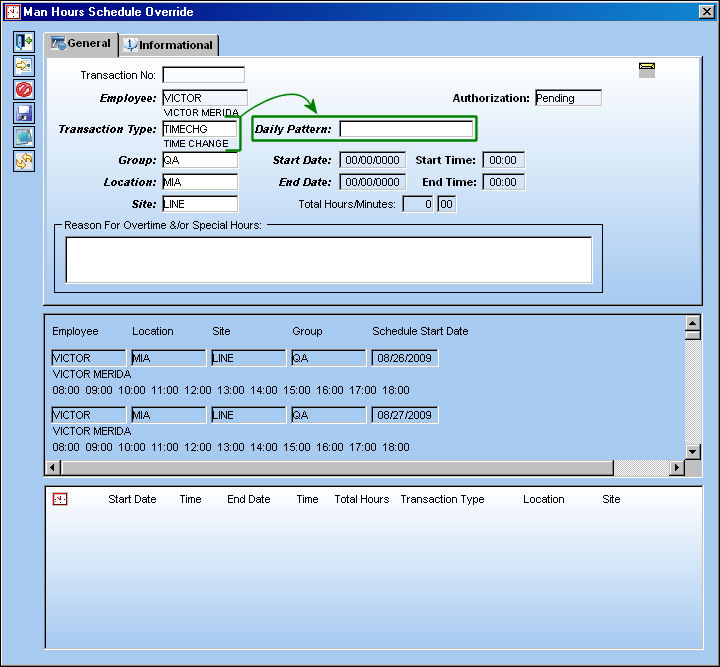
When the 'Time Change' transaction is entered, select a date schedule from the Override Schedule Date/Time field to populate the Start Date/Time and End Date/Time fields. The Daily Pattern entered above will affect this selected date and time.
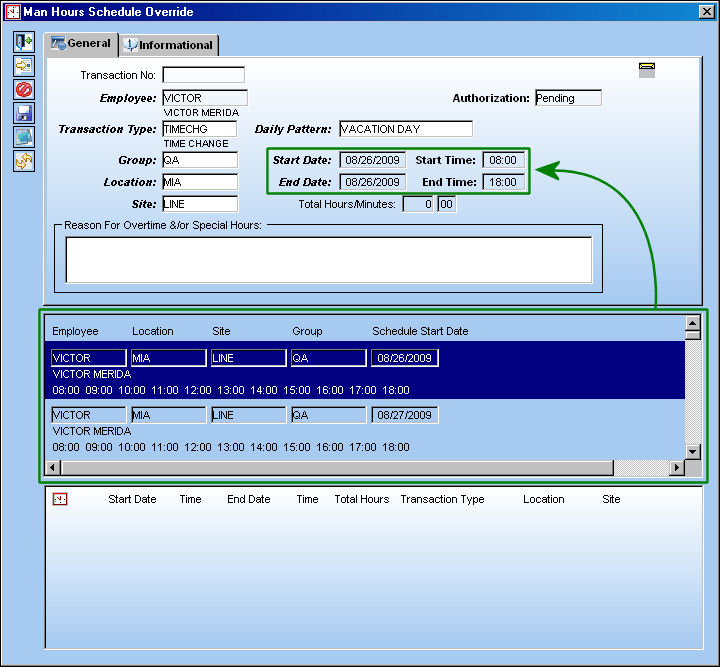
When the required fields have been entered, select the Save  button to save the transaction. After saving, notice the transaction is displayed in the bottom of the screen.
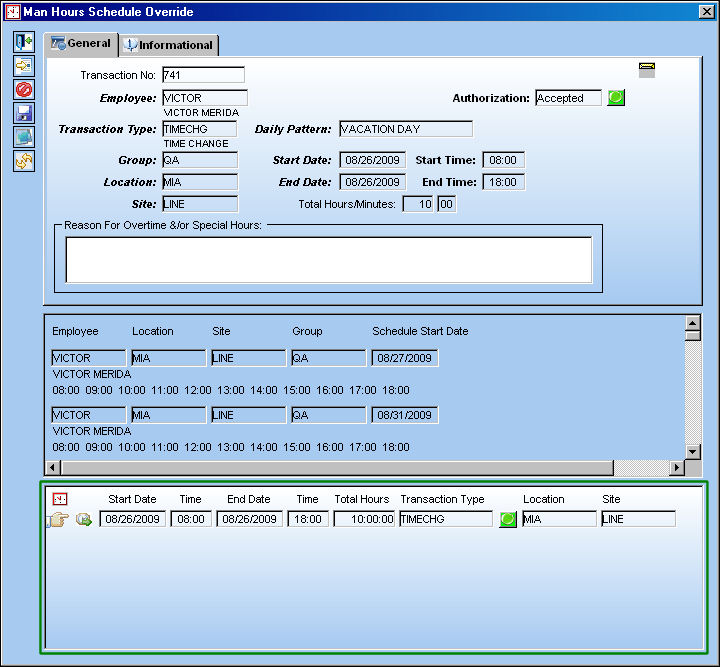
Authorization may be depending on the Transaction Type Trans Code. For the above example, the Authorization Required checkbox was not selected meaning authorization was automatic upon saving.
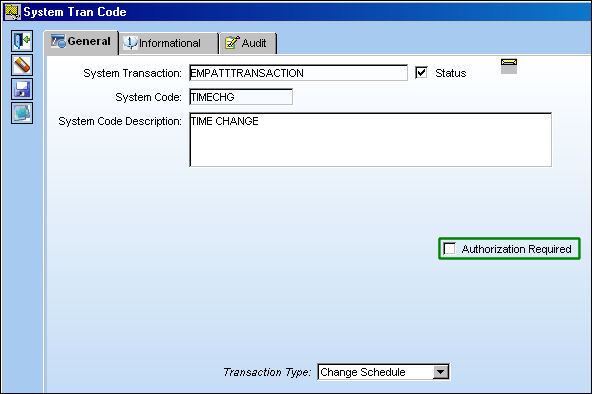
For more information refer to the Employee Attendance Transaction Type via the Planning Transaction Code Manual.
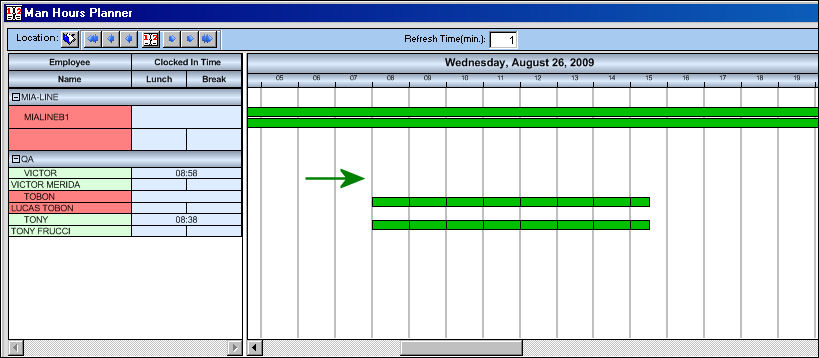
Exit the Override window and notice that the new schedule has replaced the original schedule for the day. (The new schedule added is a 'Vacation Day', meaning the employee does not have a schedule for this day.)
Share
Print
|
©1997-2026 Trax USA Corp. All rights reserved. This manual may not be copied, photocopied, reproduced, translated, or converted to any electronic or machine-readable form, in whole or in part, without prior written approval from Trax USA Corp. |
 |