
 Share
Share
 Print
Print
|
|
|
|
|


Work Schedule Calendar, via Man Hours Planner
The Work Schedule Calendar displays the work schedule for the members of the groups listed to the left of the calendar. From this portion of the window, users can perform daily schedule adjustments through the override functionality. The listed schedule is created for the group members via the Man Hours Schedule window and is generated through the Man Hours Schedule Generation window. Refer to those windows for more information.
This window is accessed via Planning/Query/Man Hours Schedule Planner. Once in the window, select the location and site through the Location  button for the specific groups. The calendar will start with the current date listed along with the Current Date/Time line indicating the present time.
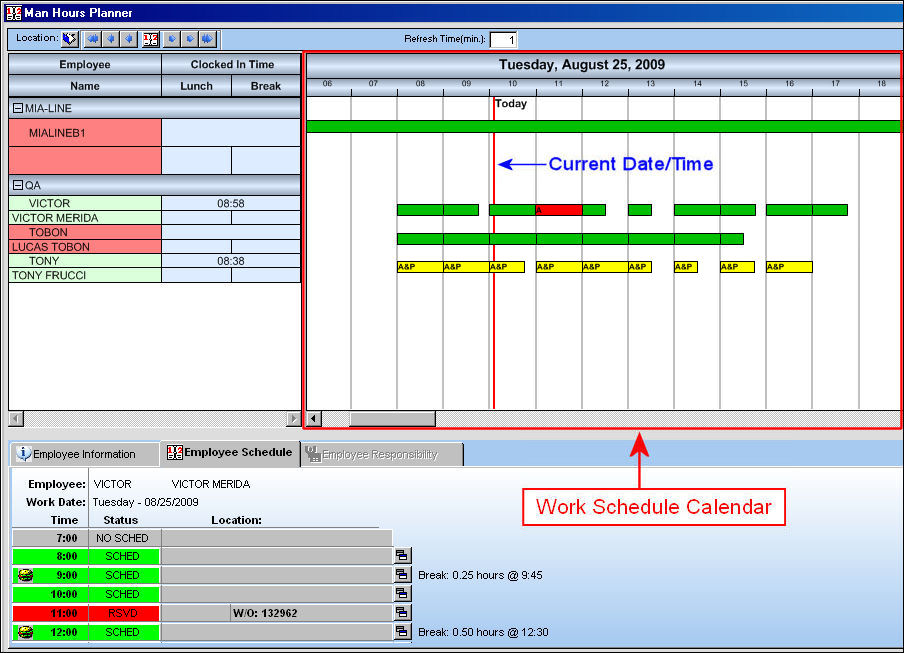
The Work Schedule Calendar displays several colors indicating the different aspects of labor reservations. The colors are the following:
_____________________________________________________________________________________
Available  icon
icon
The specific scheduled hour is Available for work.
Pending  icon
icon
The specific scheduled hour is Pending work.
The writing within the icon refers to the Skill required.
Pending labor reservation can be set up via the Include Hierarchy On Simulation function via the Interactive Planner which can be found in the Planning Training manual.
Reserved  icon
icon
The specific scheduled hour has been reserved for work.
The writing within the icon refers to the Skill required.
Labor reservation can be set up via the Include Hierarchy On Simulation function via the Interactive Planner which can be found in the Planning Training manual.
_____________________________________________________________________________________
Users have several options for looking at other dates in the calendar's time line. Aside from moving the scroll bar at the bottom of the pane to view the upcoming seven (7) days, users can utilize the calendar buttons at the top left of the window. With these buttons users can move forward and/or backward or the exact date can be searched for through the Calendar button.
The options are as follows:
_____________________________________________________________________________________
Calendar buttons
These buttons allow users to change the displayed date.
Year Back  - Moves the display date backward one year.
Month Back  - Moves the display date backward one month.
Day Back - Moves the display date backward one day.
Select Date  - Click to select a specific date to view.
Day Forward  - Moves the display date forward one day.
Month Forward - Moves the display date forward one month.
Year Forward  - Moves the display date forward one year.
_____________________________________________________________________________________
As mentioned above, it is important to note that an employee's work schedule is created via the Man Hours Schedule window. Through the Schedule button of the Employee tab, previously created Shift Patterns can be applied to specific employees. Once added for the employee, the monthly schedule can be seen via the Schedule tab as displayed below:
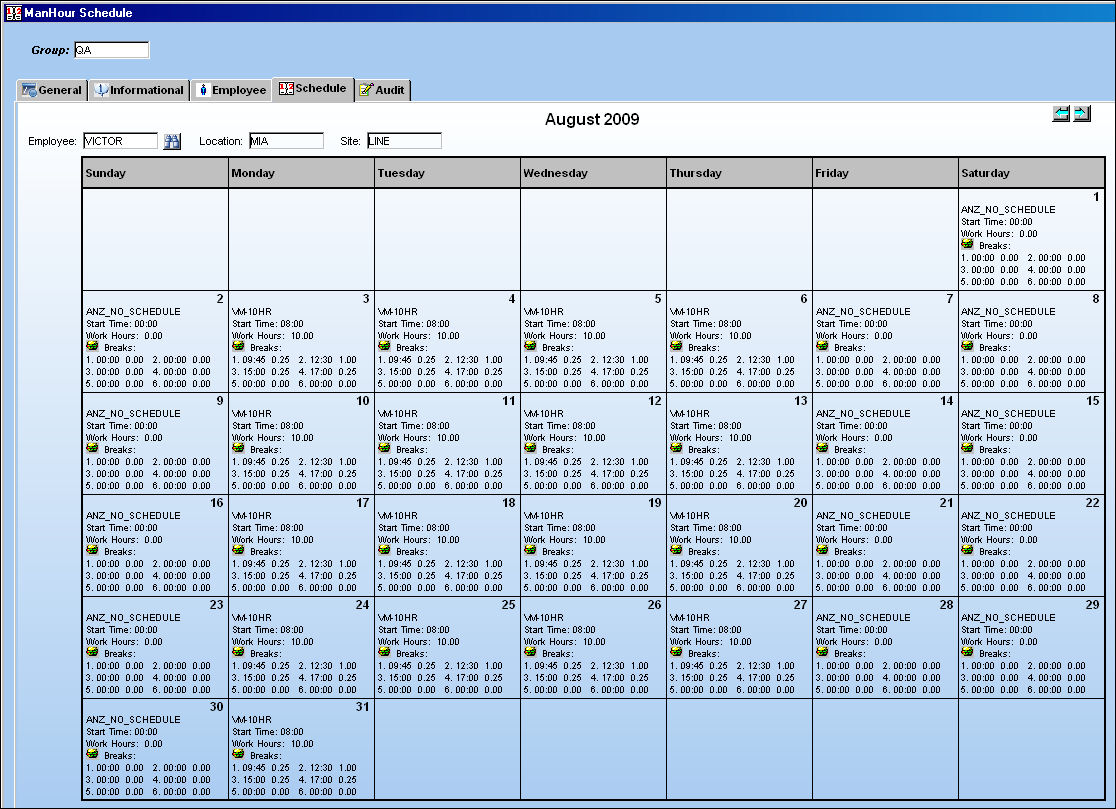
After the schedule has been added for an employee through the Man Hours Schedule window, the schedule must be generated through the Man Hour Schedule Generation window. Once generated the schedule will appear in the Man Hour Schedule Planner window (as seen above). For more information refer to the Man Hour Schedule, the Man Hours Schedule Generation, and the Shift Pattern windows via the Planning Training Manual.
Users can also access information for an employee by selecting into any portion of the employee's schedule. The following appears at the bottom of the window:
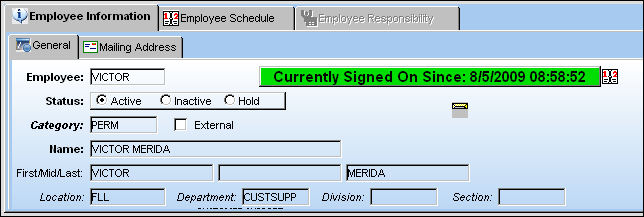
For more information on this portion of the window refer to Employee Information.
One of the most useful features of the Man Hour Schedule window is the ability to Override the daily schedule for any given employee. Users can specify the time and date of the override as well as define the reason for the schedule adjustment. For more information including the detailed steps for completing an override, refer to Man Hours Schedule Override.
Share
Print
|
©1997-2026 Trax USA Corp. All rights reserved. This manual may not be copied, photocopied, reproduced, translated, or converted to any electronic or machine-readable form, in whole or in part, without prior written approval from Trax USA Corp. |
 |