
 Share
Share
 Print
Print
|
|
|
|
|


The Filter by Group option allows users who belong to a certain Buyer Group to view Requisitions in the Buyer Queue that have been created for a part that is assigned to that group. The following steps are required to configure the Filter by Group option.
Create a group:
Groups are created and populated with users via the Buyer Group Explorer.
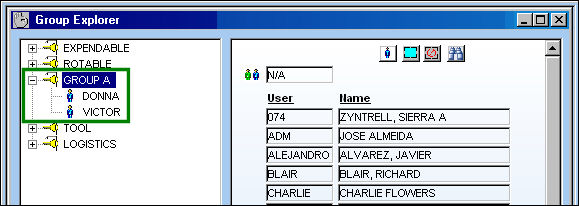
For information regarding how to create a group, refer to Buyer Group Explorer via the Requisition Training manual.
Assign a part to Group A:
Specific parts can be assigned to specific Buyer Groups through the Group field of the Inventory Levels button in the P/N Master. When a requisition is created for this part, that requisition will appear in the Buyer Queue if that user is a member of the part's Buyer Group.
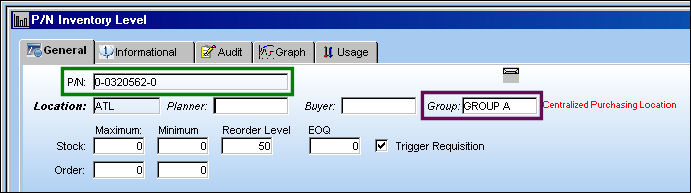
For information on how to assign a part to a group, refer to Inventory Levels Button, General Tab via P/N Master Buttons which can be found in the Settings Training manual.
Go to the Buyer Queue:
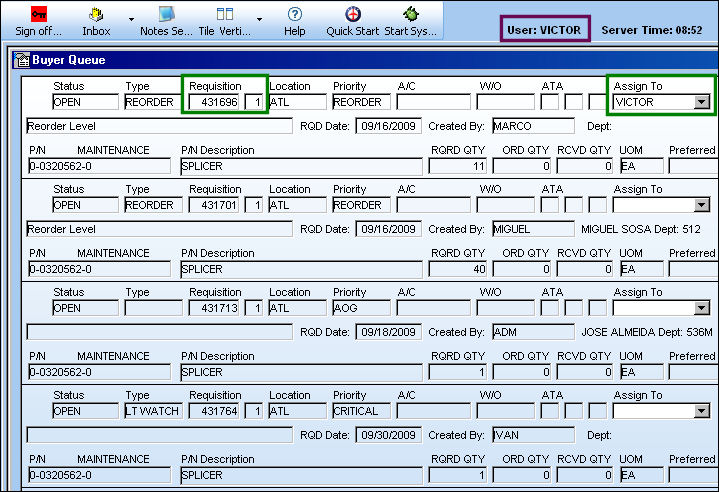
The following Requisitions created for the below P/N appear in user DONNA's queue since this User belongs to Group A and this P/N has been assigned to Group A.
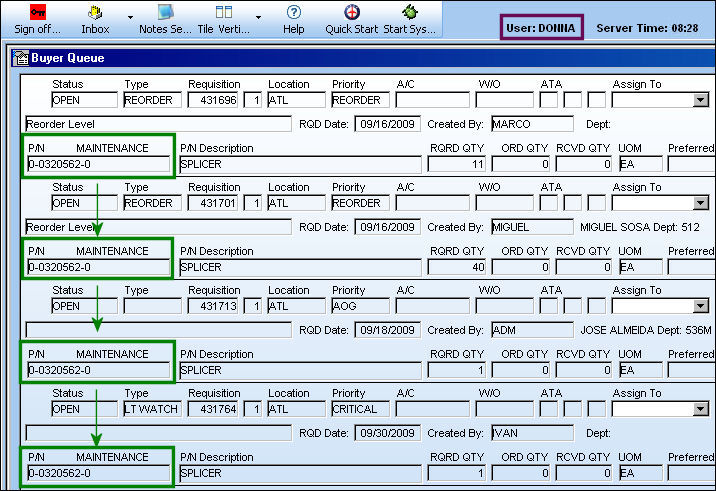
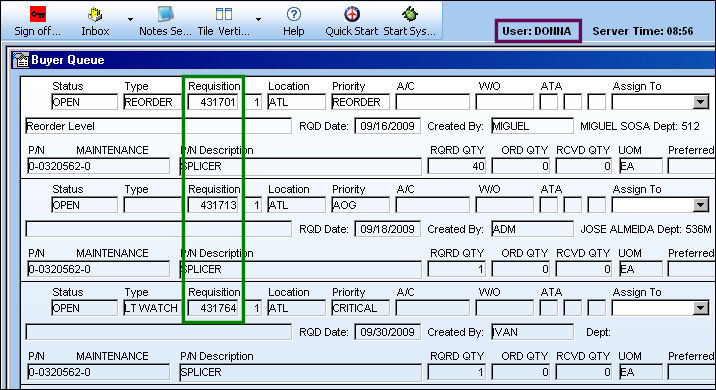
Everyone in Group A will be able to view the Requisitions created for P/N 0-0320562-0. Once a Requisition is assigned to an individual within the group, the Requisition will disappear from every other group members queue.
The change takes effect after 10 minutes, or when the Reset  button is selected.
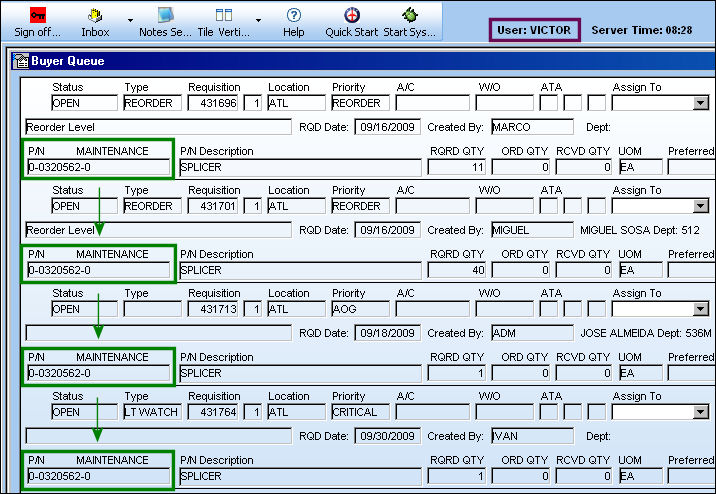
Assign Requisition 431696 to User VICTOR.
Requisition 431696 was removed from User DONNA's queue:
Share
Print
|
©1997-2026 Trax USA Corp. All rights reserved. This manual may not be copied, photocopied, reproduced, translated, or converted to any electronic or machine-readable form, in whole or in part, without prior written approval from Trax USA Corp. |
 |