
 Share
Share
 Print
Print
|
|
|
|
|


Price Change Button, via Order Update

The Price Change  button is an interface-related functionality. For additional information, refer to your TRAX Interface department.
The Price Change button via the Orders/Update/Order Update window is used to edit the cost of an order. When selected, a small pop-up window appears including some basic information and an open field where users can enter a new price.
As noted in the Price Change window, this price change does not impact TRAX financials. In order for the financials to be updated, it must be done through invoicing. For more information regarding invoicing, refer to Invoice Entry via the Link Training Manual.
For example, find the order that needs to have its price updated.
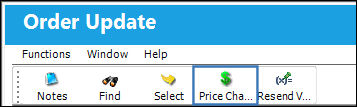
Select the Price Change button.
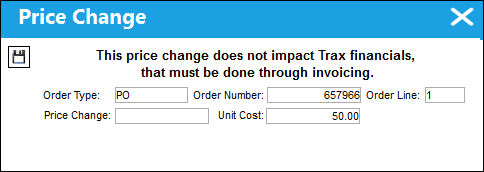
When selected the following fields appear:
_____________________________________________________________________________________
Order Type
The Type of Order.
Order Number
The unique number assigned to each order.
Order Line
The order Line item.
Unit Cost
The cost per unit associated to the order. This figure may not necessarily represent the total cost of the order as the total cost is dependent on other factors aside from the Unit Cost (e.g.: Quantity, Tax, etc.).
Price Change
The price per unit that the cost is being updated to.
_____________________________________________________________________________________
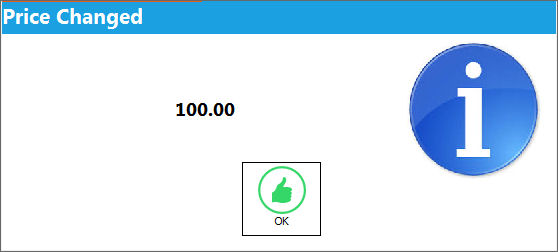
When the new price is entered and saved, the Price Changed prompt appears with the new price.
Share
Print
|
©1997-2026 Trax USA Corp. All rights reserved. This manual may not be copied, photocopied, reproduced, translated, or converted to any electronic or machine-readable form, in whole or in part, without prior written approval from Trax USA Corp. |
 |