
 Share
Share
 Print
Print
|
|
|
|
|


Task Card Selection, General Tab
The Task Card Selection, General tab allows users to search for existing Task Cards using various criteria. Once the search criteria has been entered, select the Find  button.
The Search results appear as shown below:
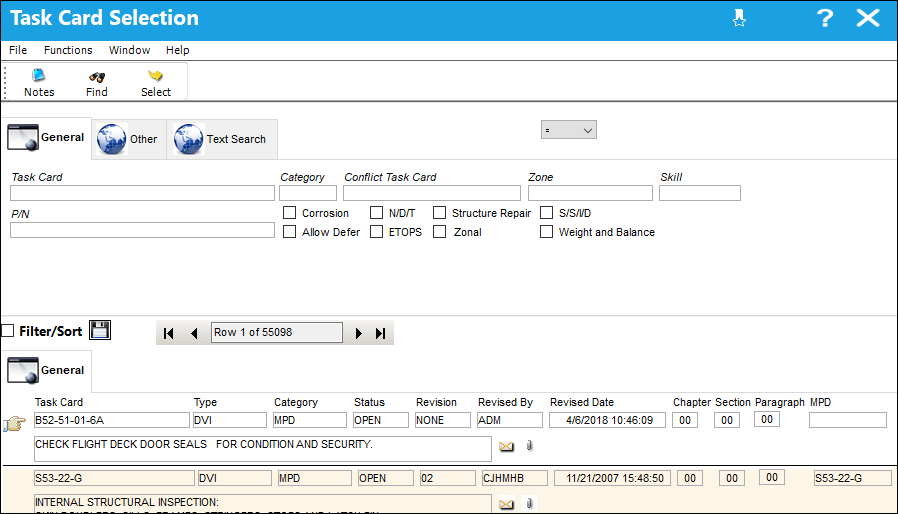
Query:
The following information/options are available in this window:
_____________________________________________________________________________________
Task Card
The Task Card / Job Card that details the scheduled maintenance work.
Category
The Task Card's Category, as defined in Task Card Category transaction code via the Engineering Transaction Codes. Task Card Authorization Steps are defined in System Transaction Codes by Task Card Category.
Conflict Task Card
If a Task Card is specified here, it indicates that the current Task Card should not be performed should it appear in a Work Order with the specified Task Card.
Zone
The Zone area for the Task Card (selected from Task Card Control Master).
Skill
The Skill of the employee required for this item. Skills are set up via the Skill Master. The Skills listed for Mechanic or Inspector are validated against the Mechanic/Technician checkboxes associated to the specific Skill via the Skill Master, General tab.
P/N
The Part Number reference for the aircraft part. This is the Part Number required. A part number may be specified only one time per Item Number. However, the same part number may be specified on each unique item number if needed.
Corrosion radio button
Indicates that this is a Corrosion Card. If this box is checked, the appropriately related field will appear on the Work Order.
Allow Defer radio button
Indicates that this card is allowed to be deferred.
N/D/T radio button
Indicates that this is a Non-Destructive Testing Task Card.
ETOPS radio button
Indicates that the Task Card / Non-Routine Task Card is relevant to ETOPS operations.
Structure Repair radio button
Select this checkbox to query for Task Cards that apply to structural repairs.
Zonal radio button
Indicates that the word “ZONAL” will be printed on Task Cards / Non-Routine Task Cards.
S/S/I/D radio button
Indicates that this is a Supplemental Structural Inspection Detail Card.
Weight and Balance radio button
Select this checkbox to query for Task Cards that are for Weight and Balance Checks on the aircraft.
Company
The Company used to auto generate the Task Card reference. This field only appears when G/L Interface Switch  COMPANYMULTI is set to Yes. When this field is populated, only those aircraft with the same G/L Company via the A/C Master, Other 1 tab can be made effective to the T/C.
This field appears only when G/L Interface Switch COMPANYMULTI is set to 'Yes.' This feature is part of the Multi-Company functionality. Parent company's airlines are entered into this field. Then, when the P/N is entered into the detail window, the G/L field will be auto-populated with this airline's previously created G/L Account. When the switch is set to 'No' the field is titled Category and functions as defined above. For more information see the G/L Interface Switch COMPANYMULTI via the G/L Interface Switches Manual.
Control
Select from the drop down if the Task Card is to be utilized for P/Ns or A/C. If selecting the A/C Control, select the A/C Type/Series to auto generate the Task Card reference for naming purposes only.
This field only appears when the G/L Interface Switch COMPANYMULTI is set to 'Yes'. For more information see the G/L Interface Switch COMPANYMULTI via the G/L Interface Switches Manual.
Sub
The Sub is used to auto generate the Task Card reference. This is a free text field used for naming purposes only.
This field only appears when the G/L Interface Switch COMPANYMULTI is set to 'Yes'. For more information see the G/L Interface Switch COMPANYMULTI via the G/L Interface Switches Manual.
_____________________________________________________________________________________
Results:
The following information/options are available in this window:
_____________________________________________________________________________________
Task Card
The Task Card / Job Card that details the scheduled maintenance work.
Type
The Task Card Type, as defined in the Transaction Code. This code can be used to sort and locate Task Cards.
Category
The Task Card's Category, as defined in Task Card Category transaction code via the Engineering Transaction Codes. Task Card Authorization Steps are defined in System Transaction Codes by Task Card Category.
A/C Effectivity
The record will display an alert message that indicates how Effectivity has been set up. If all aircraft are effective, "ALL" will be displayed on the General Tab of the Task Card and on the Task Card Item window. If some aircraft are effective, "PARTIALLY" will be displayed. If no aircraft are effective, "NONE" will be displayed. If A/C Effectivity is set to 'All' and the currently logged in user only has security access to specific aircraft, Effectivity will display as 'Partial'.
PARTIALLY - Indicates that some but not all aircraft for the selected type/series are effective. If multiple type/series are selected, but one of the selected type/series has aircraft within that are not selected, the effectivity is classified as ‘Partially.’
NONE - Indicates that no aircraft from the entire fleet is effective. The setting for Switch TCEFFECT indicates that the dynamic Task Card effectivity is not being used or that the Task Card is not effective to any tail numbers. For more information refer to Switch TCEFFECT via Engineering Switches Manual.
The setting for Switch TCEFFECT indicates that the dynamic Task Card effectivity is not being used or that the Task Card is not effective to any tail numbers.
Task Card Description
The description of the Task Card.
Status
The current status of the Task Card. The status of the Task Card is helpful in determining the stage the Task Card is at with regard to it's completion. Ultimately, the completion of the Task Cards will result in the closing of the Work Order.
Revision
The Task Card's most recent authorized revision number.
Revised By
The user that revised the Task Card.
Revision Date
The Date that the card was revised.
Chapter/Section/Paragraph
The ATA chapter/section/paragraph, as applicable.
_____________________________________________________________________________________
Select on the desired record and then select the Select  button to view and edit the Task Card details.
Share
Print
|
©1997-2026 Trax USA Corp. All rights reserved. This manual may not be copied, photocopied, reproduced, translated, or converted to any electronic or machine-readable form, in whole or in part, without prior written approval from Trax USA Corp. |
 |