
 Share
Share
 Print
Print
|
|
|
|
|


The Memo  button is available in the Exchange Order, Repair Order and Purchase Order, General tabs and allows users to view memos related to TRX interfaced orders.
 This button is part of the TRX interface functionality and is only available for customers using this interface. For more information refer to the TRX Interface (TCS) manual.
When selected the Memo window pops us. This window lists all memos either received from or sent to TRX. To send a memo, enter the text of the message in the text field at the bottom of the window then select 'Send'.
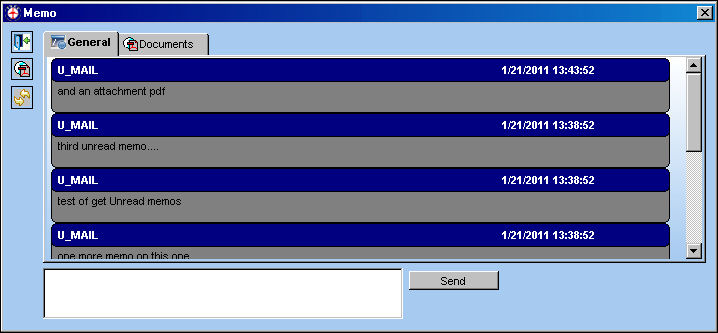
The information displayed in this window is specific to the TRX interface functionality and cannot necessarily be found within the TRAX database.
This functionality is also integrated with the Message Central functionality of the Control Panel. When Inventory Switch  TRXUNSTMEMO is set to Yes, Whenever a memo is sent in reference to this order, the TRAX user who created the order will be notified via Message Central. For more information refer to Inventory Switch TRXUNSTMEMO via the Inventory Switches Manual.
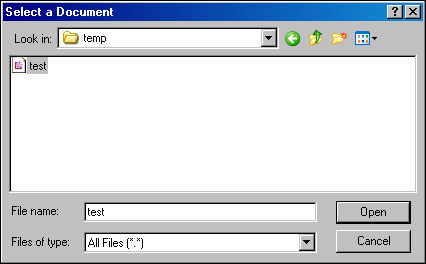
The View Component Documents  button displays any documents attached to the component regarding this order. To attach a document select the View Component Documents button. Select the document the select 'Open'.
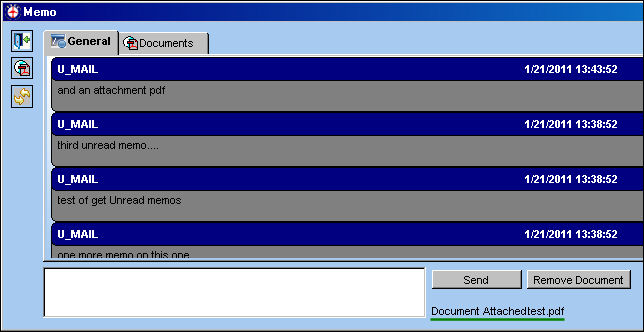
The file is then listed in the bottom right of the window. Select 'Send' to attach the document.
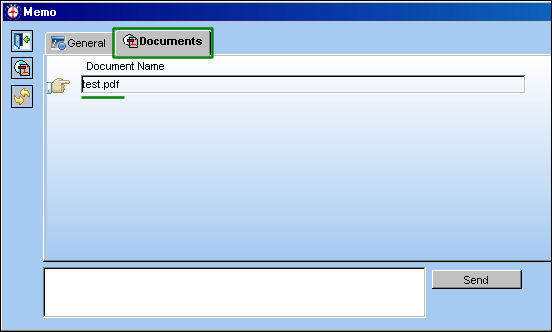
From the Documents tab the document is displayed and ready to be viewed.
Share
Print
|
©1997-2026 Trax USA Corp. All rights reserved. This manual may not be copied, photocopied, reproduced, translated, or converted to any electronic or machine-readable form, in whole or in part, without prior written approval from Trax USA Corp. |
 |