
 Share
Share
 Print
Print
|
|
|
|
|


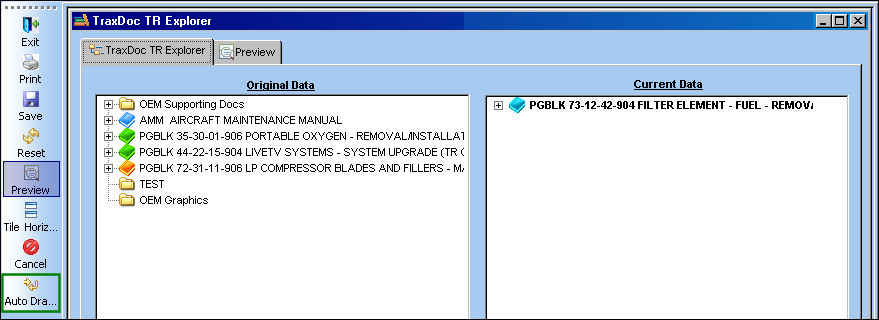
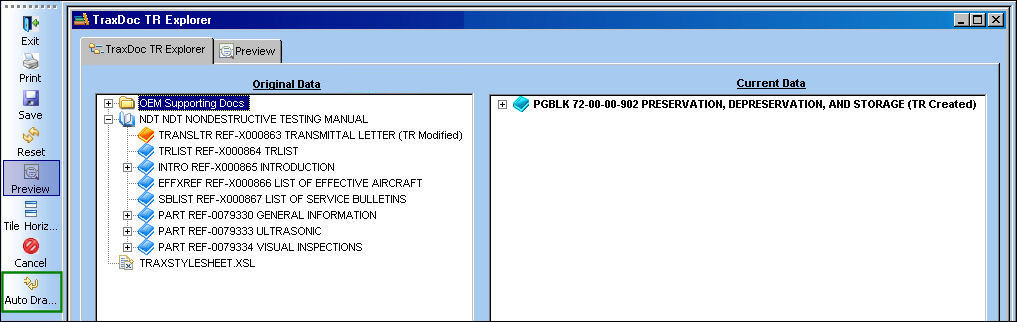
The Auto Drag  button is used to auto insert a record from the Current Data panel into the manual in in the Original Data panel.
From the TraxDoc TR Explorer window, select the Auto Drag button.
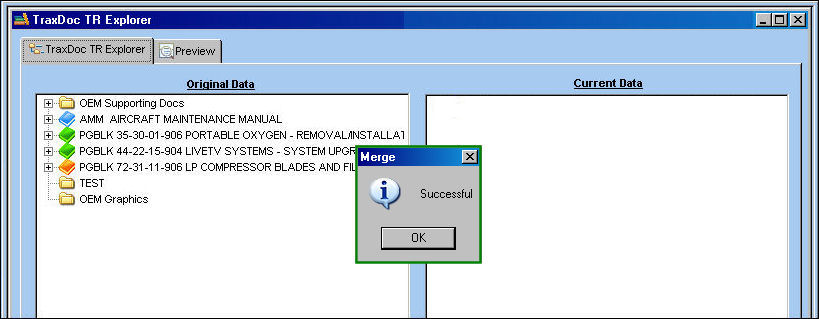
The following pop up appears informing the user that the merge was successful.
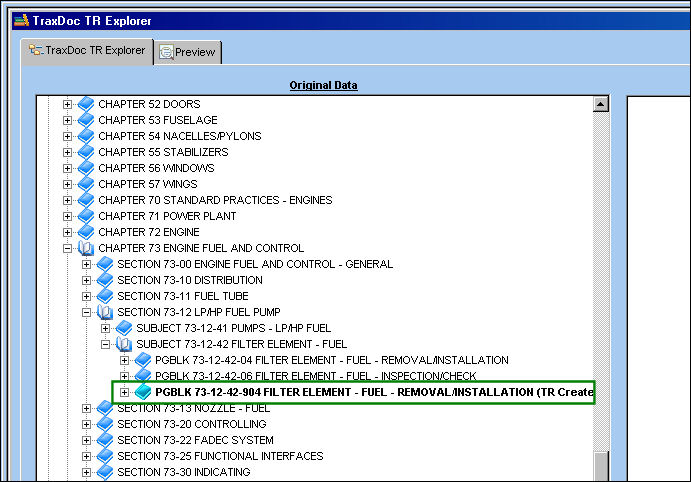
Expand the appropriate book/folder to view the newly inserted record.
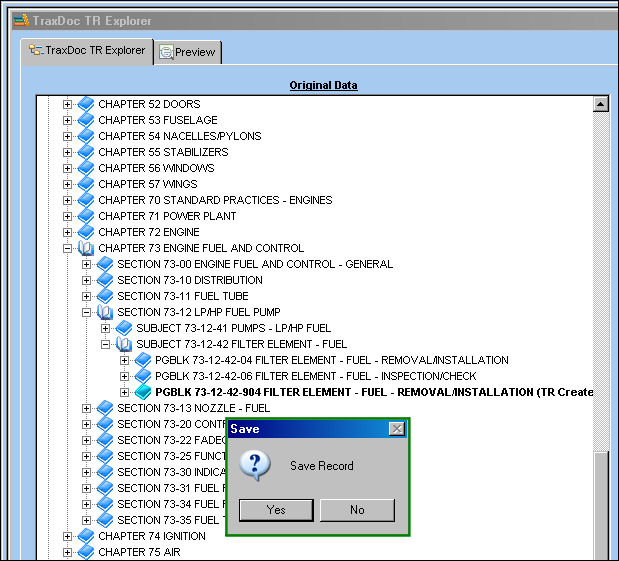
Select the Save  button.
The Save prompt will appear. Select 'Yes.'
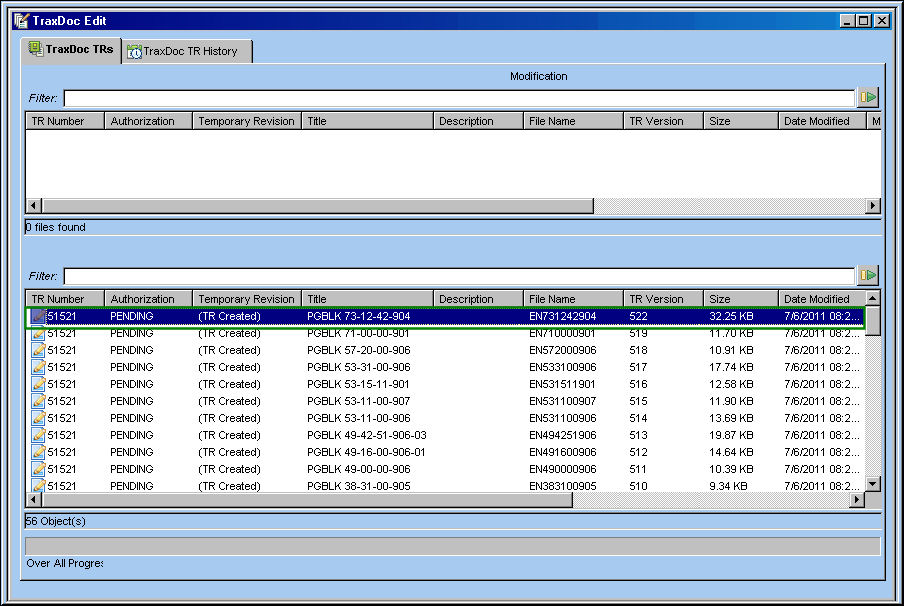
Return to the TraxDoc Edit window. The record is shown in the lower panel in this window. Select the Reset  button.
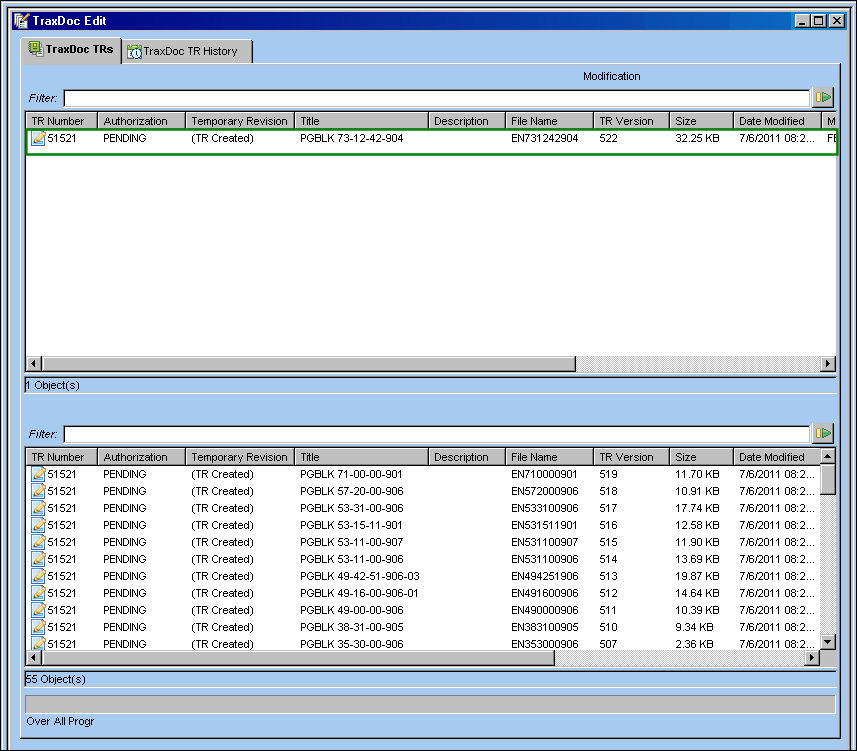
The record now appears in the Modification panel of the TraxDoc Edit window:
In some cases, the user may not be able to auto drag a record from the Current Data panel into the Original Data window.
Select the Auto Drag button.
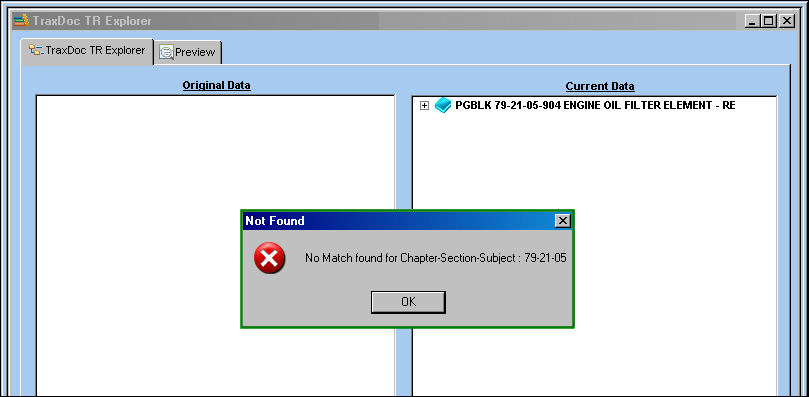
The following error appears, informing the user that the system could not find a location to place the record in the manual.
Select 'OK.'
Grab the record in the Current Data panel and manually drag it into the Original Data panel. Drop it wherever desired.
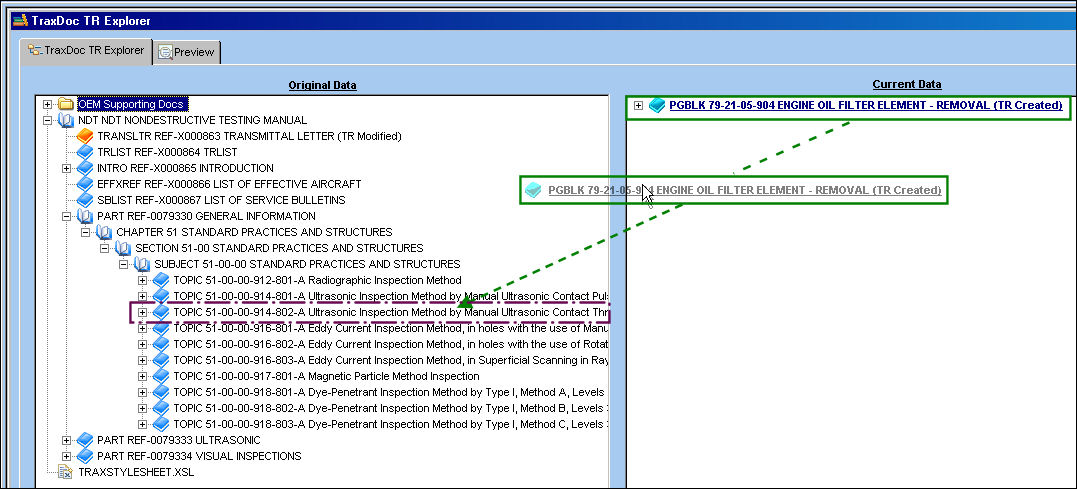
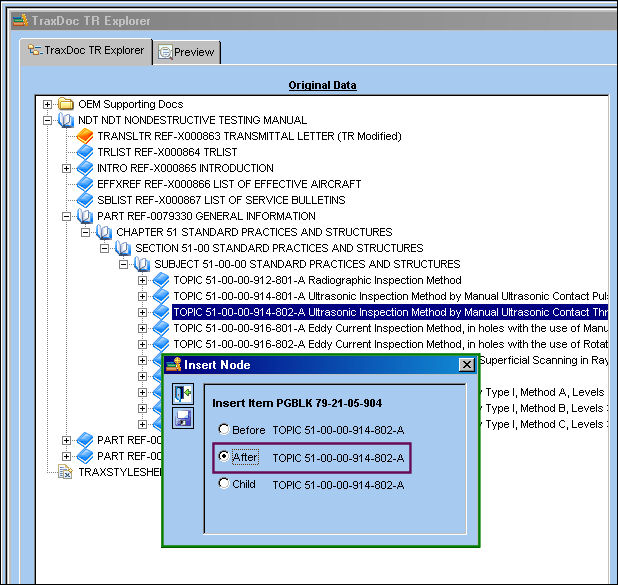
Once the record has been dropped, the Insert Node window appears. Select one of the following radio buttons and select the Save button. In the following example, the user has elected to insert the node after the topic.
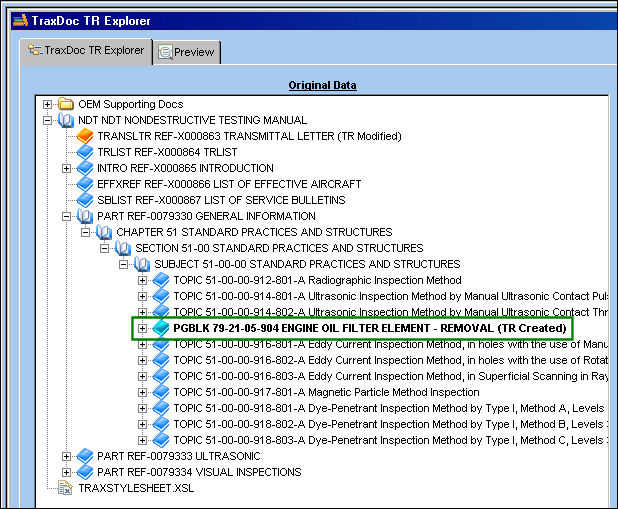
The record is inserted after the topic as shown below:
 Load an AMM through TraxDoc, via Aircraft Maintenance Manual (AMM) Doctybe
Share
Print
|
©1997-2026 Trax USA Corp. All rights reserved. This manual may not be copied, photocopied, reproduced, translated, or converted to any electronic or machine-readable form, in whole or in part, without prior written approval from Trax USA Corp. |
 |