
 Share
Share
 Print
Print
|
|
|
|
|


Oftentimes, OEMs and/or operators need to make minor changes to a manual in between official revisions. In this case, they will issue a temporary revision (TR). This can be difficult for the system to keep the authorization of the TraxDoc record itself separated from the authorization of the temporary revision. This is why the TraxDoc Master window requires two authorization departments to be entered – Authorization for the TraxDoc record itself, and Detail Authorization for any TRs that are loaded.
There are two scenarios when loading a TR:
- Loading a TR that introduces new information into a manual
- Loading a TR that updates pre-existing information into a manual
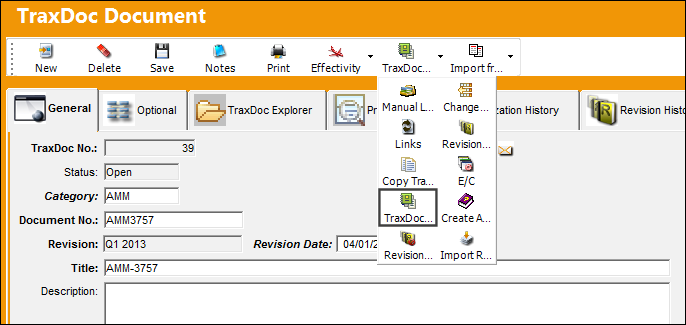
To load or view temporary revisions, select the TraxDoc TRs  button from the TraxDoc Document window:
A Revision must be loaded into the specified TraxDoc for this option to be available.
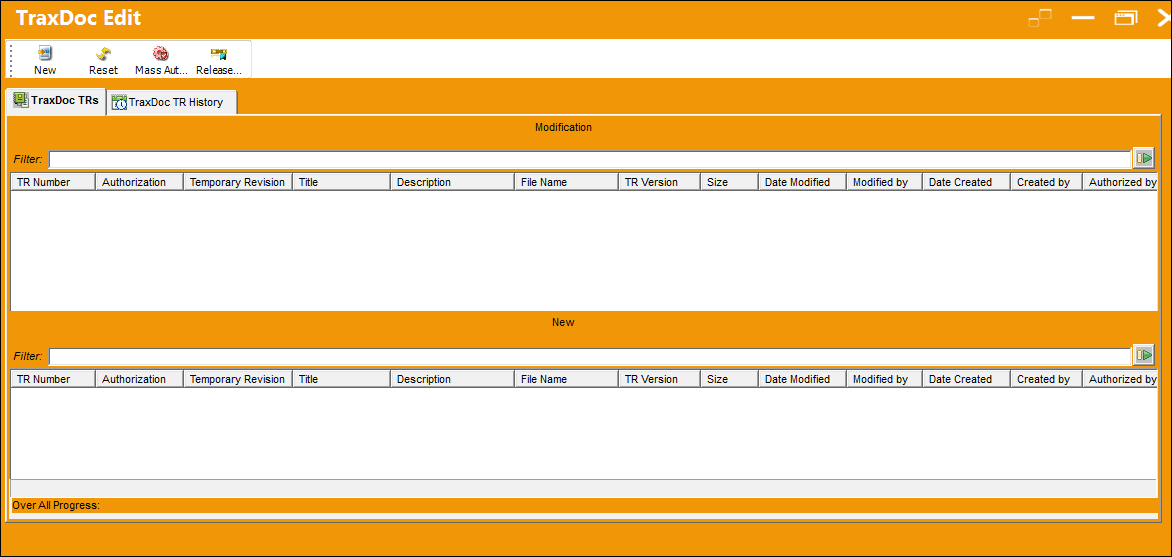
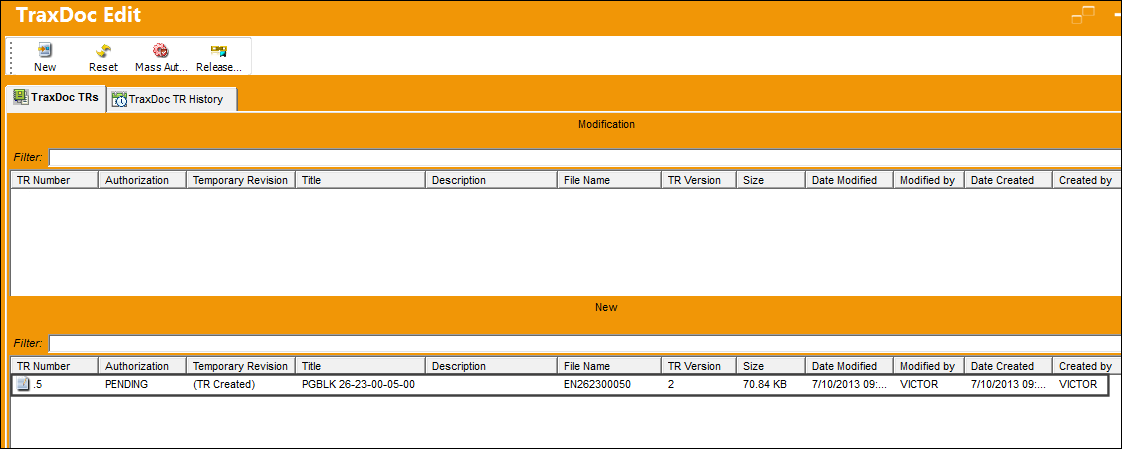
The TraxDoc Edit window appears. Notice there ar two panels, one for TRs that modify existing manual text and another panel for TRs that add entirely new sections.
Select the New  button to begin loading a TR.
TRAX displays the TraxDoc XML TR Load window.
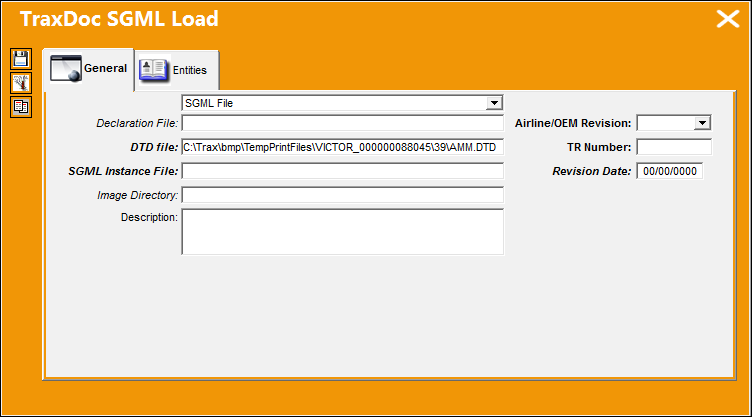
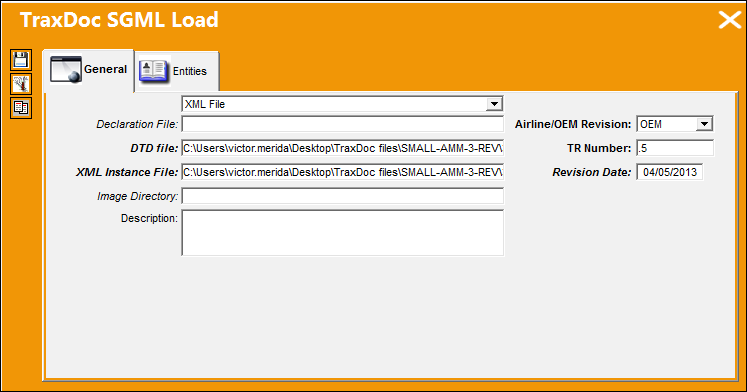
The following information/options are available in this window:
_____________________________________________________________________________________
File Type drop down
Select from one of the following File Types:
Bombardier MTCM - Similar to the SGML Directory option, except suited to the particular directory structure that Bombardier delivers TRs in.
PDF File - This option is for manuals that are stored in PDF format. It will add a new PDF file or replace an existing file stored under the same ID.
SGML Directory - This allows you to load a number of TRs stored in individual files within the same directory.
SGML File - This will load the TR from an existing SGML file, and perform the intermediate transformation to XML automatically.
XML File - This is the same method that we used to load the manual itself above.
DTD File
Select the manual's DTD (Document Type Definition) file. This file is located in the SGML folder and should end in .dtd.
SGML Instance File
Select the SGML file that contains the OEM manual. This file is located in the SGML folder and will end in .sgm. The type of file entered in this field will change depending on the File Type selected.
Image Directory
Browse the directory (on the portable media) where images are stored and and select media to be imported.
Description
Enter a description of the changes. This is useful for the user to keep track of TRs incorporated into the manual.
Airline/OEM Revision
This denotes whether the TR was issued by the OEM or the operator.
TR Number
The version/revision number of the TR in question.
Revision Date
The date the new revision has taken place.
_____________________________________________________________________________________
Populate all mandatory and desired fields and select the Save  button.
After refreshing the TraxDoc Edit window, the pending TR appears as shown below:
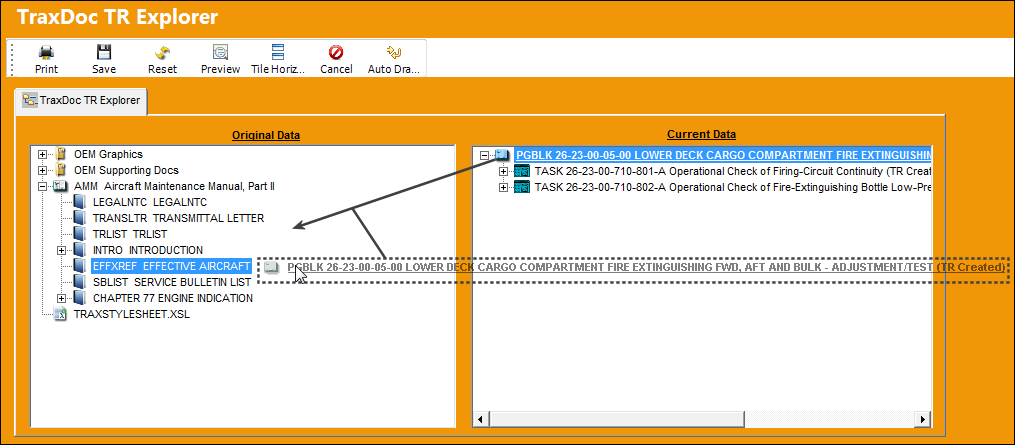
To integrate the TR in the manual, drag the selected PGBLK from the right panel and drop it the appropriate place in the manual on the left panel.
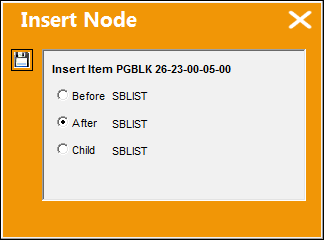
Once the selected item has been dropped in the left panel, the Insert Node pop-up appears. Select from one of the following radio buttons and select the Save button.
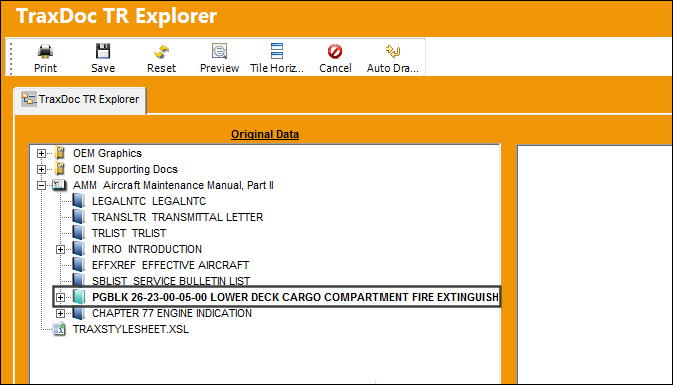
The selection has been moved to the left panel as shown below. Select the Save button to save these changes. Once all changes are satisfactory, the user may now release the TR for authorization.
From the window, the following additional functionality is available:
- TraxDoc Edit, TraxDoc TRs Tab
- TraxDoc Edit, TR History Tab
- TraxDoc Edit Buttons
Share
Print
|
©1997-2026 Trax USA Corp. All rights reserved. This manual may not be copied, photocopied, reproduced, translated, or converted to any electronic or machine-readable form, in whole or in part, without prior written approval from Trax USA Corp. |
 |