
 Share
Share
 Print
Print
|
|
|
|
|


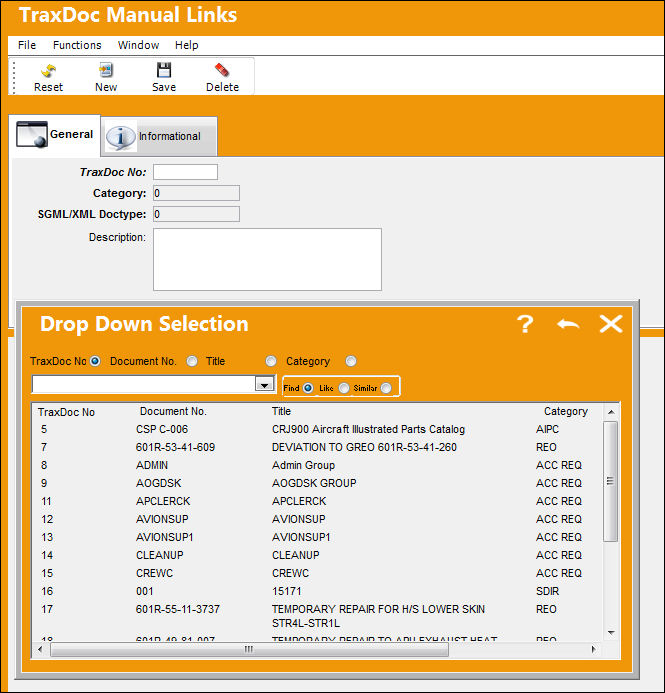
From the TraxDoc Document Window, select the Manual Links  button. Right-click in the TraxDoc No. field. The Drop Down Selection window appears. Select the desired TraxDoc No. and double click.
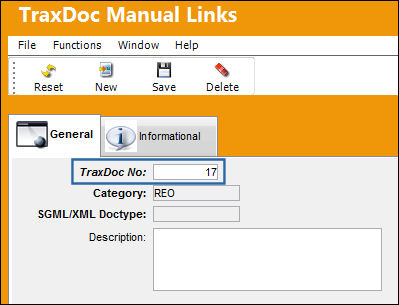
When the selected TraxDoc No. field is populated, select the Save  button. The Save prompt will appear. Select OK.
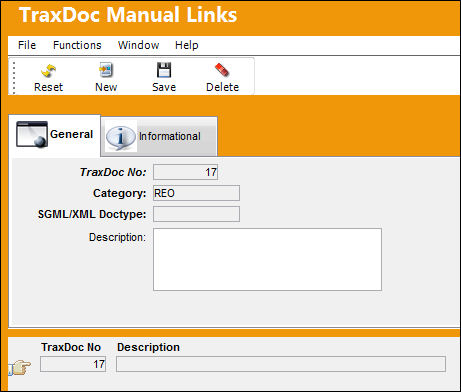
The selected Manual has been linked to the TraxDoc.
 Note: When one TraxDoc is linked to another TraxDoc, hyperlinks in one TraxDoc PDF linking to another TraxDoc PDF will open up the target PDF in the other TraxDoc.
For example, this PDF in TraxDoc 184 has a hyperlink to a PDF in another TraxDoc.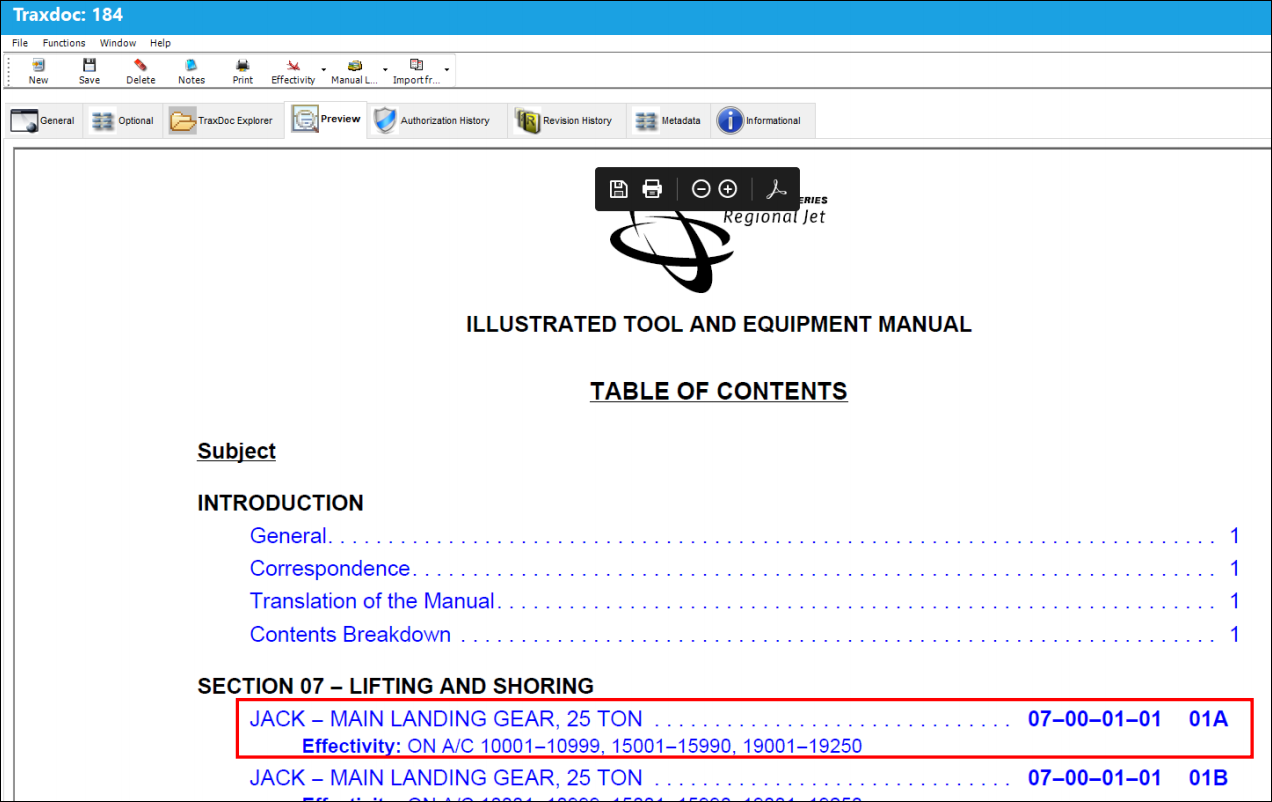
When selected, the target PDF in the other TraxDoc is opened. These two TraxDocs are linked to one another through the TraxDoc Manual Links window.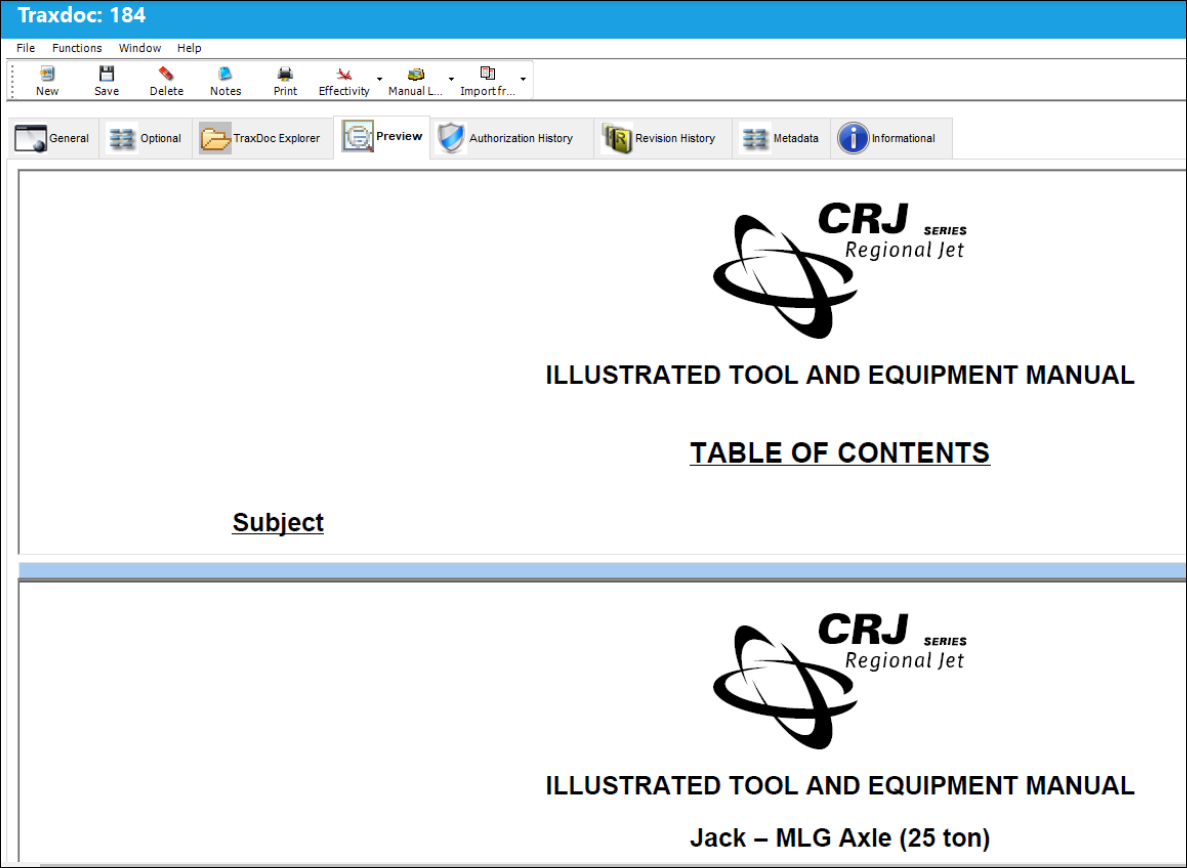
Share
Print
|
©1997-2026 Trax USA Corp. All rights reserved. This manual may not be copied, photocopied, reproduced, translated, or converted to any electronic or machine-readable form, in whole or in part, without prior written approval from Trax USA Corp. |
 |