
 Share
Share
 Print
Print
|
|
|
|
|



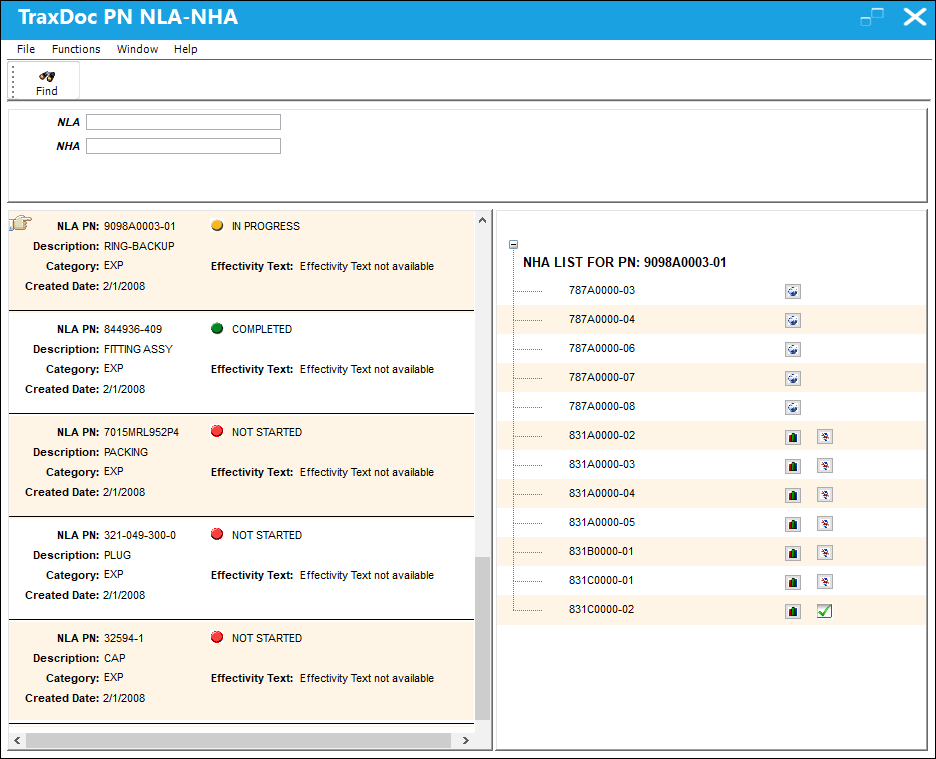
The purpose of the TraxDoc PN NLA-NHA window is to allow an engineer or part number configuration specialist to determine which TraxDoc NLAs require effectivity and to apply effectivity where necessary. Please keep in mind that any TraxDoc NLA effectivity that is brought in via the import will not necessarily match the effectivty for that part in the P/N Master. By selecting the NLA Report From OEM Manual  button, the user is able to view all of the TraxDoc NHAs and their TraxDoc NLAs created during an import, including the effectivity and effectivity range for all TraxDoc NLAs.
Note: A TraxDoc NLA is defined as an OEM manual NLA and NOT as an NLA as defined in the P/N Master in Trax.
Users are able to filter both by NLA and NHA. If neither the NLA or NHA query fields are populated, the system will display all NLAs created by the import. The information provided in this window is only available after the AIPC import has been completed.
Please note that not all manufacturers provide a list of all NHAs and NLAs. Therefore, this information may not be available for your company.
Note: This button is only applicable for the AIPC SGML doctype.
Query
The following information/options are available in this window:
_____________________________________________________________________________________
NLA
The NLA that was created during the import.
NHA
The NHA that was created during the import.
_____________________________________________________________________________________
Results
The following information/options are available in this window:
_____________________________________________________________________________________
NLA PN
The part’s Next Higher Assembly P/N (if applicable).
Description
The description of the part.
Category
The category of the part as defined in Settings/ Explorer/ System Transaction Code Explorer/ Settings/ P/N Category (e.g. Rotable, Consumable, Repairable) and entered for the particular part in the P/N Master.
Created Date
The date the NLA PN was created.
NLA Effectivity Status
The status of the effectivity for the NLA.
Completed  icon - All effectivity for the NLA-NHAs has been assigned.
In Progress  icon - Partial effectivity for the NLA-NHAs has been assigned.
Not Started  icon - No effectivity for the NLA-NHAs has been assigned.
Effectivity Text - Any additional information or notes pertaining to the effectivity of the NLA PN. This information is pulled from the SGML manual from the manufacturer.
NHA List for PN
The NHA for the highlighted NLA (on the left side of the screen).
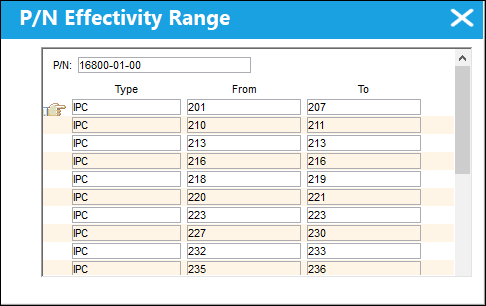
Ranges  button
Select this button to view the effectivity range for the NHA from the SGML code.
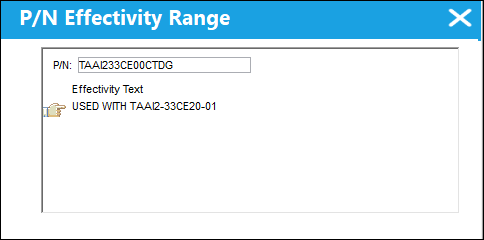
Effectivity Text  button
This button indicates that the part has no range effectivity applied to it, and is displayed in the place of the Ranges button. When selected, the following window appears:
Add Effectivity  button
Select this button to apply effectivity to the specified NLA.
NHA Effectivity Applied  icon
icon
This icon indicates that effectivity has been applied to the NHA. This icon replaces the Add Effectivity button once effectivity has been applied to the NHA.
_____________________________________________________________________________________
Share
Print
|
©1997-2026 Trax USA Corp. All rights reserved. This manual may not be copied, photocopied, reproduced, translated, or converted to any electronic or machine-readable form, in whole or in part, without prior written approval from Trax USA Corp. |
 |