
 Share
Share
 Print
Print
|
|
|
|
|


Inventory Detail Bin Update Import option is used to mass upload and/or override bin locations per batch number. This option allows you the vendor to quickly update or override a digital file listing these Bins and related information for the import and quick creation of a Bin.
First, the user must prepare the file. For information regarding how to prepare the import file, refer to Preparing File For Import, via the Import Button of the System Standards Training Manual.
Criteria for Bin Update Import file:
Column Name |
Data Type |
Limitation |
Path |
|---|---|---|---|
Part Number |
Alphanumeric |
25 |
Inventory/ Update/ Inventory Supervisor/ General tab |
Serial Number |
Alphanumeric |
20 |
Inventory/ Update/ Inventory Supervisor/ General tab |
Batch |
Numeric |
08 |
Inventory/ Update/ Inventory Supervisor/ General tab |
Goods Rcvd Batch |
Numeric |
08 |
Inventory/ Update/ Inventory Supervisor/ Other tab |
Bin |
Alphanumeric |
20 |
Inventory/ Update/ Inventory Supervisor/ Other tab |
QOH |
N/A |
N/A |
N/A |
Base (Location) |
Alphanumeric |
10 |
Inventory/ Update/ Inventory Supervisor/ General tab |
New Bin |
Alphanumeric |
20 |
Inventory/ Update/ Inventory Supervisor/ Other tab |
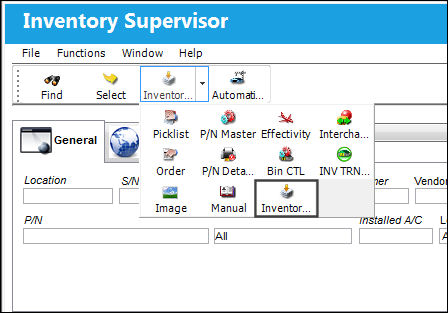
Go to Inventory/ Update/ Inventory Supervisor. From the Inventory Supervisor window, select the Inventory Detail Bin Update Import  button.
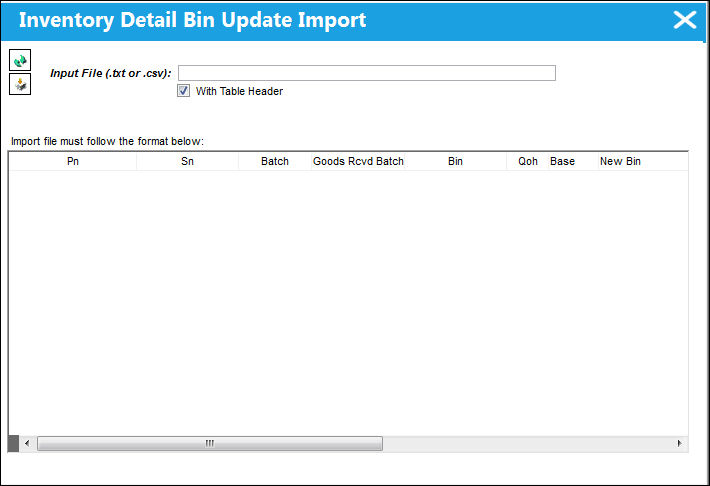
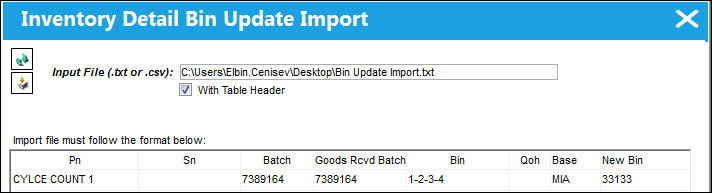
The Inventory Detail Bin Update Import window appears:
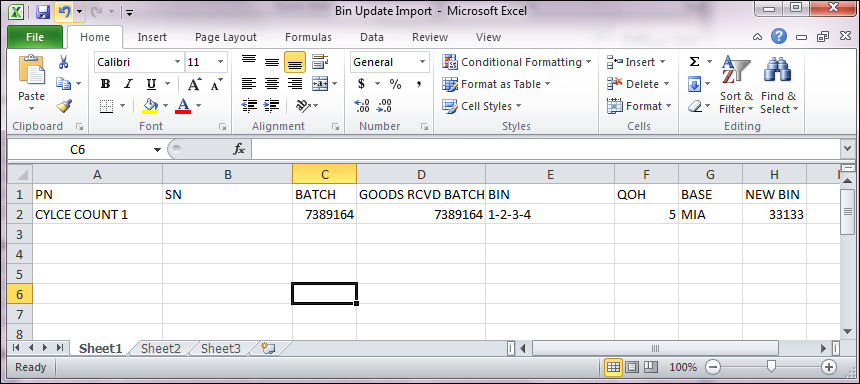
The following import file will be used. Note the highlighted part numbers and their corresponding information.
The new bin must exist in the database in order for the import to complete without any errors.
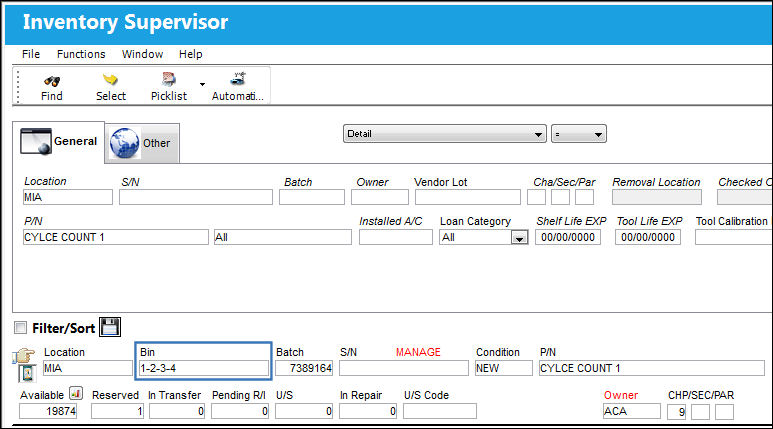
Note the current bin locations for the parts:
Complete all of the Import steps.
For information regarding how to Import a file, refer to Importing a File via Import Button of the System Standards Training Manual.
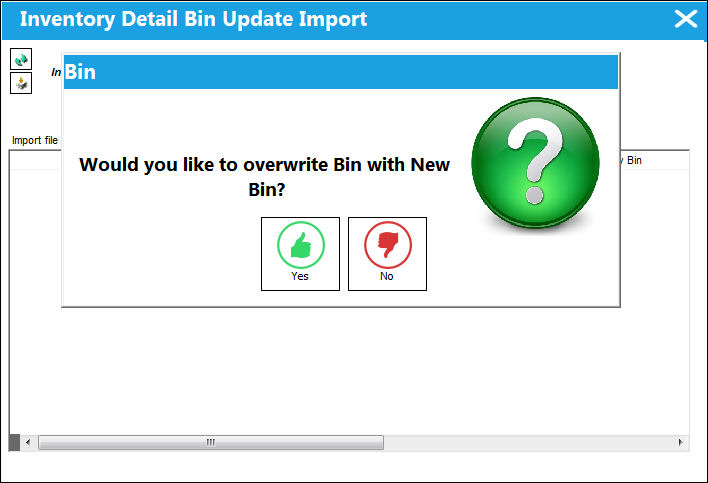
Select 'Yes' to override the existing bin with the new bin.
The import is complete:
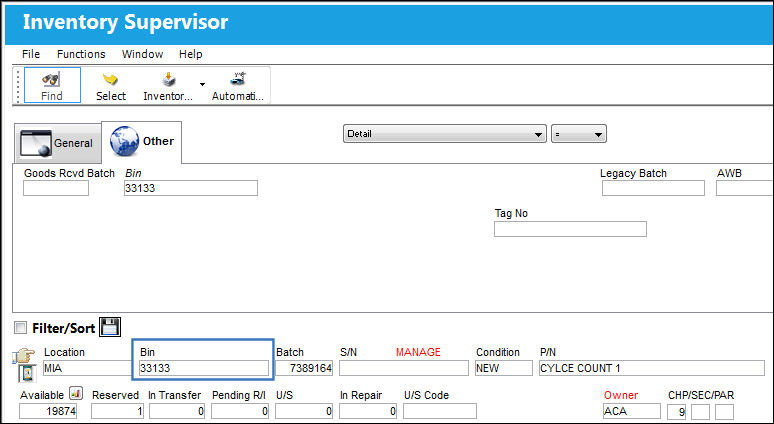
The bins were successfully updated:
Share
Print
|
©1997-2026 Trax USA Corp. All rights reserved. This manual may not be copied, photocopied, reproduced, translated, or converted to any electronic or machine-readable form, in whole or in part, without prior written approval from Trax USA Corp. |
 |