
 Share
Share
 Print
Print
|
|
|
|
|


AUTCHSTAAPR - Automatically Change The Status Of Employee Approval
Automatically Change The Status Of Employee Approval
Affected Window: daily_job
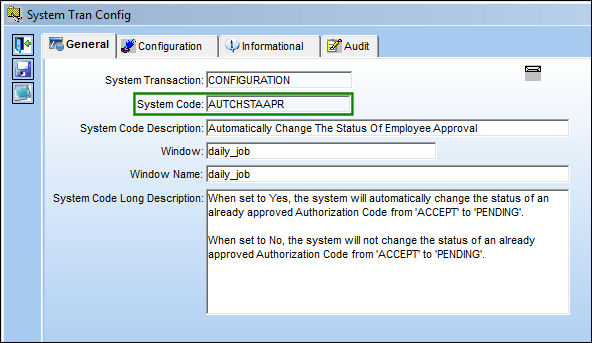
This feature is only to be used if an approval has failed because prerequisites have not been met, or the expiration date has been surpassed.
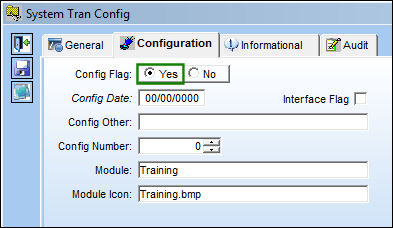
Switch  VALLICDATE must be set to Yes in order for Switch AUTCHSTAAPR to function correctly.
Setup:
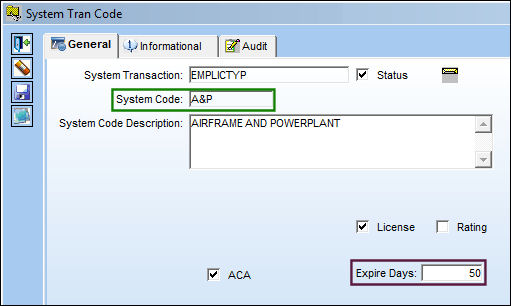
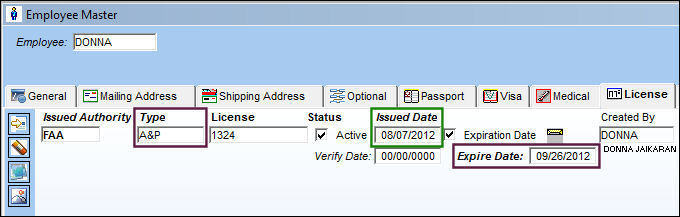
The 'A&P' System Code is set up to expire in 50 days from its issue date.
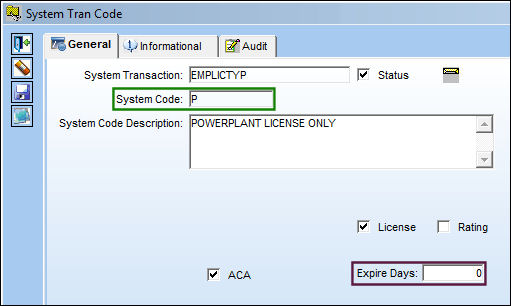
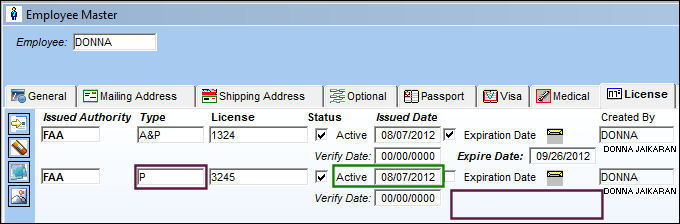
The 'P' System Code is set up with no expiration date.
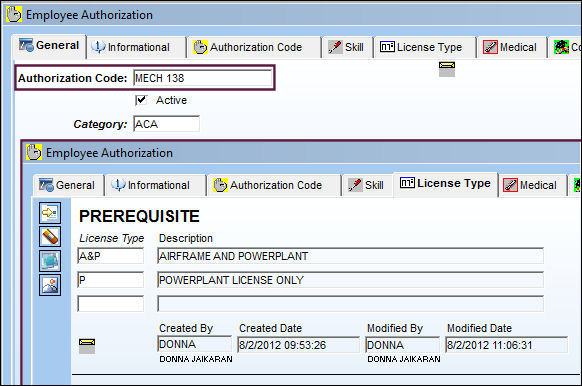
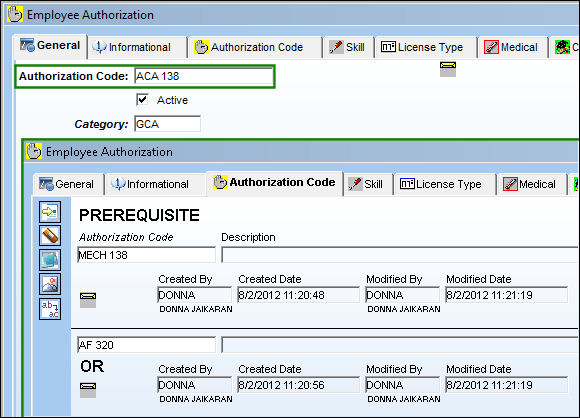
The MECH 138 Authorization Code is created with the following License Type prerequisites.
A second Authorization Code ACA 138 is created, with the following Authorization Code prerequisites. Notice that MECH 138 is a prerequisite for Authorization Code ACA 138.
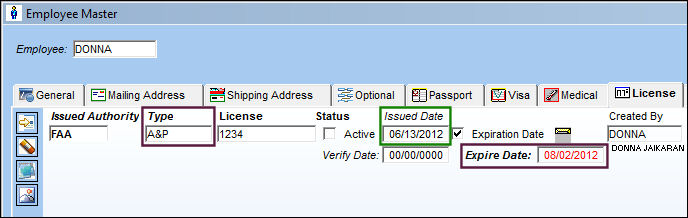
Once the Issued Date field is populated, the Expiration Date is auto populated according to the expiration date entered in the 'A&P' system transaction code: (08/07/2012 + 50 days = 09/26/2012).
Populate a second License Type and the Issued Date field. The Expiration Date field does not appear. This is correct because the 'P' system transaction code has 0 (zero) Expiration Days set up against it.
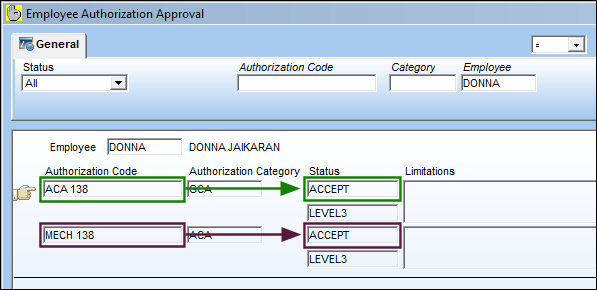
Now that the above prerequisite has been met, the user can accept and Q/A approve the below Authorization Codes.
Switch Set to Yes:
When set to Yes, the system will automatically change the status of an already approved Authorization Code from 'ACCEPT' to 'PENDING.'
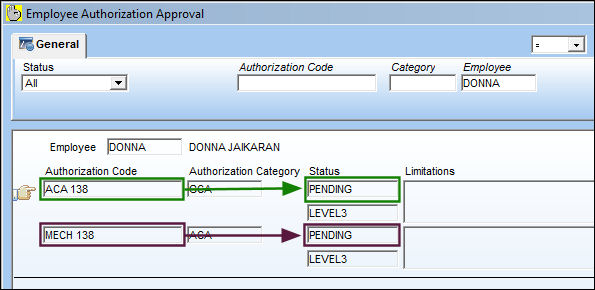
The following Authorization Codes are in 'ACCEPT' status.
Currently, the Employee License Type has not yet expired. See above for setup of this transaction code and subsequent functionality.
Manually change the Issued Date, so the Employee License Type expires.
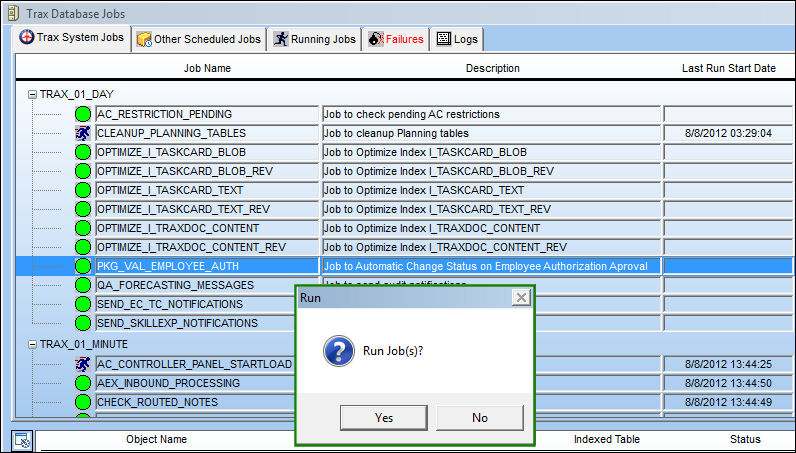
To demonstrate the functionality of this switch, the user will manually run the Trax Database Jobs for the below highlighted package. This will search for all expired Licenses.
The status of both Authorization Codes goes from 'ACCEPTED' to 'PENDING.'
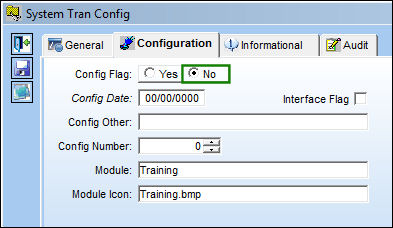
Switch Set to No:
When set to No, the system will not change the status of an already approved Authorization Code from 'ACCEPT' to 'PENDING.'
The following Authorization Codes are in 'ACCEPT' status.
Currently, the Employee License Type has not yet expired. See above for setup of this transaction code and subsequent functionality.
Manually change the Issued Date, so the Employee License Type expires.
The Authorization Codes remain in 'ACCEPT' status.
Share
Print
|
©1997-2026 Trax USA Corp. All rights reserved. This manual may not be copied, photocopied, reproduced, translated, or converted to any electronic or machine-readable form, in whole or in part, without prior written approval from Trax USA Corp. |
 |