
 Share
Share
 Print
Print
|
|
|
|
|


Enter Counted Quantity
Inventory/ Update/ Physical Inventory Count
After entering the required information, select the Find  button to display a list of data as it appears on the Physical Inventory Count Print. Enter the physical quantities that were counted in the Count Qty field.
When the count is entered into the field, the system displays the following message in red letters 'Adjusted is greater than Purchased' or 'Adjusted is less than Purchased.' The system is warning the user that the count entered is either (<,>) less than or greater than the initial purchased quantity. If the entered quantity is equal to the purchased quantity then no message is displayed.
Select the Save  button
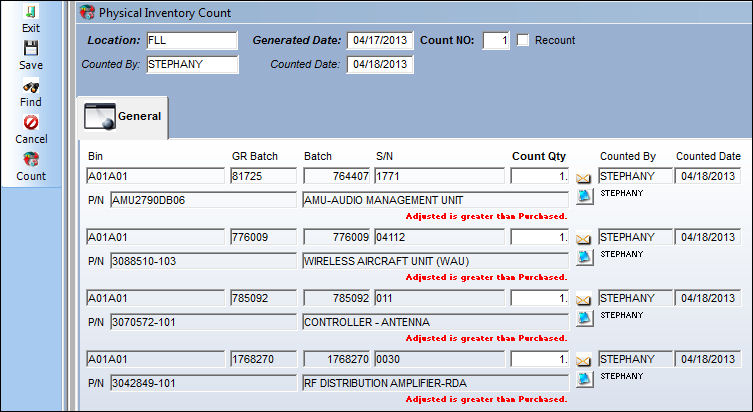
Note: If when performing the count a serialized part is not found and the count is closed, TRAX will still show a part quantity of '1' until the missing part is located or scrapped.The value is retained to not affect your companies finances.
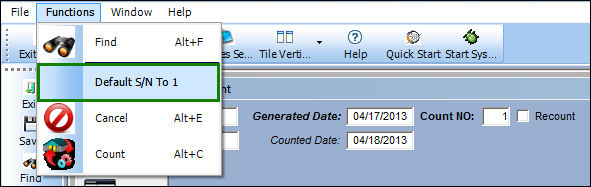
In the Functions tab, located at the top of the window, select the 'Default S/N to 1'. The user can select the 'Default S/N to 1' to automatically enter '1' for rotable parts in inventory.
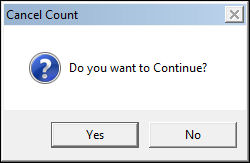
Select the Cancel  button to cancel the entered count information. Upon canceling the count, the system will adopt the previous history counted counts for that inventory locations and/or specified parts.
Once selected, the following pop-up appears:
Note: To effectively cancel the count, the Count Qty field must remain blank. If not, the count will not be canceled.
Serialized Part Missing
If the counted quantity for a serialized part is '0' zero and the Physical Inventory Count is closed, then the system will still show this part in your inventory since this will affect your company's finances. Below is an example:
After generating the count for your location, perform the Physical Inventory Count. Part '3400-22-10' was not found therefore the Count Quantity was left blank:
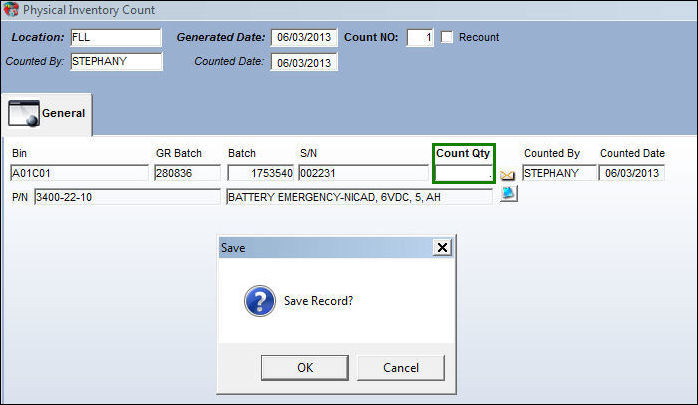
Close the count for that location:
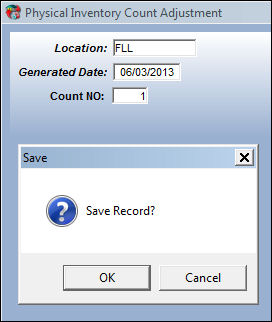
The following print will display with the Count quantity blank:
 \
\
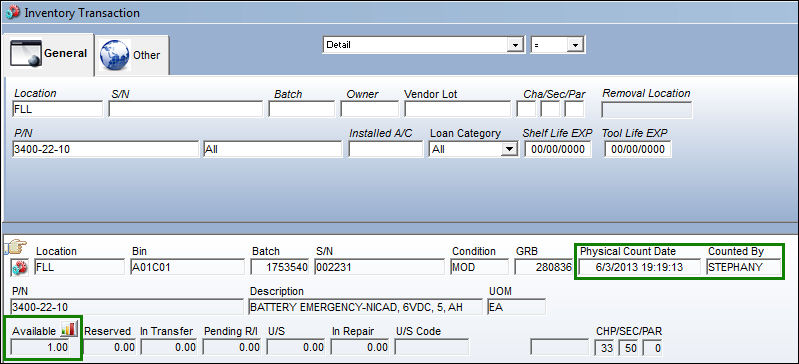
In the Inventory Transaction window located in the Inventory module, if you look up the missing serialized part, the system will display this part as available.
For more information, go to the section Bin/Warehouse Transfer located in this manual.
Share
Print
|
©1997-2026 Trax USA Corp. All rights reserved. This manual may not be copied, photocopied, reproduced, translated, or converted to any electronic or machine-readable form, in whole or in part, without prior written approval from Trax USA Corp. |
 |