
 Share
Share
 Print
Print
|
|
|
|
|


Physical Inventory Count
Inventory/ Update/ Physical Inventory Count
TRAX allows you to close out a specific location only once in a 24 hour period.
After performing a manual count of all parts in your inventory, go to the Physical Inventory Count window to enter the actual part quantities into the system.
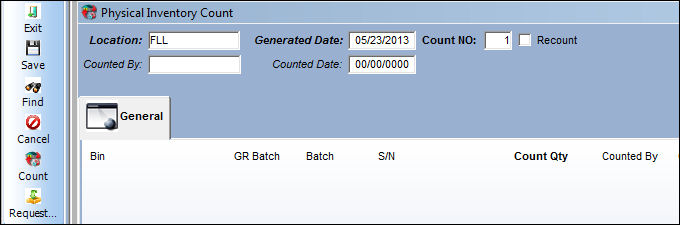
Enter/verify the following information:
Release |
Field |
Function |
|
Location |
Select the location where the physical counting took place. |
|
Generated Date |
Enter the date the Physical Inventory Count Print was generated. |
|
Count NO |
Enter the count number for the amount of items that are to be counted. Different users can enter different count numbers for P/Ns within the same location simultaneously. |
|
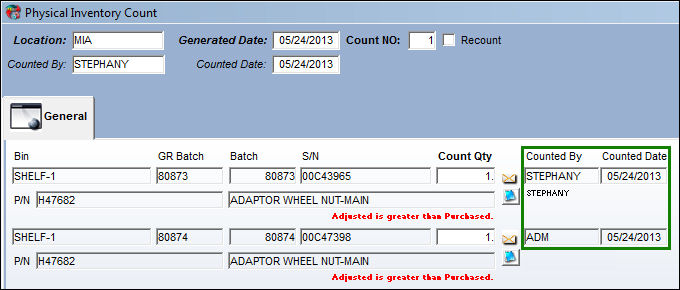
Counted By |
The name of the user who generated the inventory count. This field automatically populates in the Query area when the user selects the Find If you are counting on behalf of another user, the new user can override the Counted By information in the query area. The Counted By field in the results area will adopt the new user information for those specific counts that were entered upon saving.
|
|
Counted Date |
The current date of when the user enters the count into the system. This field will automatically populate in the query area when the user selects the Find |
|
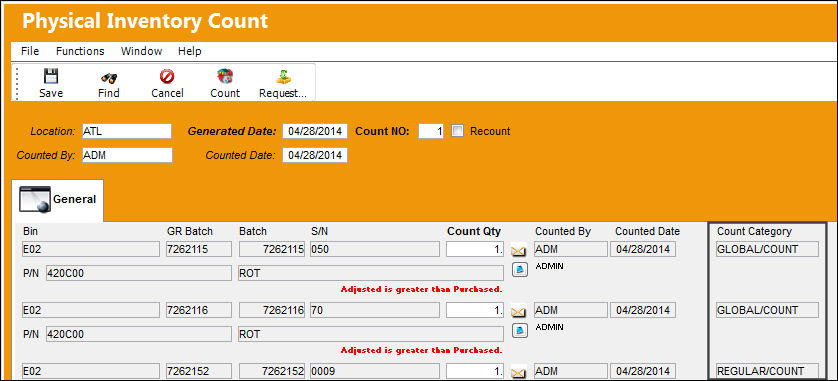
Count Category |
The type of count that was generated (Cycle Count, Global Count, Regular Count). This field automatically populates in the Query area when the user selects the Find
|
|
Count |
Note: Customized robotic warehouse machine. |
|
Request Tray |
Note: Customized robotic warehouse machine. |
 button
 button
Select the Find  button.
Select the Recount checkbox if you desire a physical recount. For additional information please refer to the Physical Reconciliation Recount section of this manual.
Share
Print
|
©1997-2026 Trax USA Corp. All rights reserved. This manual may not be copied, photocopied, reproduced, translated, or converted to any electronic or machine-readable form, in whole or in part, without prior written approval from Trax USA Corp. |
 |