
 Share
Share
 Print
Print
|
|
|
|
|


Physical Count Generation/Full Inventory Location
Inventory/ Update/ Physical Inventory Generation
The Physical Inventory Generation will issue a list with the expected stock quantities as calculated by TRAX based on inventory transactions booked in the system (e.g. Receiving, Transfers, Scrap, etc.).
Only one generation can be run per day per location. If the Global Count radio button is selected, a count for all locations may be generated.
If Switch  INVCOUNTALL is set to Yes, a count for parts in multiple locations can be generated for parts with a Cycle Count code.
In the Physical Inventory Count Generation window, populate the Location field to run the count and receive the list of all inventoried parts in that specific location.
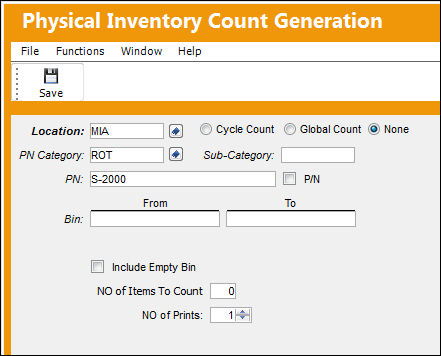
The following information/options are available in this window:
_____________________________________________________________________________________
Location
Select a location where the physical inventory count will take place.
Cycle Count radio button
Select this radio button to run the Physical Inventory Generation only for inventory items that have been assigned a Cycle Count Code.
The Cycle Count System Transaction Code must be set up. For more information, go to the Cycle Count Setup section of this manual.
Global Count radio button
Select the Global Count radio button to run the Physical Inventory Generation for all parts in one or all locations. This option will allow the count for parts that are in transit out of inventory or have a status of pending inventory, pending repair, pending technical records, and/or on a Transfer Order.
P/N Category
Select the P/N Category code that will filter the parts to be counted by this designated code.
When switch INVCOUNTALL is set to Yes, multiple categories may be selected. For additional information refer to switch INVCOUNTALL via the Inventory Switches Manual.
Sub-Category
Select the P/N Sub-Category code that will further filter the parts to be counted by.
P/N
Select a specific P/N that the system will only count at your specified inventory location.
P/N checkbox
Select this checkbox to include all P/Ns in the count.
 - When the P/N checkbox is deselected, the count will include main P/Ns only.
 - When the P/N checkbox is greyed out, the count will include One-Way and Both-Way Interchangeable P/Ns only.
 - When the P/N checkbox is selected, the count will include Both-Way Interchangeable P/Ns only.
From To Bin
Enter the a range of bins from the specified location from which you will obtain the inventory count.
Company
Select a company to have all P/N's in that company's inventory appear in the Physical Inventory Count Print. For additional information, refer to the COMPANYMULTI switch via the G/L Interface Switches manual.
Only multi-company customers.
Number of Prints
Select the number of prints for the specified Inventory Count.
Include Empty Bin
Select to indicate that the counts should include all bins within the specified range, even if the bin is empty. If a list of the results of the count is printed upon completion of this step, empty bins will appear with a count of zero (0) and the bold word ' Empty Bin' to state that this bin was calculated with a count of zero.
Add P/N Information
This checkbox will appear when the Include Empty Bin checkbox is selected. Select to indicate that information regarding the Part Numbers with zero included in an empty bin should be added to the list of counts that is printed upon completion.
No of Items to Count
Enter the number of items to count at the designated inventory location. The system will select the parts through a first in - first out method. The parts that have been brought into inventory first will have priority over all other parts for that specified location.
_____________________________________________________________________________________
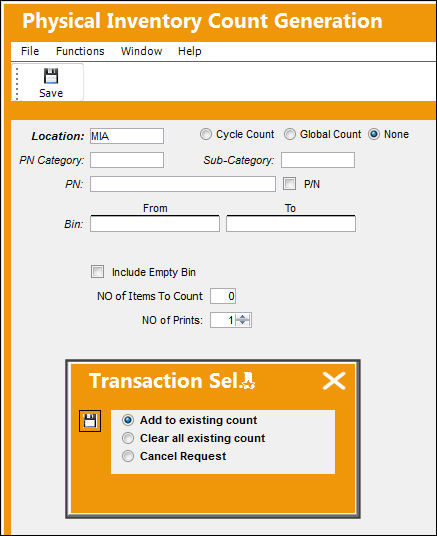
When the user runs the generation again for the same location after the Physical Inventory Count print is generated, the system displays the option to add to the existing count. This can be done by returning to the Physical Inventory Count Generation window and inputing the same location with the new additions.
The following Transaction Selection pop-up will display. The pop-up will provide three options:
- The user is able to add additional information to the count by selecting the filter options. Once saved, this will merge with the initial count created for that specific location.
- The user may select this option to regenerate the count again by clearing the previous count generated for that location.
- The user may cancel the count request.
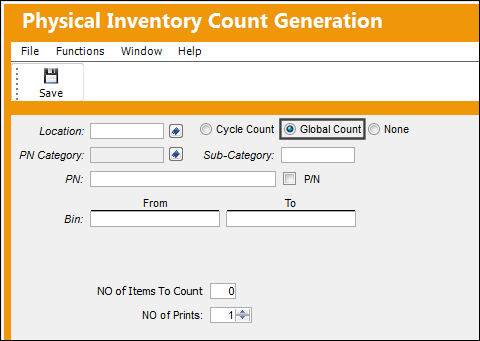
Global Count:
The Global Count option allows the count of parts in all or multiple locations.
The Location/Site information must be set up prior in the Config Other field, Configuration tab of Switch INVCOUNTALL.
Share
Print
|
©1997-2026 Trax USA Corp. All rights reserved. This manual may not be copied, photocopied, reproduced, translated, or converted to any electronic or machine-readable form, in whole or in part, without prior written approval from Trax USA Corp. |
 |