
 Share
Share
 Print
Print
|
|
|
|
|


TraxDoc Authorization
TraxDocs must be authorized through the TraxDoc Authorization Explorer window.
Note: Only users who are members of the required TraxDoc Authorization Groups will be able to access the TraxDoc Authorization explorer.
When opened, find the TraxDoc requiring authorization. Notice that all of the required steps are listed.
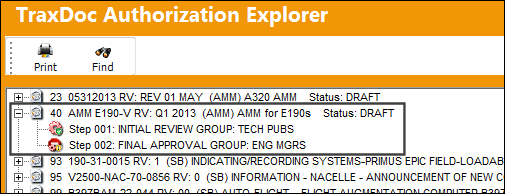
The TraxDoc Master record can be reviewed by right-clicking on the TraxDoc Record number listed above the steps in this window. The TraxDoc Document Revision window will appear.
 Note: The TraxDoc Master record can still be modified even if it is pending Authorization, as long as the user accessing the record has the following security enabled through the TraxDoc Security Explorer: Modify While Authorizing.
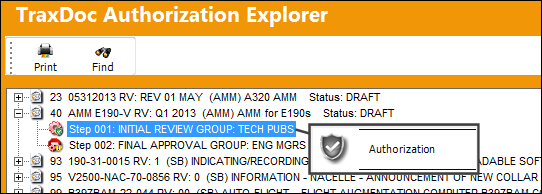
Right-click on the first step then select the Authorization button.
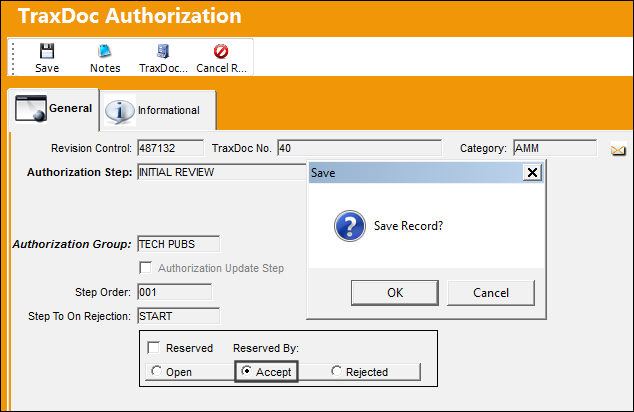
The TraxDoc Authorization window comes up with the selected step. Select the Accept radio button then save the window.
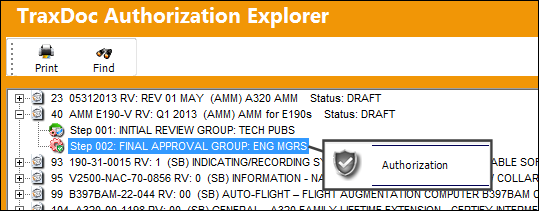
From the explorer window, right-click on the final step then select the Authorization button.
The TraxDoc Authorization window comes up with the selected step. Notice that the Authorization Update Step checkbox is selected, which indicates that this is the final step. Select the Accept radio button then save the window.
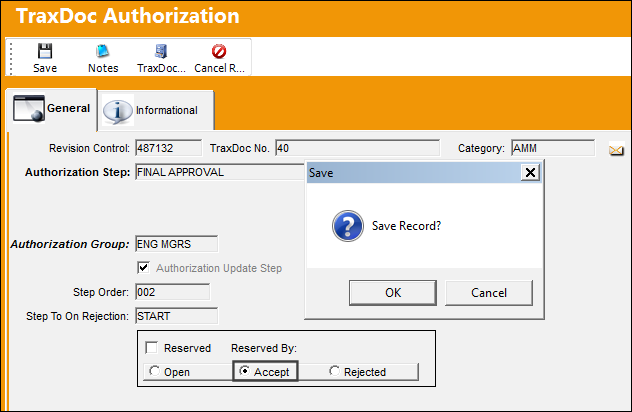
Because it was the final step, the TraxDoc is now fully authorized.
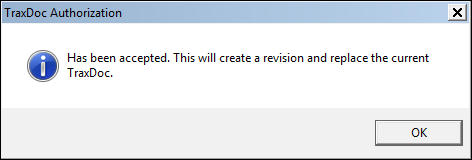
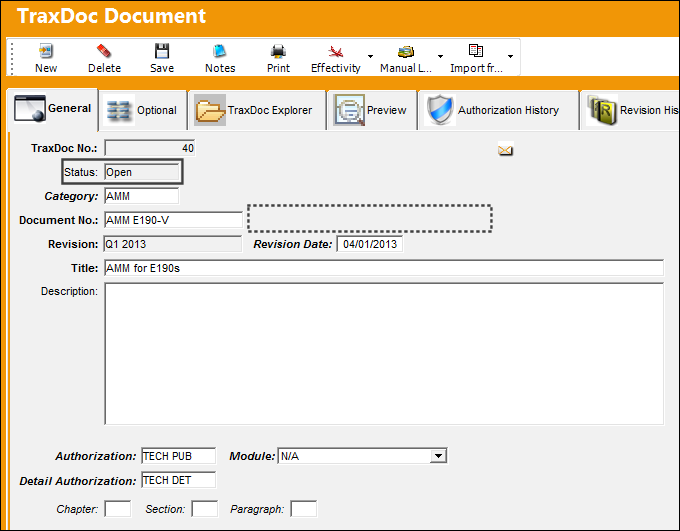
Notice from the TraxDoc Document window that the Status is now 'Open' and that authorization is no longer pending.
Note: Although the TraxDoc has been authorized, the Task Cards created may still require authorization depending on their Task Card Category. For more information refer to the Task Card Management Process.
Share
Print
|
©1997-2026 Trax USA Corp. All rights reserved. This manual may not be copied, photocopied, reproduced, translated, or converted to any electronic or machine-readable form, in whole or in part, without prior written approval from Trax USA Corp. |
 |