
 Share
Share
 Print
Print
|
|
|
|
|


Log In Button Sign On Method

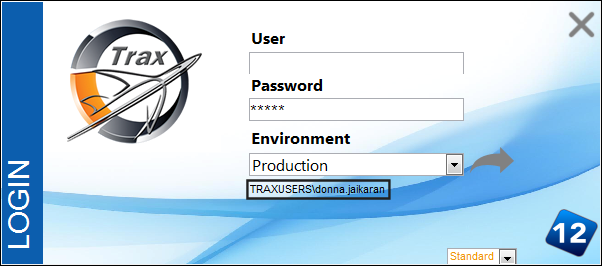
The TRAX Version 11 Standard sign on method features a standard orange layout as well as larger icons and fields. The login also features a simple way to log in to the system with or without the use of entering the user name and password information. This option allows the user to login to the system by selecting the 'Enter' key on the keyboard or the Log In button. TRAX automatically works in the background to validate the user credentials in just a few clicks.
 The 'Login as' option is security controlled. Only a TRAX Administrator may setup users with this login option.
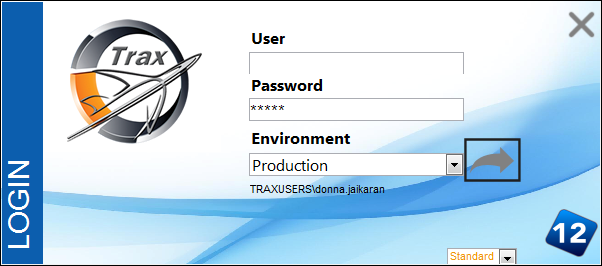
Select the Log In button highlighted below.
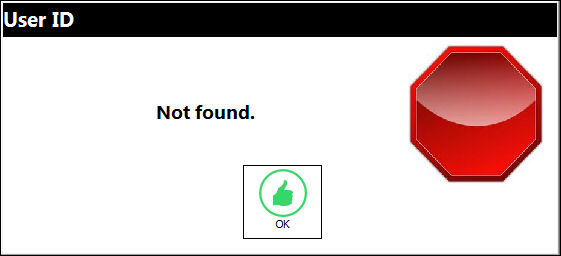
If the user's 'Login as' option is not setup or the user name and/or password combination is incorrect, the following error message will display.
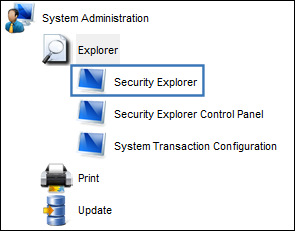
In order to use this option, the TRAX Administrator must first log into TRAX (using their user ID and password) and go to System Administration/Explorer/Security Explorer:
The user does not set up this functionality. It is set up by the TRAX Administrator.
Double-click on the Security Explorer option and TRAX displays the Security Explorer.
The TRAX Administrator must go to their profile and select Security Explorer/ System Administration/ Explorer/ Security Explorer/ Security to Main View Settings, as displayed below:
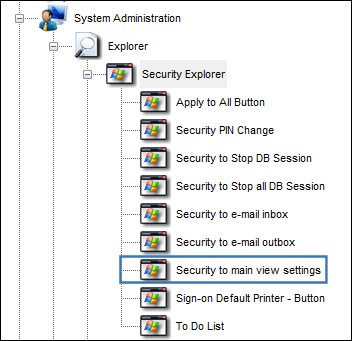
Right click on 'Security to main view settings' and select Update User. TRAX displays the User Security Control window shown below.
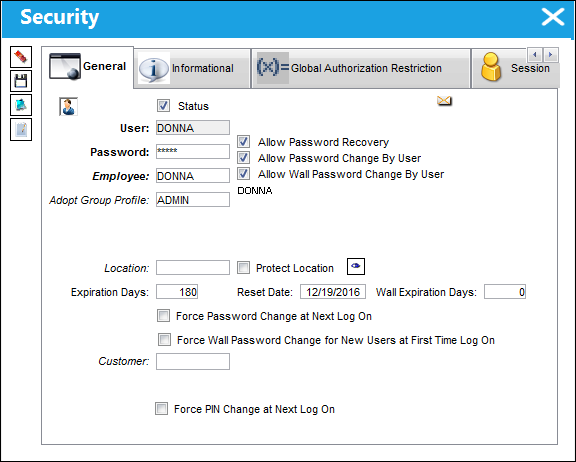
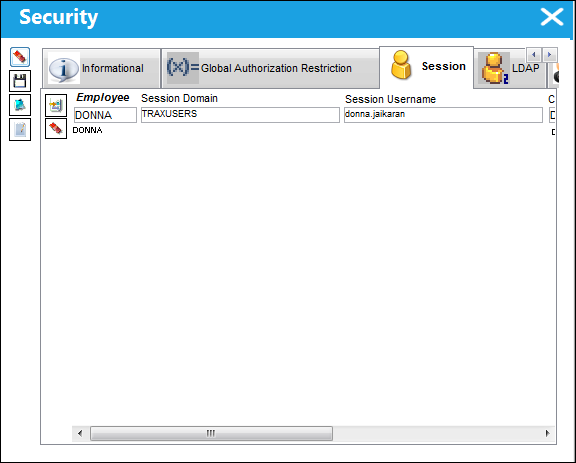
In the Session tab, enter the Employee name and select the Save  button.
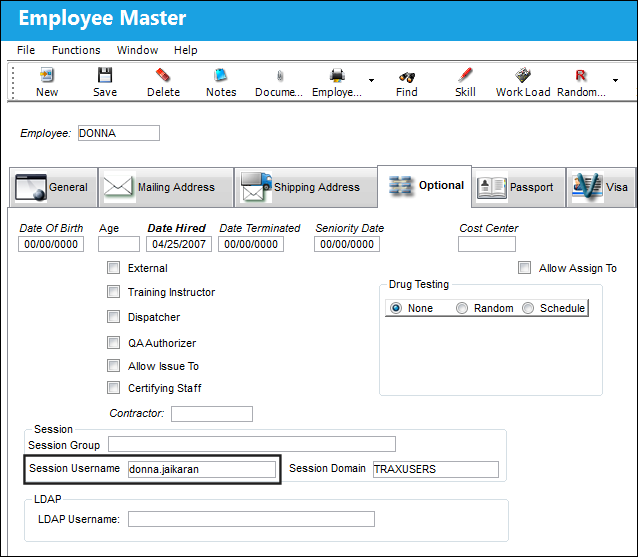
For the employee name to generate the needed Session Username field above, the employee's session username must be enrolled prior to saving in the Employee Master window. From the Optional tab, enter the Windows User Name (i.e. john.doe for John Doe) into the Session Username field and select the Save button.
For more information, refer to Security Explorer, Update User Option.
Add the following line of text to the Trax.ini file: 'TraxSessionSignon=1':
This line tells the database that the user wishes to see the Log In  button featuring the user's name.
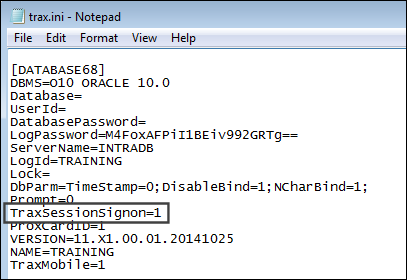
The TRAX Administrator will correctly modify the Trax.ini file for end users to enable this feature.
The user will now be able to see the Log In button and user name for the databases specified in the Trax.ini file. The user can now log in to TRAX using the button.
Share
Print
|
©1997-2026 Trax USA Corp. All rights reserved. This manual may not be copied, photocopied, reproduced, translated, or converted to any electronic or machine-readable form, in whole or in part, without prior written approval from Trax USA Corp. |
 |