
 Share
Share
 Print
Print
|
|
|
|
|


The Inventory Detail, Optional Tab displays any related Receiving, Receiving Inspection, and Expiration information related to the part:
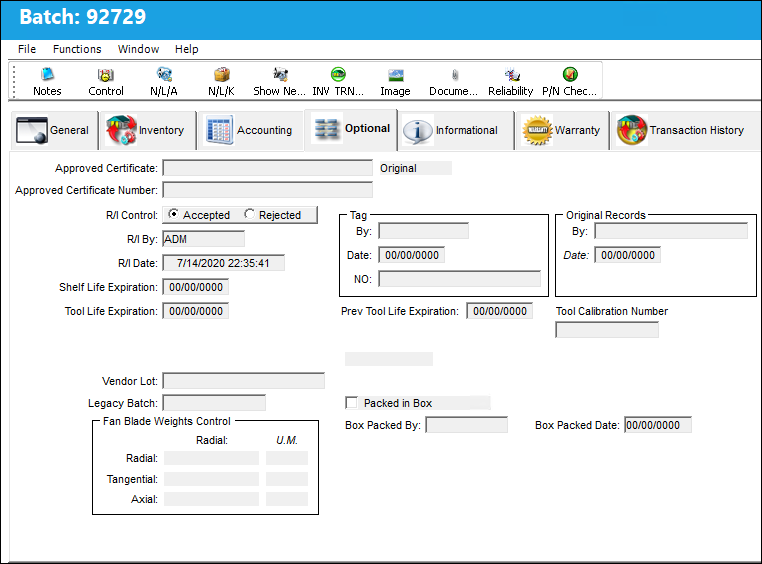
The following information/options are available in this window:
_____________________________________________________________________________________
Approved Certificate
The type of certificate approving the part (ie. Form 1, EASA etc.). The user may choose from a pre-defined transaction code, or enter the Approval Certificate manually.
R/I Control
Displays if the Receiving Inspection for the part has been accepted or rejected upon entering the system.
R/I By
Name of person/group who performed the Receiving Inspection.
If the R/I checkbox for the Part Number is deselected via the P/N Master, Technical Engineering tab, the R/I By field will be populated with the User who performed the Order Receiving transaction for the part.
R/I Date
Date of the Receiving Inspection.
If the R/I checkbox for the Part Number is deselected via the P/N Master, Technical Engineering tab, the R/I Date field will be populated with the date when the Order Receiving transaction for the part.
Shelf Life Expiration
The shelf life expiration date of the part, as applicable.

Tool Life Expiration
The tool life expiration date of the part, as applicable.
Tag By
Vendor Tag By information.
Tag Date
Date of the Tag.
Tag NO
The tag number associated with the part.
Original Records By
Name of person/group in charge of Original Records.
Original Date
Date of the Original Records.
Last Tool Life Expiration
Tool Life expiration date.
Tool Calibration Number 
This is a unique number used to define a tool.
Vendor Lot
Vendor batch number of the part entered upon receiving or initial load, as applicable. This field can contain up to 20 characters.
Legacy Batch
The original batch number from the Legacy system from where the data was migrated.
Hazardous Material  icon
icon
This icon appears if the part contains hazardous materials. For additional information, refer to the P/N Master, Inventory Tab via P/N Master of the Settings Training Manual.
Cond Hazmat InActive Status
The Condition Hazardous Material InActive status appears if this part has the Hazardous Material at Receiving checkbox selected in the P/N Master, Inventory tab and the part has not been removed from an aircraft. Having not been removed from an aircraft, this status indicates that the part is not currently considered Hazardous Material. For additional information, refer to the P/N Master, Inventory Tab via P/N Master of the Settings Training Manual.
Cond Hazmat Active Status
The Condition Hazardous Material Active status appears if this part has the Hazardous Material at Receiving checkbox selected in the P/N Master, Inventory tab and the part has been removed from an aircraft. Having been removed from an aircraft, this status indicates that the part is currently considered Hazardous Material. When this status is displayed, Hazardous Material At Removal checkbox will also be displayed. For additional information, refer to the P/N Master, Inventory Tab via P/N Master of the Settings Training Manual. Once this Hazmat part is repaired, the Cond Hazmat Active checkbox must be deselected when receiving the R/O. Deselecting this checkbox resets the part as Cond Hazmat InActive. For more information refer to the Repair Order Receiving, General Tab via the Receiving Training Manual.
Packed in Box checkbox 
Select this checkbox if the component has been packed in a box. This information is pulled from the Box Button, Box tab via Inventory Transaction.
 Note: This button is part of a customized interface and is therefore not applicable to most TRAX customers.
Box Packed By
The user who packed the shipment. This information is pulled from the Box Button, Box tab via Inventory Transaction.
Note: This button is part of a customized interface and is therefore not applicable to most TRAX customers.
Box Packed Date
The date the shipment was packed. This information is pulled from the Box Button, Box tab via Inventory Transaction.
Note: This button is part of a customized interface and is therefore not applicable to most TRAX customers.
Fan Blade Weights Control Field
Radial - The radial weight, and its accompanying unit of measurement, of the received fan blade.
Tangential - The tangential weight, and its accompanying unit of measurement, of the received fan blade.
Axial - The axial weight, and its accompanying unit of measurement, of the received fan blade.
_____________________________________________________________________________________
Share
Print
|
©1997-2026 Trax USA Corp. All rights reserved. This manual may not be copied, photocopied, reproduced, translated, or converted to any electronic or machine-readable form, in whole or in part, without prior written approval from Trax USA Corp. |
 |