
 Share
Share
 Print
Print
|
|
|
|
|


There are two types of delays that can be entered:
- Defect Delay
- Flight Delay
Defect Delays are created when an issue related to the aircraft result in the aircraft being out of service and are entered by selecting the Delay  button via the Defect Report window.
Flight delays are created when issues such as weather conditions or non-maintenance events ground an aircraft. These types of delays do not influence the reliability of the aircraft and can be entered by selecting the Delay button via A/C Actual Flights. For additional information regarding Flight Delays, please refer to the Delay Button, via A/C Actual Flights of the Technical Records Training Manual.
From the Defect Report window, select the Delay button.
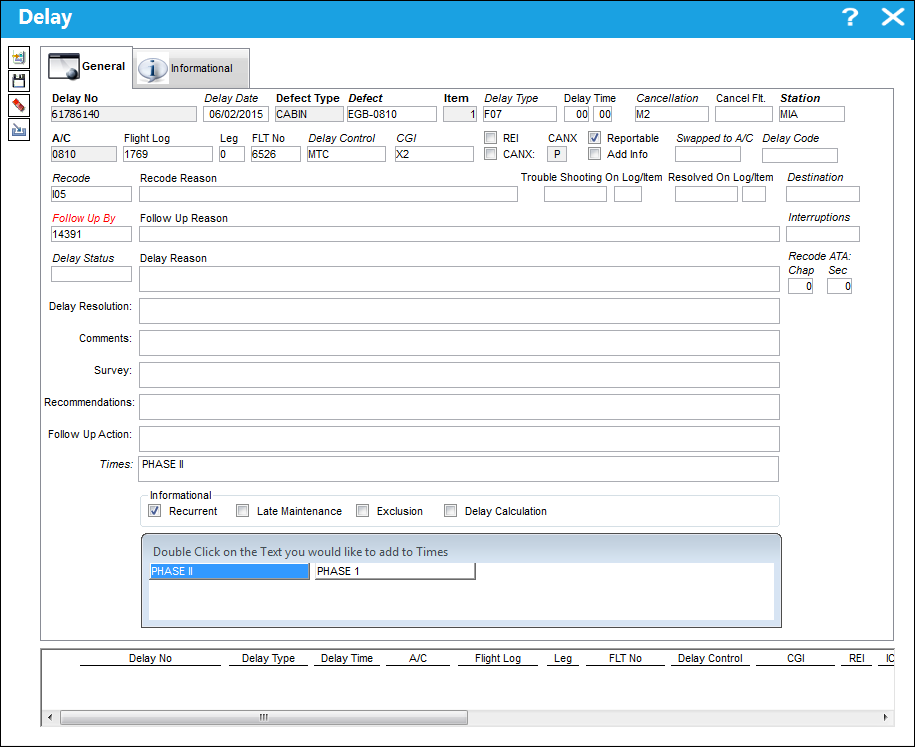
The following information/options are available in this window:
_____________________________________________________________________________________
Delay No.
Delay reference number.
Delay Date 
This field could indicate either the date that the Delay was reported OR the date that the Delay occurred. This field's functionality depends on Technical Records switch  VALGRNDTIME.
- When VALGRNDTIME is set to Yes: The Delay Date auto-populates to the Defect's Reported Date.
- When VALGRNDTIME is set to No: The Delay Date auto-populates to the current date.
However, the field can be overridden manually. This field will be mandatory if Switch MANDELAYFLDS is set to Yes.
Defect Type
The type of defect found on the aircraft (for example, Pilot Report, MX Report). For additional information, refer to the Defect Type Transaction Code, via the Technical Records Transaction Code Manual.
Defect
The defect number (or log book number).
Item
The defect log item number.
Delay Type
The Delay Type (Engineer, FAA etc.).
When the Delay Type field is populated, the Cancellation field will no longer appear in bold text. If Switch MANDELAYFLDS is set to Yes, while the Cancellation field will no longer appear in bold text, it will still be mandatory.
Delay Time
This field could indicate either the Hour/Minute that the delay was reported OR the duration of the Delay (in hours and minutes). This decision is up to each MRO operator's discretion.
Cancellation
The Flight Cancellation code (if applicable). This field will be mandatory if Switch MANDELAYFLDS is set to Yes.
When the Cancellation field is populated, the Delay Type field is no longer mandatory.
Cancel Flt
The Flight canceled because of the reported defect (if applicable).
Station
The station where the Delay has occurred.
A/C
The individual aircraft tail number.
Flight Log
The unique Flight Log number for the flight.
Leg
The Flight Leg number for the flight.
FLT No
The flight reference number/information.
Delay Control
Select into this field to select whether the delay was controlled or not controlled. This field will be mandatory if Switch MANDELAYFLDS is set to Yes.
This is a System Transaction Code. For more information, refer to the Delay System Transaction code via the Technical Records Transaction Code manual.
CGI
Chargeable Indicator. Select into this field to select appropriate chargeable indicator.
This is a System Transaction Code. For more information, refer to the Chargeable Indicator System Transaction code via the Technical Records Transaction Code manual.
REI checkbox
Reliability Exclusion Indicator. This is a requirement for Spec2000, Chapter 11. This is a required field in the XML data when sending the aircraft event record to Boeing. This checkbox is dependent on the setting of Switch READIEI via Technical Records.
CANX checkbox
This checkbox allows the user to classify whether the flight was delayed or canceled. If selected, the flight was delayed or classified.
This checkbox should be de-selected by default.
CANX
A 'P' will auto populate if the first flight has been delayed. A 'C' will auto populate if all consecutive flights have been delayed.
Reportable checkbox
Select this checkbox if the item is reportable.
Add Info checkbox
This checkbox allows the user to specify whether additional information or paperwork was received relating to the delay.
This checkbox should be de-selected by default.
Swapped to A/C
Many times when a flight is delayed there is an aircraft swap involved. Enter here the new aircraft.
Delay Code
The Delay Code (i.e. Equipment Failure, Scheduled Ground Time). For additional information, refer to the Delay Transaction Code, via the Technical Records Transaction Code Manual. This field will be mandatory if Switch MANDELAYFLDS is set to Yes.
Recode
Enter Recode here. This is user defined.
Recode Reason
Enter Recode Reason here. This is user defined.
Trouble Shooting On Log/Item
This is used to reference the Trouble Shooting On Log/Item from the Defect Report.
Resolved On Log/Item
This is used to reference the Resolved On Log/Item from the Defect Report.
Destination 
The airport of destination for the flight.
Note: This field is part of a customer-specific modification and is therefore not applicable for most users.
Follow Up By
This is used to reference an employee who did the follow up of this delay.
Follow Up Reason
This is used to document the reason why the employee performed a follow-up of this delay.
Interruptions
Enter the Interruption Code. This is informational only.
Note: This field is part of a customer-specific modification and is therefore not applicable for most users.
Delay Status
Enter the Delay Status code.
This field only appears when Switch DELAYADDFIELDS is set to Yes. For additional information, refer to Switch DELAYADDFIELDS, via the Technical Records Switches Manual.
 Note: System notifications can be set up in the Delay Status transaction code to notify users when a specific Delay Status is applied to the delay.
Delay Reason
This is used to document the reason why the employee performed a delay.
Recode ATA Chap/Sec
Enter the ATA chapter/section Recode here.
Note: This field is part of a customer-specific modification and is therefore not applicable for most users.
Delay Resolution
This is used to document the resolution to the delay.
Comments
Enter any additional comments regarding the Delay Report. This is a free text field and informational only.
This field only appears when Switch DELAYADDFIELDS is set to Yes. For additional information, refer to Switch DELAYADDFIELDS, via the Technical Records Switches Manual.
Survey
Enter any survey information regarding the Delay Report. This is a free text field and informational only.
This field only appears when Switch DELAYADDFIELDS is set to Yes. For additional information, refer to Switch DELAYADDFIELDS, via the Technical Records Switches Manual.
Recommendations
Enter any recommendations regarding the Delay Report. This is a free text field and informational only.
This field only appears when Switch DELAYADDFIELDS is set to Yes. For additional information, refer to Switch DELAYADDFIELDS, via the Technical Records Switches Manual.
Follow Up Action
Enter any follow up action information regarding the Delay Report. This is a free text field and informational only.
This field only appears when Switch DELAYADDFIELDS is set to Yes. For additional information, refer to Switch DELAYADDFIELDS, via the Technical Records Switches Manual.
Informational checkboxes 
These checkboxes were designed to be utilized by an organization's reliability department to help categorize and calculate reliability delay items. They are used for reporting and do not have transactional functionality within TRAX.
The checkboxes include the following:
- Recurrent checkbox
- Late Maintenance checkbox
- Exclusion checkbox
- Delay Calculation checkbox
 These checkboxes are security controlled via Technical Records/Update/Defect Report. The security options are called 'Defect Report Delay - Delay Calculation,' 'Defect Report Delay Exclusion,' 'Defect Report Delay Late Maintenance,' and 'Defect Report Delay Recurrent.' For more information refer to the Security Explorer via the System Administration Training Manual.
Times
Additional information only. At the bottom of the window, pre-defined phrases are available for users to quickly input commonly used phrases into the Times field. These phrases are defined via the Times Phase Transaction Code (located in the Technical Records Transaction Codes section). Select pre-defined phrases to auto populate the Times field. Additional information can be added manually.
Note: This field is part of a customer-specific modification and is therefore not applicable for most users.
Times Phrases
Users can select from a listing of commonly used descriptive phrases to populate the Times field. These are optional and are intended to facilitate to data entry process. Time phrases are controlled through the Times Description Phrase transaction code via Settings/ Explorer/ System Transaction Code.
This transaction code is security controlled via Settings/ Explorer/ System Transaction Code/ Technical Records/ Times Description Phrase. For more information refer to the Security Explorer via the System Administration Training Manual.
Note: This field is part of a customer-specific modification and is therefore not applicable for most users.
_____________________________________________________________________________________
Information relevant to the record's creation and modification can be viewed through the Delay, Informational Tab.
Share
Print
|
©1997-2026 Trax USA Corp. All rights reserved. This manual may not be copied, photocopied, reproduced, translated, or converted to any electronic or machine-readable form, in whole or in part, without prior written approval from Trax USA Corp. |
 |