
 Share
Share
 Print
Print
|
|
|
|
|


W/O Authorization Process
In order to implement the Work Order Authorization functionality, Production Switch  WOATHREL must be set to Yes,
Then, the W/O Priority transaction code(s) must contain Authorization Steps. To add steps, go the System Transaction Code Explorer then navigate to Production/ W/O Priority. Select the Authorization Steps  button within the tran code update window.
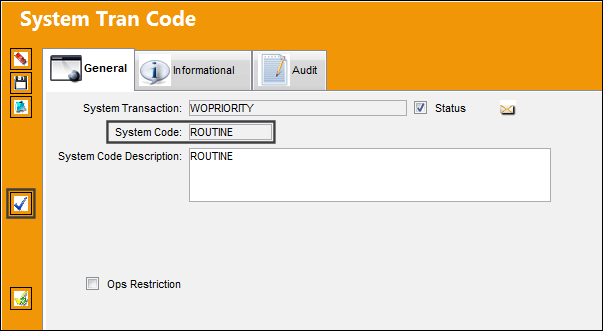
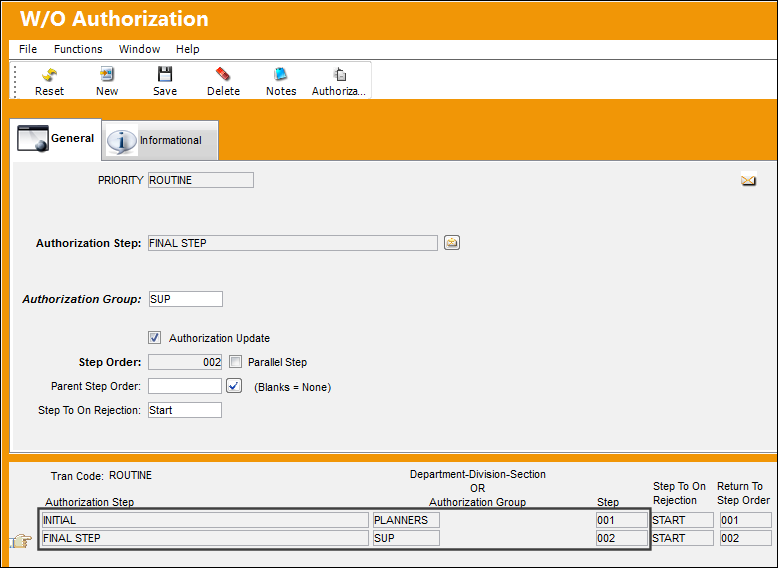
Then create the authorization steps, including the required steps and authorization groups. For more information refer to the W/O Priority transaction code.
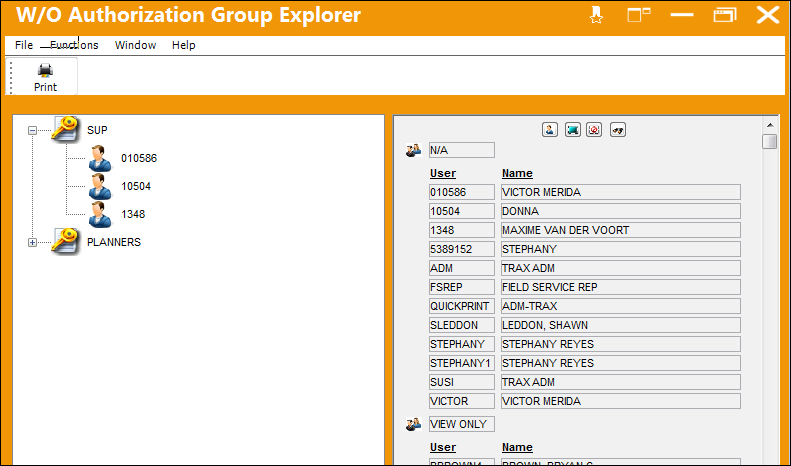
From the W/O Authorization Group Explorer, set up the Authorization Groups and personnel. For more information see the Work Order Authorization Group Explorer.
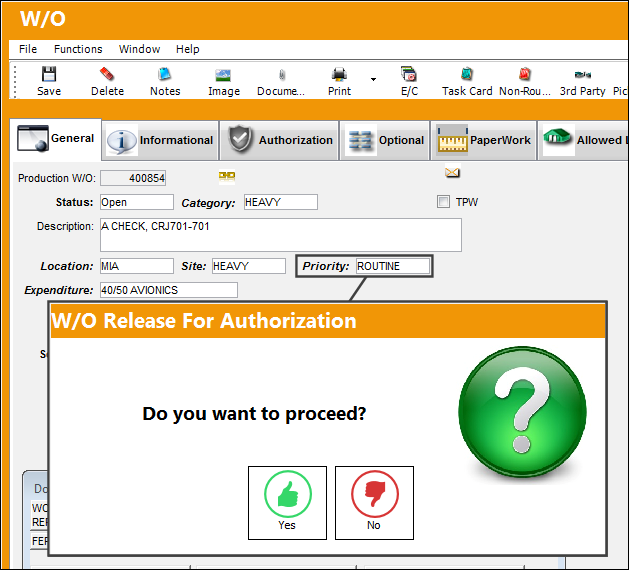
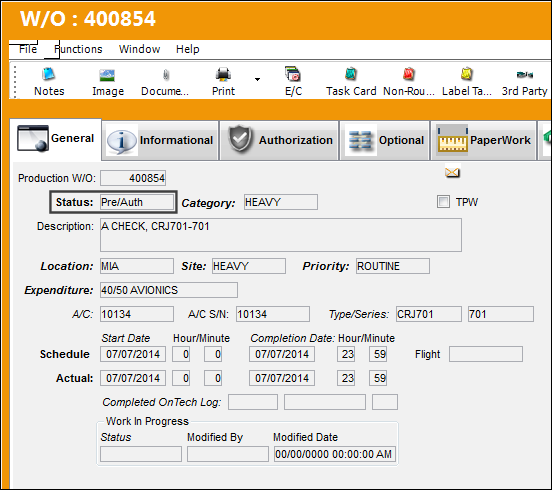
The following W/O is then created with the above Priority. When saved, the user is prompted to release the W/O for Authorization. Select Yes to proceed.
Notice that the W/O's Status automatically changes to 'Pre/Auth.'
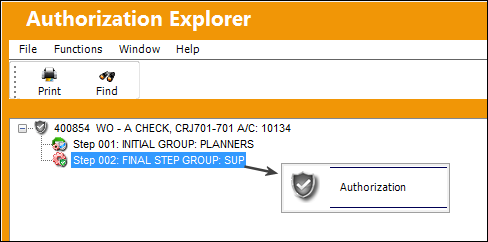
From the Authorization Explorer, the first step is authorized by right-clicking on the step. The final step is then selected. For more information refer to the Work Order Authorization Explorer.
From the W/O Authorization window, the Accept radio button is selected. Once saved, the W/O is authorized.
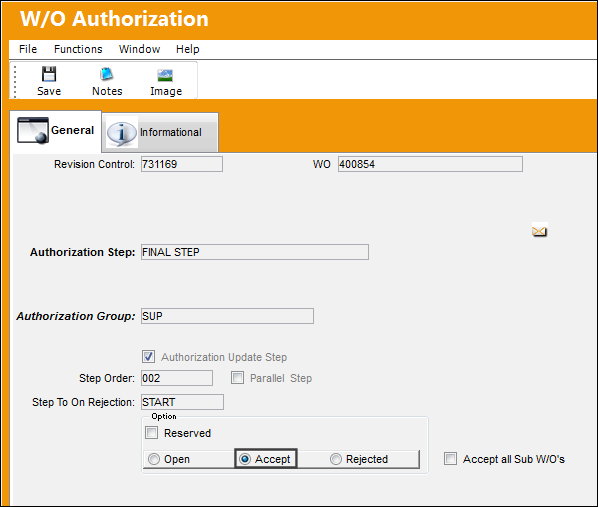
Note: Because this step has the Authorization Update Step selected, this is the final step that will authorize the Work Order.
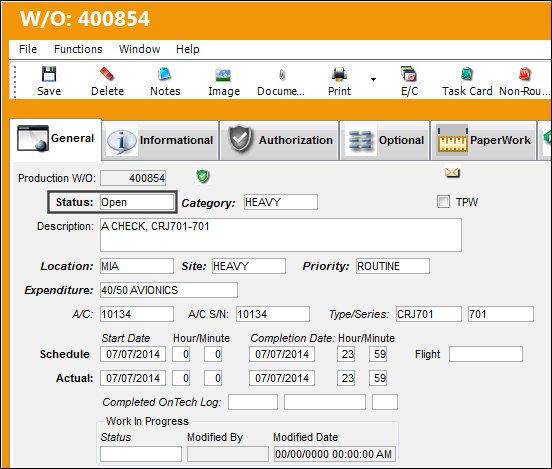
From the W/O window, notice that the Status was updated to 'Open.'
Share
Print
|
©1997-2026 Trax USA Corp. All rights reserved. This manual may not be copied, photocopied, reproduced, translated, or converted to any electronic or machine-readable form, in whole or in part, without prior written approval from Trax USA Corp. |
 |