
 Share
Share
 Print
Print
|
|
|
|
|


The Removal History Data tab will only contain information if the part has been removed via the Technical Records/Update/A/C /P/N Transaction. This tab will contain all removal transaction history for the part number associate to the Repair Order Line item and is a query only tab. For parts with multiple removal transaction histories a scroll bar will appear on the right-hand side to this tab. Records can be selected by double clicking and the removal information will be copied to the Removal tab. The documented fields below will not populate the Removal tab although associated to the part removal record.
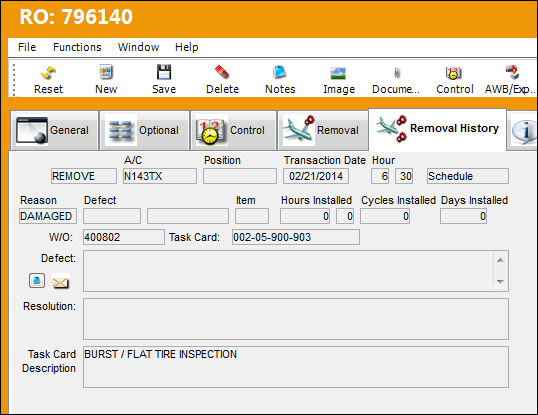
The following information/options are available in this window:
_____________________________________________________________________________________
A/C Transaction Type
While there are number of A/C Transaction Types, only the 'REMOVED' transactions related to the Serialized Part Number (GRB) will appear on this tab.
Transaction Date
The date in which the Part was removed from the aircraft.
Hour
The time of the A/C P/N Removal Transaction.
Removal Category
Select the removal category with the drop down window (i.e. Schedule, Un/Schedule, Swap).
Only Unscheduled Removals will trigger Removal Alerts. For additional information, please refer to Part Number Reliability section of the Reliability Training Manual.
Reason
The Reason for removal code is a brief description of the trigger which prompted the removal reasons; such as FAILURE, INOP, or LIFE-LIM. These codes are defined by the company. For additional information please refer the A/C Installed Remove Reason (Technical Records) section of in the TRAX Functional Transaction Codes manual.
_____________________________________________________________________________________
For those functions of any field not defined above, please refer to the Repair Order Detail, Removal Tab section of this Manual.

Switch  ADDLSTAC - (Add Last A/C P/N Transaction To The R/O) If set to Yes, the system will automatically enter the last A/C P/N Transaction into the Repair Order. If configured to No, the Last Removal Transaction will not auto populate the Removal tab.
If configured to No, the user may still populate the Removal tab with the last A/C P/N Transaction. Simply select into the Removal History tab's Transaction until the tab is blue as seen below:
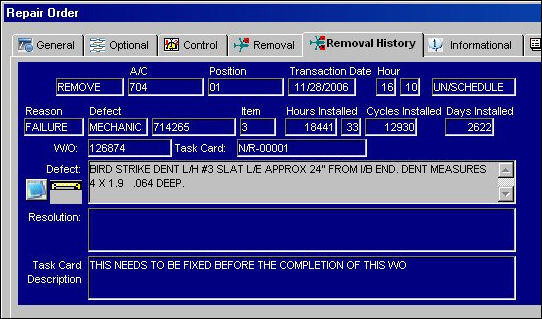
Select the Removal tab to verify that all relative information has populated the tab. Once populated, this information will print on the physical Repair Order.
Share
Print
|
©1997-2026 Trax USA Corp. All rights reserved. This manual may not be copied, photocopied, reproduced, translated, or converted to any electronic or machine-readable form, in whole or in part, without prior written approval from Trax USA Corp. |
 |