
 Share
Share
 Print
Print
|
|
|
|
|


The Repair Order Detail screen is as follows. The R/O detail will automatically create a new record for the first time, therefore it is not necessary to select the New  button.
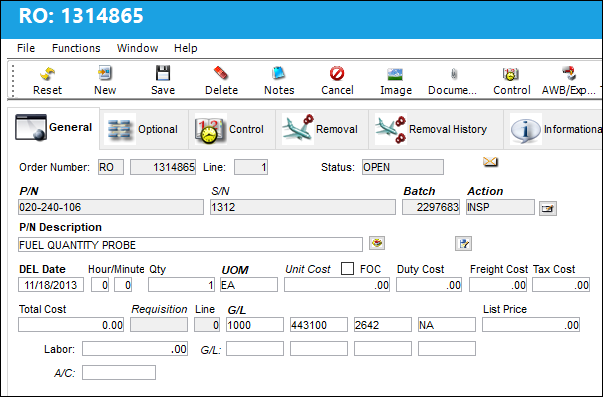
The following information/options are available in this window:
_____________________________________________________________________________________
Order Number
The type of order and the order number for the transaction.
Line
The specific Line item of the Order. Each Line item could represent a different part included in the same order.
Status
Line item will default to Open status. Order statuses are as follows:
CLOSED - All Order line items have been received. Status will automatically change to Closed status
OPEN - All Order items have not yet been received. Open defaults for all newly created order line items.
PENDRMV - Part is still on the aircraft and is pending repair until it is removed form the aircraft.
Hazardous Material  icon
icon
This icon appears if the part contains hazardous materials.
Static Sensitive Material  icon
icon
Indicates that this is a Static Sensitive Partand is shown in Inventory, Orders, and Packing & Shipping.
P/N
The Part Number reference for the aircraft part. The Part Number, as defined in the appropriate P/N Master (identified on the Order Header Inventory Type selection), required and processed on this order. If the Part Number does not exist in the related P/N Master, the P/N entered is considered a Non-Inventory item and will not be tracked within the system's Inventory module once received.
S/N
The Serial Number for the specific serialized part.
Batch
The inventory number that is currently associated with a part or group of parts. A part's Batch number can change after various types of transactions take place.
Action
The repair condition of the received part.
-
 GREYACTIONRO: When set to Yes, after saving the Repair Order detail, the Action field will be greyed-out and editing capability will not be available.
The user is only able to edit the field if security is provided to the user.
 The Action field is security-controlled via Orders/Update/Repair Order/ Action Field Edit. For more information refer to Settings Training Manual.
Action Field Edit  button
Select this button to make enable the Action field.
This button is only available when the user has the required security for this field.
The Action field is security-controlled via Orders/Update/Repair Order/ Action Field Edit. For more information refer to Settings Training Manual.
P/N Description
The description of the part. This will populate by default and may be overridden against the order.
Preferred Vendor  button
Select this button to retrieve the preferred Vendor P/N Repair capability and conditions, as seen below:
P/N - The Part Number reference for the aircraft part.
Vendor / Location / Site - Vendor Code/ Vendor Name or Location/Site for internal repairs.
Repair - Repair condition of the part from the repair vendor.
Vendor P/N Repair Capability are defined in the P/N Master; for additional information, refer to the Prefer Vendor P/N Button.
Order Status Query  button
Select this button to view additional information regarding the order detail.
This button is intended for Trax operators who operate in the capacity of a Vendor for Third Party P/N Pool Customers. This webpage is customizable and acts as a portal where information can be shared between the Vendor and the Customer regarding the order. The URL for this webpage is set up through the Order Status Query button via the Company Profile of the Settings Module.
Request Status  button
Select this button to request the current status of the order from TRX.
 This button is part of the TRX interface functionality and is only available for customers using this interface. For more information refer to the TRX Interface (TCS) manual.
For more information refer to the TRX Status Button in the Orders Training Manual.
Memo  button
Select this button to view memos related to TRX interfaced orders.
This button is part of the TRX interface functionality and is only available for customers using this interface. For more information refer to the TRX Interface (TCS) manual.
For more information refer to the TRX Memo Button in the Orders Training Manual.
DEL Date
The date when the part(s) is/are expected to be received. For expedite information refer to the Optional Tab.
May be pre-defined on the Shipping Information tab of the Vendor Master. For additional information, please refer to the Setting Training Manual.
Qty
The number of parts for the transaction.
UOM
The unit of measure. This will default if associated with a Part Number as defined in the P/N Master. Transactions for parts can be conducted in a different UOM than defined in the P/N Master. However, upon receiving the UOM, conversion will automatically adjust the quantities, providing that the conversion rate is defined in the UOM System Transaction Code (via Setting/Explorer/System Transaction Code).
Unit Cost
The unit cost from the vendor (per UOM specified). Select into the field for historical purchase costs. The cost information is derived from the P/N Master (Settings/ Update/ P/N Master/ Cost button). See the Settings chapter for additional information regarding the P/N Master.
PN Interchangeable - Part Number and preferred status.
Vendor - The system code for the service/part provider.
Condition - Preferred Condition.
Price - Unit Cost.
Lead Days - Number of days for delivery.
FOC checkbox
Select this checkbox if the item is Free of Charge.
When the FOC checkbox is selected the Unit Cost field will be grayed out. The system will create fixed assets when the order line is received, but journal entries will not be created.
When the FOC checkbox is not selected, and the Unit Cost remains null (0.00), the system will create fixed assets when the order line is received, and If Switch GLJEZERO is set to Yes journal entries will be created. For more information, refer to Switch GLJEZERO, via the G/L Interface Switches Training Manual.
At the bottom of this window, the FOC checkbox is displayed next to each line item and is either selected or not selected. If selected, the text is displayed in red.
Duty Cost
The customs duty cost (if applicable).
Freight Cost
The associated freight cost/fees, if applicable.
Tax Cost
The tax cost (if applicable).
Taxes can be applied to Orders automatically by entering Goods and Services Tax (GST) information for the specific Customer/Vendor entered into the header window. The tax percentage and applicable G/L Account can be entered via the Settings Master, Optional tab. The Tax Cost is added when a Unit Quantity and Cost are entered. For more information refer to the Goods and Services (GST) Functionality via the Settings Manual.
Disc %
The percentage of discount. This discount amount may be pre-defined in the Vendor Master, Cost Tab.
Discount Amt
The calculated discount amount.
Total Cost
The total cost of the order, which includes all line items' quantity multiplied by any additional fees or cocts, such as Freight, Duty, Tax, etc.
Requisition
List of required parts for either a maintenance item or for restocking. The Requisition linked to the order. When the Requisition and Line are populated, most of the order line's fields are auto-populated based on the information listed in the Requisition (including the P/N).
 If the Requisition and Line item linked to the order in the General tab contains a Capital Expenditure, the Capital Expenditure is auto-populated in the order's optional tab. For more information, refer to the Repair Order Detail, Optional Tab.
Requisitions may be configured to mandatory.
- ROREQRQ-(Repair Order Requisition Required For Each Line)- If set to 'Yes', the system will require a Requisition for each line when creating a Repair Order.
Line - The attached requisition line number.
Quote  button - If the Order has a requisition attached to the line item, the Quote button will be available. Select this button to retrieve any requisition quotes, if applicable.
If there is a quote for the requisition and the order is for the same vendor who provided the quote the unit cost will be automatically populated with the quoted price when the requisition is entered.
G/L
The General Ledger accounting code for the order. The order G/L will default to the Part Number G/L as defined in the P/N Master, Costing tab. However, this field may be overwritten for any given order.
When G/L Interface Switch COMPANYMULTI is set to 'Yes', this field will be populated with the G/L Account that matches the Company entered into the Company field of the R/O header window regardless of the part's original Company. When set to 'No', this field will function as described above. For detailed information refer to Switch COMPANYMULTI via the G/L Interface Switches Manual.
When Orders Switch CAPEXGL is set to Yes, the Capital Expenditure transaction code will contain the Default G/L field (instead of the Cost Center field). When this Capital Expenditure is entered into an order's Optional tab, the transaction code's G/L (if populated) will override the order's G/L field in the General tab.
List Price
List price of the part.
Labor
Labor cost associated to the Repair Order.
G/L Labor
General ledger account associated with the labor cost.
Labor Cost has to be entered in manually using a separate G/L Account in the Invoice Order Detail Window. For more information on how to add an item to an existing invoice, refer to New Invoice Item.
A/C
The individual aircraft tail number.
This field is mandatory depending on the Priority entered in the R/O header window and on the Priority Tran Code setup. For more information refer to System Tran Code Priority via the Orders Transaction Code Manual.
ATA
The part number ATA Chapter/ Section/ Paragraph as defined in the P/N Master, General tab.
Average Repair Cost
This is the average cost of repair for the part number based on the quantity received from repair, divided by the sum of the total repair.
Packing and Shipping  icon
icon
This icon appears to the top right of the window once the R/O is saved and sent to Packing and Shipping through the automated prompt. The R/O is sent to Packing and Shipping when 'Yes' or 'Express Shipping' is selected. For more information refer to the Packing and Shipping Training Manual.
_____________________________________________________________________________________
There are many warning messages which a user may receive while creating an order. For the meaning of any of these warning messages please refer to the Orders Module Warning Messages section of the Orders Training Manual.
The Duty, Freight and Tax Cost fields may not be accessible dependant on the configurations for the following switches:
ORDERDFT- (Orders Duty, Freight and Tax Display (fields) Not Writable)- If set to 'Yes', the following fields will be disabled on the Order detail: Duty, Freight, and Tax.
ORDERDUT- (Orders Duty Display)- If this switch is set to 'Yes', the Duty field is disabled in the Orders Detail screen. If this switch is set to 'No', the Duty field is enabled in the Orders Detail screen.
ORDERTAX- (Orders Tax Display)-If this switch is set to 'Yes', the Tax field is disabled in the Orders Detail screen. If this switch is se to 'No', the Tax field is enabled in the Orders Detail screen.
A Repair Order Line Item cannot be accessed by two users at the same time. The following error message appears when the selected R/O Line Item is currently In Progress/being viewed by another user.
Additional Functionality:
When an order created for an interchangeable part with a Requisition is saved, if the alternate part is not effective to the main part's A/C Type/Series, a soft warning appears indicating the discrepancy in A/C Effectivity. For more details refer to the Transfer Order Detail, General Tab via the Orders Training Manual.
Share
Print
|
©1997-2026 Trax USA Corp. All rights reserved. This manual may not be copied, photocopied, reproduced, translated, or converted to any electronic or machine-readable form, in whole or in part, without prior written approval from Trax USA Corp. |
 |