
 Share
Share
 Print
Print
|
|
|
|
|


Orders Module Warning Messages
The following are warning messages which may be encountered when a user attempts to create an Order. These warnings may appear as a result of system configurations or pre-defined conditions elsewhere in TRAX.
- If the Location selected is not identified in the Location Master as an Inventory location the following message will appear:
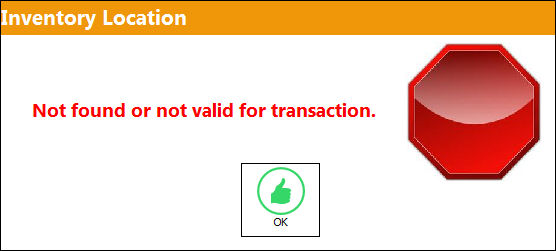
Select 'OK' to acknowledge the message and exit the pop-up message.
Note: Location Inventory flag maybe defined in the vendor master. Locations not flag as an Inventory location will not be permitted on any order Ship Location.
- If the Category is no entered or incorrectly entered the following message will appear:
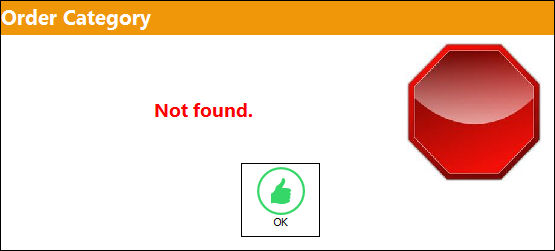
Select 'OK' to acknowledge the message and exit the pop-up message.
The warning received maybe dependant on the configurations of Switch
 EXCATMAN-(E/X Category field Mandatory), Switch LOCATMAN-(Loan Order Category field Mandatory), Switch POCATMAN-(Purchase Order Category (field) Mandatory) and Switch ROCATMAN-(Repair Order Category (field) Mandatory) - If set to 'Yes', the system will make the order Category field mandatory.
 Additionally, Switch
CATROWO- (R/O Category Not Required if R/O Header Has Work Order) - If set to 'Yes', the Category field on the Repair Order Header will not be mandatory if a Work Order is specified. If a Vendor is specified, the Category field will remain Mandatory. This switch works in conjunction with the Orders/ROCATMAN (Repair Order Category field Mandatory) switch. Switch ROCATMAN must be set to 'Yes'.Note: The Order Category may be configure as a mandatory requirement per order type and used as part of the Order Authorization Process.
- If the Vendor selected is not for the correct capability status one of the following message will appear:
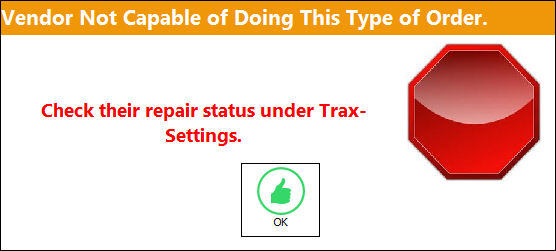
Repair Order
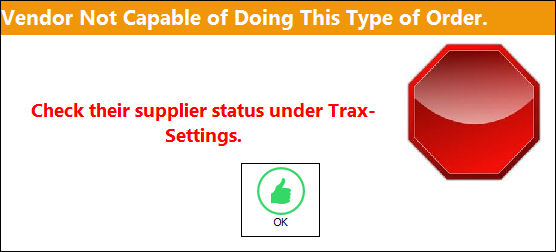
Purchase, Contract, Loan and Exchange Orders
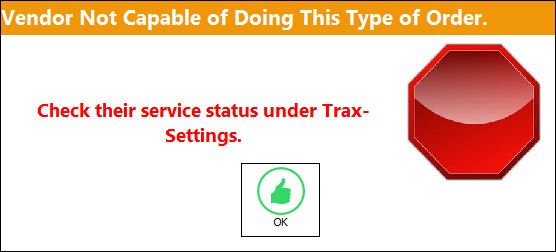
Service Order
Select 'OK' to acknowledge the message and exit the pop-up message.
Note: Vendor order capability statuses are located in the Vendor Master and Vendors without the order specified Order status will not be allowed for selection during creation of the particular order type.
- If the Vendor selected is not for the correct inventory type one of the following message will appear:
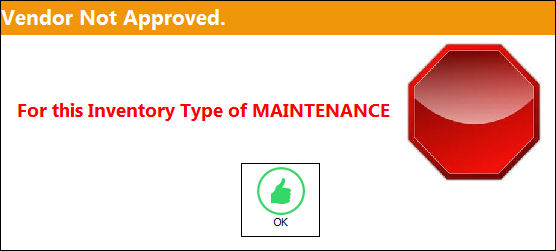
Maintenance Inventory Type.
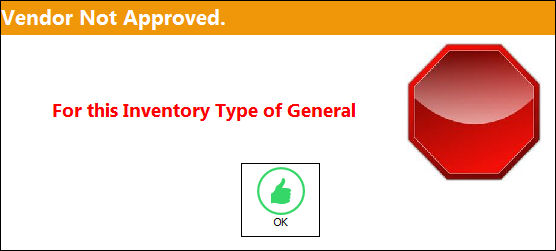
General Inventory Type
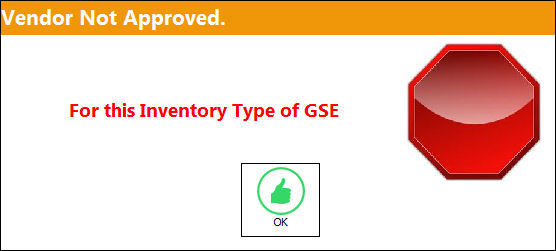
GSE Inventory Type
Select 'OK' to acknowledge the message and exit the pop-up message.
Note: Vendor Inventory Type is located in the Vendor Master and Vendors without the order specified Inventory Type will not be allowed for selection during creation of the particular order.
- If a Vendor is entered which is not in active status the following message will appear:
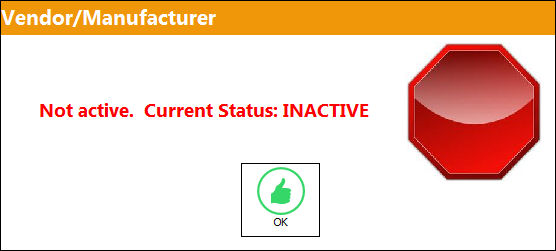
Select 'OK' to acknowledge the message and exit the pop-up message.
Note: Vendor Status is located in the Vendor Master and Vendors with Inactive, QA Inactive and Hold statuses will not be allowed for selection during the order creation.
- If the Repair Order being save contains both the Vendor and W/O the following message will appear:
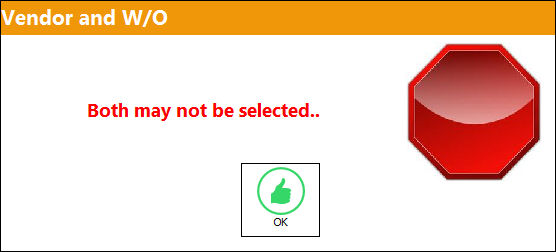
Select 'OK' to acknowledge the message and exit the pop-up message.
Note: Repair Order may be for an external Vendor (enter vendor) or internal repair (enter Shop W/O) but never both.
- If the Repair Order behind saved does not contain the Vendor nor the W/O the following message will appear:
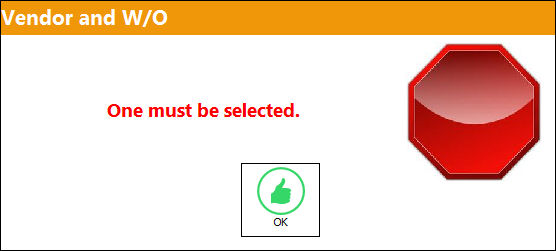
Select 'OK' to acknowledge the message and exit the pop-up message.
Note: Repair Order may be for an external Vendor (enter vendor) or internal repair (enter Shop W/O) but one must be selected.
- If the Terms is not entered or incorrectly entered the following message will appear:
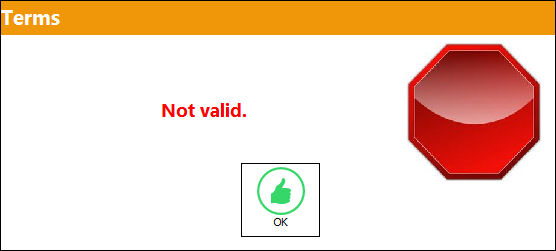
Select 'OK' to acknowledge the message and exit the pop-up message.
Note: the Vendor Terms may be pre-defined within the Vendor master.
- If the P/N enter does not exist in the appropriate P/N Master (based on Inventory Type) the following message will appear:
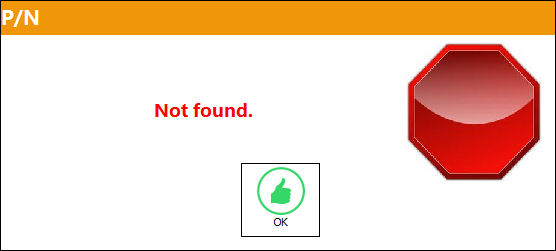
Select 'OK' to process to the Order with the entered P/N.
Select 'Cancel' to abort the transaction.
Note: When a part is not in the P/N Master upon creating the order, the part will be flagged as Non-Inventory (
 ) in both order detail and in order receiving windows. If the part received prior to the part being entered in the P/N Master, upon completion of receiving process the part will disappear from the system and will not appear in Inventory. The receipt of Non-Inventory parts is dependant on the configuration of Switch DRONIP- (Deny Receiving Of Non-Inventory Parts)- If set to 'Yes', the system will not allow the receiving of Purchase Orders containing non-inventory items.
 - If the P/N entered is superseded the following message will appear:
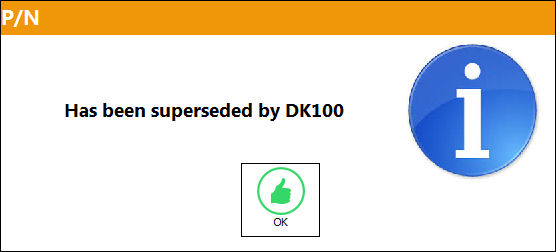
Select 'OK' to acknowledge the message and exit the pop-up message.
Note: The number which appears in this window is the new part to ordered in replacement of the P/N entered on the Order Detail, General tab as defined in the P/N Master, Technical Engineering tab. The new part will automatically be populate the P/N field upon selecting 'OK'.
- If the P/N enter is no longer active the following message will appear:
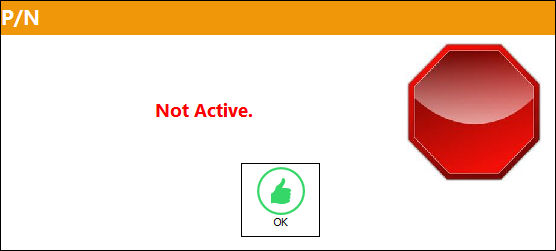
Select 'OK' to acknowledge the message and exit the pop-up message.
Note: If the part is no longer active (Inactive) the user will not be able to order the part and the part will not be allow in at receiving. When a part not active this means that the 'Active' checkbox is de-selected for the part in the P/N Master, General tab.
- If the U.O.M. is not entered or incorrectly entered the following message will appear:
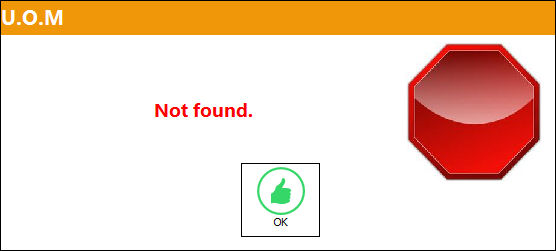
Select 'OK' to acknowledge the message and exit the pop-up message.
Note: The U.O.M. will pull from the P/N upon save, if the part exists in the P/N Master.
- If the Condition is not entered or incorrectly entered the following message will appear:
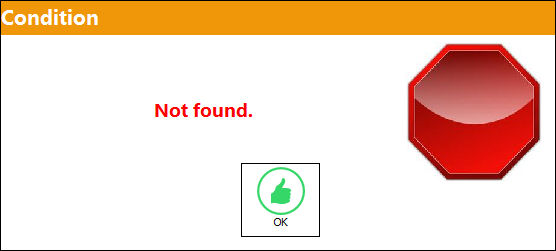
Select 'OK' to acknowledge the message and exit the pop-up message.
- If the DEL Date is not entered the following message will appear:
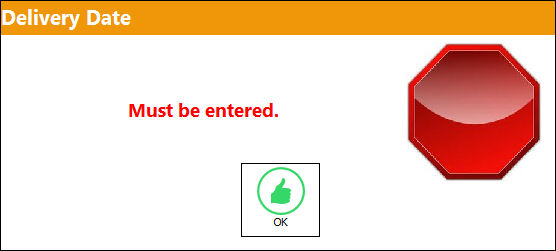
Select 'OK' to acknowledge the message and exit the pop-up message.
Note: The deliver date may be pre-defined per vendor in the Vendor Master, Shipping Information Tab or PN Master, Vendor Cost by entered the expected lead days, these days will be added to the order creation date to determine the Order Delivery Date. If this information is not pre-defined the DEL date will be 00/00/00 upon creation of the order detail.
- If the QTY is not entered the following message will appear:
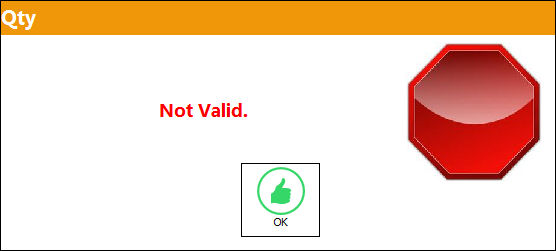
Select 'OK' to acknowledge the message and exit the pop-up message.
Note: When a requisition is attached to the order line item the QTY will be auto populated.
- If the G/L is not entered or incorrectly entered the following message will appear:
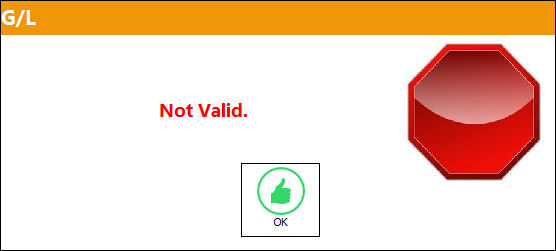
Select 'OK' to acknowledge the message and exit the pop-up message.
Note: The Purchase Order and Repair Order G/L Accounts may be pre-defined for the part in the P/N Master, Cost tab or P/N Category and will automatically populated upon P/N section. The receipt of the G/L Account in Purchase Order is dependant on the configuration of Switch
POGLDFCL- (Purchase Order G/L Default Value Cancel)- If set to 'Yes', the system will not place an account in the G/L field when a Part Number is placed on the Purchase Order detail. - If the Vendor (Order Header, General tab) and the Part Number Preferred Vendor (P/N Master, Vendor Cost) is not the same the following message will appear:
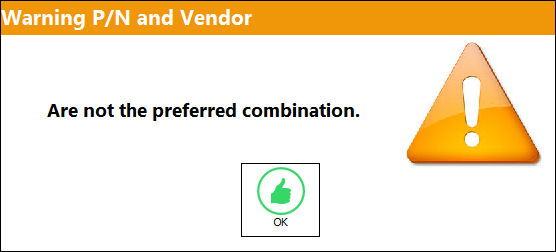
Select 'OK' to acknowledge the message and exit the pop-up window.
- If the order quantity is less that the minimum order quantity required as defined in the P/N Master, Vendor Cost one of the following messages will appear:
Soft Warning
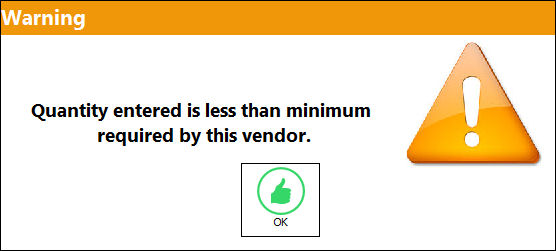
Select 'OK' to proceed with the order.
or
Hard Warning
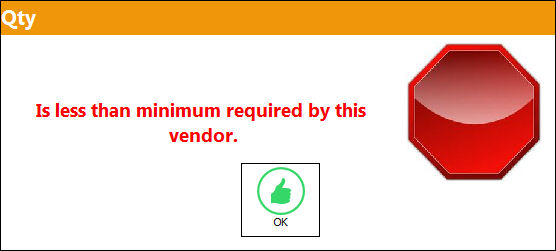
Select 'OK' and enter the required minimum quantity to process with the order.
The warning received is dependant on the configuration of Switch
POMINQTY- (Purchase Orders Use P/N Vendor Minimum Quantity Setup)- When you create a Purchase Order the system will check the Purchase Order QTY against the Minimum Order QTY in the P/N Master / Vendor P/N Information. If the Purchase Order QTY is less than the Minimum Order QTY that is set in the P/N Master Vendor / P/N Information (via the Cost button in P/N Master), you will get a Warning Message. If the switch is set to ‘'Yes'’, you will not be permitted to save (Hard Warning). If the switch is set to ‘No, you will be permitted to save (Soft Warning). - If the part being ordered exists on another 'Open' status order the following message will appear:
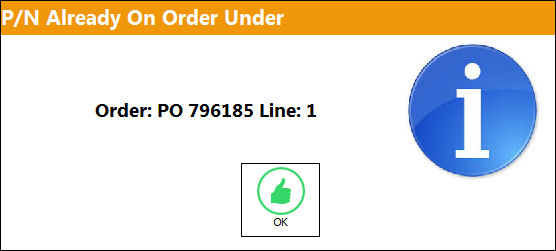
Select 'OK' to acknowledge the message and exit the pop-up message.
- If there are any existing P/N EC effective to the Part Number being Order the following message will appear:
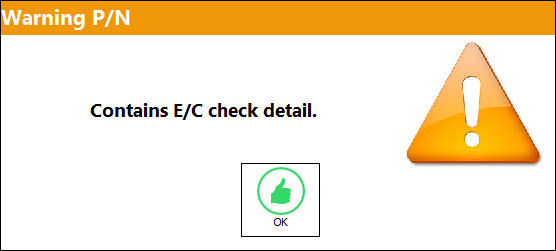
Select 'OK' to acknowledge the message and exit the pop-up message.
This warning is received dependant on the configuration of Switch
ORECMSG- (Orders E/C Notification)- If set to 'Yes', when an E/C is associated with a Part Number, and that Part Number is attached to the detail of an Order, the system will notify the user of this information. - If the order does not contain a warranty the following message will appear:
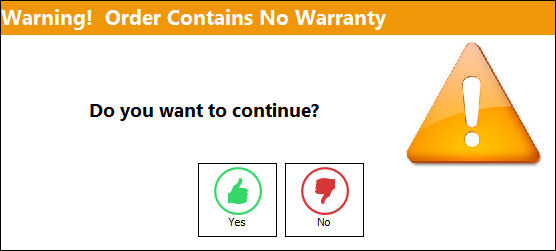
Select 'Yes' to proceed with the order.
Select 'No' to abort the order.
This warning is received dependant on the configuration of Switch
ORDWARR- (Warning For Order Warranty)- If set to 'Yes', the system will display a warning message if warranty information is not associated with the part on the Order. - If the Order Type is configured for Requisition field to be mandatory for each order line item and the requisition is not entered or is incorrectly entered the following message will appear:
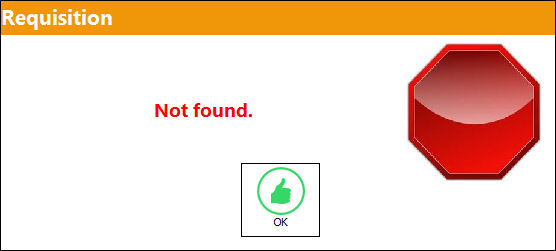
Select 'OK' to acknowledge the warning message and exist the pop-up window.
- If an unauthorized requisition is attached to an Order line item the following message will appear:
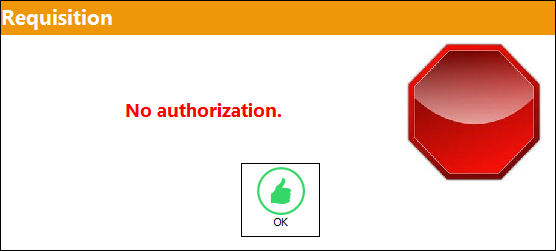
Select 'OK' to exit the pop-up window.
If authorization is required, the Requisition Authorization option must be used by someone with the relevant financial authority. Once the Requisition is authorized user will be able to attach the document to the order. For additional information, please refer to the Requisition Training Manual.
- If the requisition required date is earlier that the quoted lead days in relationship to order deliver date the following message will appear:
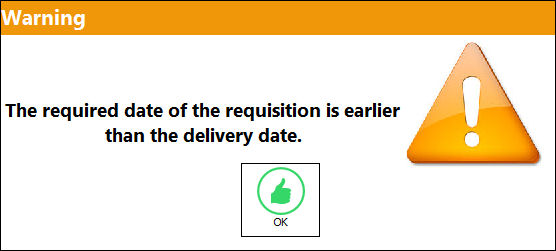
Note: The quoted lead days will be added to the order creation date to determine the Order Delivery Date
- If a requisition is attached to an order line item which is canceled or deleted the following message will appear:
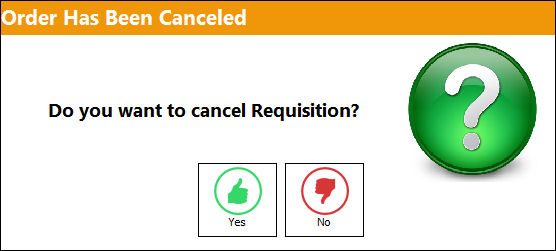
Select 'Yes' to Cancel the Requisition.
Select 'No' and the Requisition will revert to 'Open' status to be placed on another Order.
- If a requisition is attached to an order line and the quantity of the order is different from the requisition quantity the following message will appear:
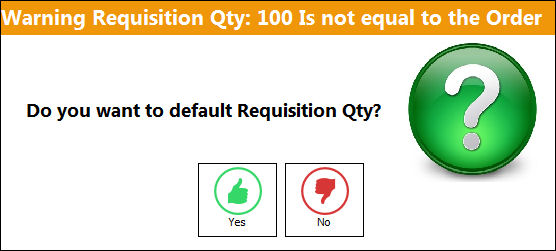
Select 'Yes' to default the order quantity with the requisition quantity.
Select 'No' to keep the order quantity as entered on the Purchase Order Detail, General tab.
- If the Order P/N Cost is different than the P/N Reference Cost the following message will appear:
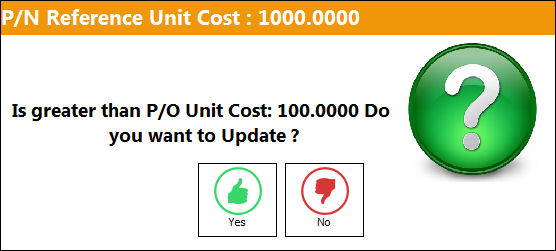
Select 'Yes' to update the P/N Reference Cost in the P/N Master, Cost tab.
Select 'No', not to update the P/N Reference Cost in the P/N Master, Cost tab.
This warning is received dependant on the configuration of Switch
PNREFCST- (P/N Reference Cost Load from P/O) - If set to 'Yes', the system will compare the Part Number Reference Cost to the PO unit cost. If there is a difference the user will receive a prompt asking if they would like to update the Part Number Reference Cost (P/N Master, Cost tab) with the PO Unit Cost. If set to No, the user will not received the prompt and the P/N Reference Unit Cost in the P/N Master, Cost tab will not be updated with the PO Unit Cost. - If the A/C is entered incorrectly the following message will appear:
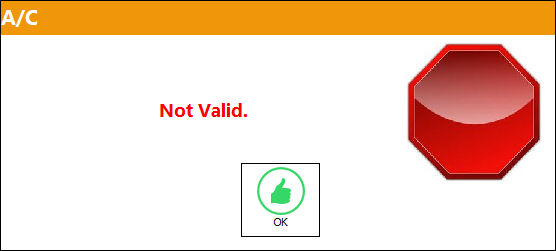
Select 'OK' to acknowledge the warning message and exit the pop-up window. Enter the correct A/C if required.
- If the Auto Issue, Auto Reserve & Book To, Auto Reserve or Book To are selected on the Order Detail, Optional tab and a W/O is not entered or incorrectly entered the following message will appear:
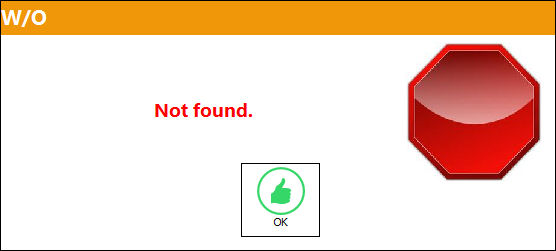
Select 'OK' to acknowledge the warning message and exit the pop-up window.
- If the Auto Issue, Auto Reserve & Book To, Auto Reserve or Book To are selected on the Order Detail, Optional tab and a W/O entered is not open the following message will appear:
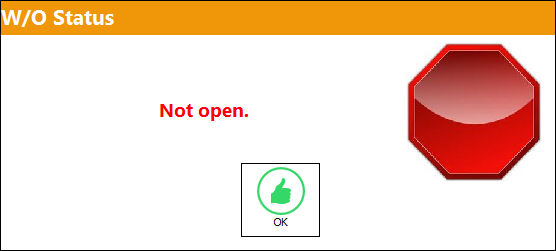
Select 'OK' to acknowledge the warning message and exit the pop-up window. Enter the correct, required Open status W/O.
- If the Auto Issue, Auto Reserve & Book To, Auto Reserve or Book To are selected on the Order Detail, Optional tab and a W/O Task Card is not entered for Third Party Maintenance or incorrectly entered the following message will appear:
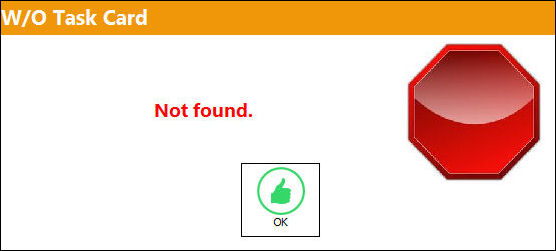
Select 'OK' to acknowledge the warning message and exit the pop-up window. Enter the correct, required W/O Task Card.
- If the Insurance Claim checkbox is selected and the Claim Number is not entered or incorrectly entered the following message will appear:
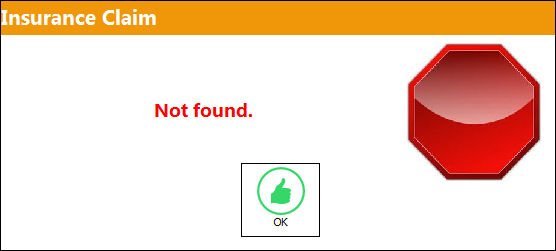
Select 'OK' to acknowledge the warning message and exit the pop-up window. Enter the required Insurance Claim information.
- If the Requisition New
 button is selected on the Order Detail, Optional tab and the requisition is not entered on the following message will appear: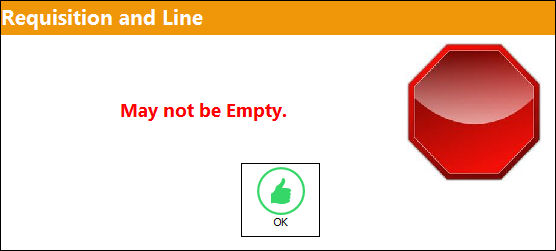
Select 'OK' to acknowledge the warning message and exit the pop-up window. Enter the required Requisition/ Line information.
- If the P/N on the Requisition entered on the Order Detail, Optional tab and the P/N on the Order Detail, General tab do not match the following message will appear:
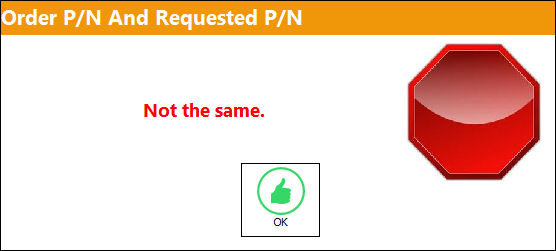
Select 'OK' to acknowledge the warning message and exit the pop-up window. The user must the either locate the correct requisition, not attach that particular requisition or change Order Detail, General tab P/N to proceed with the order as required.
- If the Capital Expenditure field on the Order Detail, Optional tab is configured as mandatory and the expenditure code is not entered or incorrectly entered the following message will appear:
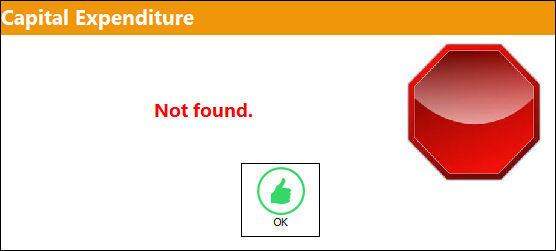
This warning is received dependant on the configuration of Switch
LOCAPEX- (Loan Order Capital Expenditure field Mandatory), Switch ROCAPEX- (Repair Order Capital Expenditure field Mandatory)- If set to 'Yes', the system will make the Capital Expenditure field in the Optional tab a mandatory field and Switch EXCAPEX- (E/X Capital Expenditure field Mandatory )- If set to 'Yes', the system will make the Capital Expenditure field in the Optional tab mandatory. - If the Repair Order vendor is not the same as the part's warranty vendor the following the following message will appear:
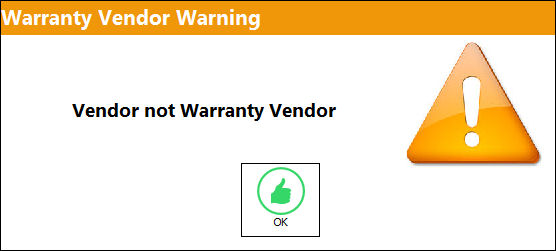
Select 'OK' to acknowledge the warning message and exit the pop-up window.
- If the Ordered P/N which was previously save is changed to completely different P/N the following message will appear:
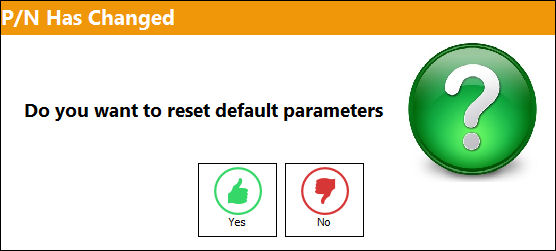
Select 'Yes', to change the P/N and to update the Order with all the P/N information (i.e. P/N Description, UOM, etc.)
Select 'No', to change the P/N but not update the Order with all the P/N Information.
- If the Repair Order part is currently installed on an aircraft the following message will appear:
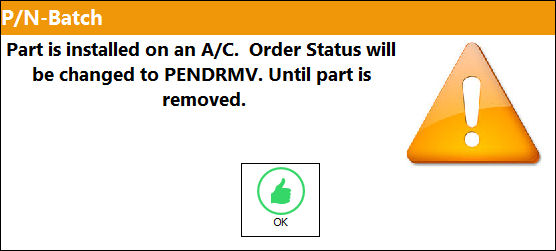
Select 'OK' to acknowledge the warning message and exit the pop-up window.
This warning is received dependant on the configuration of Switch
RMVRTS -(Return To Stock Not Allowed If Part Is Installed)- If set to 'Yes', the system will not allow Return To Stock if part is installed on an Aircraft. This works in conjunction with a switch in Technical Records/AUTOIR as well. When using AUTOIR, this switch must be off or RTS will not be allowed if parts are installed on aircraft. When set to 'No' the part must be removed from the aircraft to in order to perform a RTS transaction. Note: When this which is set to No, if a RO is created for a part that is installed on the aircraft, the status of that RO will be PENDRMV. The status of the RO will not change upon the actual removal of the part from the aircraft, but rather upon the return to stock of the part. - If the Send and Receive P/Ns are not the same, One-Way Interchangeable, nor Both-Way Interchangeable, the following warning message appears in the Exchange Order detail window. This only takes place when Switch SAMEINTERC is set to Yes. For more information refer to the Order Switches Training Manual.
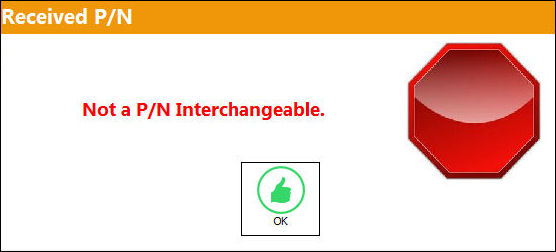
Select 'OK' to acknowledge the warning message and exit the pop-up window. Make sure the Send/Receive parts are the same or Interchangeable.
Share
Print
|
©1997-2026 Trax USA Corp. All rights reserved. This manual may not be copied, photocopied, reproduced, translated, or converted to any electronic or machine-readable form, in whole or in part, without prior written approval from Trax USA Corp. |
 |