
 Share
Share
 Print
Print
|
|
|
|
|


Order Receiving Discrepancy
The programs Order Receiving Discrepancy and Order Receiving Discrepancy Supervisor serve as a way of communication between the purchasing department and the goods receiving department about order receipt problems.
After the purchasing department issued the order (P/O, E/X, R/O, etc.) and the order is shipped it goes through Receiving. Should a problem be found during this receiving process, the receiving department will create an Order Receiving Discrepancy.
The Purchasing Department will then determine what to do with the order that caused a problem and inform the Receiving Department about the decision.
The basic process flow is as follows:
- Purchasing Department issues a order in Orders / Update / any Orders Type.
- Receiving Department inspects the delivered goods and in case of a problem creates an Order Receiving Discrepancy record in Receiving / Update / Order Receiving / Order Receiving Discrepancy button.
- Purchasing Department is notified. After deciding what further action to take, the decision is entered in Orders / Update / Orders Receiving Discrepancies.
- Receiving is notified through Receiving / Update / Order Receiving Discrepancy Close and finalizes the receiving process or sends the part back to the supplier.
Depending on the business processes, the problem order can be received and the parts placed in a quarantine bin or the Receiving is halted until further action taken. In the latter case, the part will not show up in the inventory at any time until it is fully received.
Go to Orders/ Update/ Order Receiving Discrepancy.
All of the Order Receiving Discrepancy entered by Receiving.
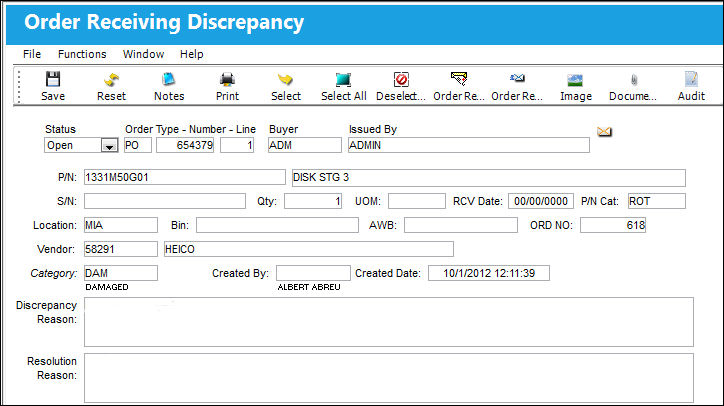
The following information/options are available in this window:
_____________________________________________________________________________________
Status
The Status of the Discrepancy.
Open - The status the discrepancies have after they have been entered.
Reviewed - The status the Purchasing Department sets after reviewing the case and entering a resolution.
Cancel - Select this Status to Cancel the Discrepancy and utilize the Order Receiving without any problems.
Order Type/Number
Order type and number of the discrepancy order.
Line
The specific Line item of the Order. Each Line item could represent a different part included in the same order.
Buyer 
Individual who issued the order to buy the part. The buyer can be created via P/N Master/Inventory Levels button.
Issued By
The employee who issued the order. If left blank, the system will consider the user who created the order as the issuer.
P/N Description
The description of the part.
S/N
The Serial Number for the specific serialized part.
Qty
Number of parts the discrepancy is issued for.
UOM
The unit of measure. This will default if associated with a Part Number as defined in the P/N Master. Transactions for parts can be conducted in a different UOM than defined in the P/N Master. However, upon receiving the UOM, conversion will automatically adjust the quantities, providing that the conversion rate is defined in the UOM System Transaction Code (via Setting/Explorer/System Transaction Code).
RCV Date
The date the order was received.
P/N Cat
The category of the part as defined in Settings/ Explorer/ System Transaction Code Explorer/ Settings/ P/N Category (e.g. Rotable, Consumable, Repairable) and entered for the particular part in the P/N Master.
Location
The Location for maintenance events, inventory stores, orders, transactions, or training events.
Bin
The specific storage bin within the inventory location.
AWB
The airway bill number related to the part.
ORD NO
The system generated Order Receiving Discrepancy Transaction number.
Vendor
The system code for the service/part provider.
Category
The discrepancy category as entered by the reporting user.
Created By
The user who created the record.
Created Date
The date the record was created.
Discrepancy Reason
The reason for the discrepancy as entered by the Receiving Department.
Resolution Reason
Resolution as entered by the Purchasing Department.
Enter the resolution agreed on with the vendor and set the status to Reviewed.
_____________________________________________________________________________________
The following buttons are available for additional functionality:
- Notes button
- Print button
- Document Control button
- Order Receiving Discrepancy Notification button
- Order Receiving Discrepancy Notification Send button
- Image button
- Audit button
Upon saving the record, the detailed information can be viewed/edited through the Order Receiving Discrepancy Detail.
Share
Print
|
©1997-2026 Trax USA Corp. All rights reserved. This manual may not be copied, photocopied, reproduced, translated, or converted to any electronic or machine-readable form, in whole or in part, without prior written approval from Trax USA Corp. |
 |