
 Share
Share
 Print
Print
|
|
|
|
|


Customs

When receiving orders supplied by international vendors, the order must clear federal customs regulations. The Customs window of the Orders module is part of the tool used to track how third party brokers process international orders on behalf of the customer that placed the order. The functionality of the Customs window helps capture the financial costs associated with customs clearance from applicable taxes to third party brokerage fees. These financial implications can then be invoiced and managed by the company that placed the order, whether the invoice is paid by the main company or by the customer. For more information on how Customs Fees are tracked, refer to Financial Tracking and Invoicing the Customer.
Some countries require that international orders be cleared by third party brokers, not directly by the company that placed the order. These federal customs procedures often vary from country to country. The customs brokerage firm is typically expected to complete the necessary compliance paperwork, clear the parts from customs, then invoice the MRO/airline for their services.
Each Customs record is linked to one or more orders through the AWB (Airway Bill) that tracks the delivery of the ordered part(s). The AWB number is input in the Customs record and is associated to the delivered Order(s) by selecting the AWB/Expedite  button in the Order Detail window. For more information refer to the Linking Orders to Customs Records via AWB.
The Customs process in TRAX begins by opening a Customs record once the order is received. New records can be created by selecting the New  button and existing records can be searched for through the query fields in the header window:
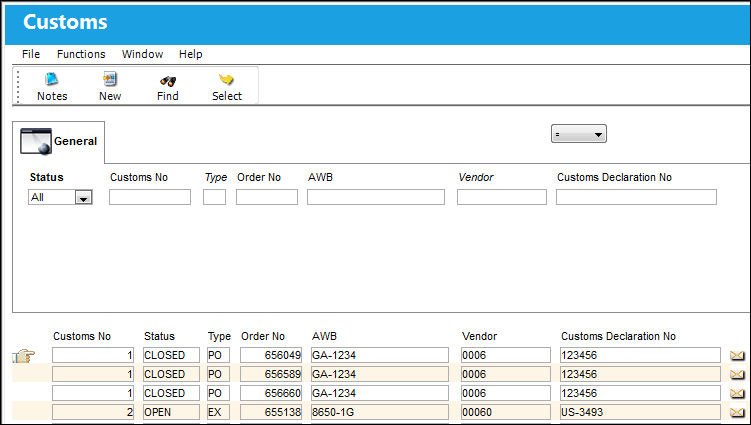
 This window is security-controlled via Orders/Update/Customs. For more information refer to the Security Explorer via the System Administration Training Manual.
The following information/options are available in this window:
_____________________________________________________________________________________
Status drop down
The current status of the customs record. The options are Open or Closed; Open is selected by default. To close the record this Status must be manually set to Closed and then saved.
Customer No
The unique system identification number for the Customs record. This number is applied automatically once the record is created.
Type
Type of Order. By order type, certain receiving and financial behaviors will be assigned to the order at receiving of the various Order Types. These order types exist under the Orders or Customer Orders Modules exclusively. All Order Types are Hard Coded into the programming syntax.
Order No
The type of order and the order number for the transaction. This order is linked to an AWB Number which is linked to a Customs record.
AWB
The AWB is the official document issued by the carrier that contains the order's freight details. This number links the Customs record with Orders in the system. The AWB is pivotal for tracking the Customs process all the way through the invoicing process. To link this AWB to an order, go to that order's detail window then select the AWB/Expedite button.
Vendor
The system code for the service/part provider. The third party brokerage vendor that is clearing the order through customs.
Customer Declaration No
The customs declaration number used to itemize the goods being brought into the country through customs procedures. This is a free text field and informational only.
_____________________________________________________________________________________
Within the Customs window, the following button is available:
Upon selecting into the record or by creating a new record, the following tabs and button are available:
This update window is also available in query mode where users can view the records provided in this window but cannot create new records or edit existing data. Refer to this module's Query menu.
Share
Print
|
©1997-2026 Trax USA Corp. All rights reserved. This manual may not be copied, photocopied, reproduced, translated, or converted to any electronic or machine-readable form, in whole or in part, without prior written approval from Trax USA Corp. |
 |