
 Share
Share
 Print
Print
|
|
|
|
|


Customs Fees: Invoicing the Customer

The Customs fees incurred when the order was cleared through customs can be charged to the customer by the MRO vendor. There are two options to do so:
- The Link invoice can be forwarded to the customer through a Third Party Work Order. This method includes the itemized Customs fees (Freight, Customs Tax, Other, and WH/AWB) in the Customer Invoice. These itemized fees will be listed as W/O Actuals.
- Alternatively, the Addbill functionality can be used to charge the customer one total Customs fee through a Third Party Work Order, without itemizing the Customs Fees. This single fee will be called 'Miscellaneous' in the Customer Invoice. To complete this process, create a third party W/O and Non-Routine Task Card, create an Addbill record, close the W/O and N/R Task Card, then authorize the customer invoice with this miscellaneous customs fee.
Link Invoice with the Itemized Customs Fees
The following is an example of how the Link invoice with the itemized Customs fees is charged to the Customer Invoice.
Create a third party W/O and save (TPW checkbox must be selected in the W/O header).
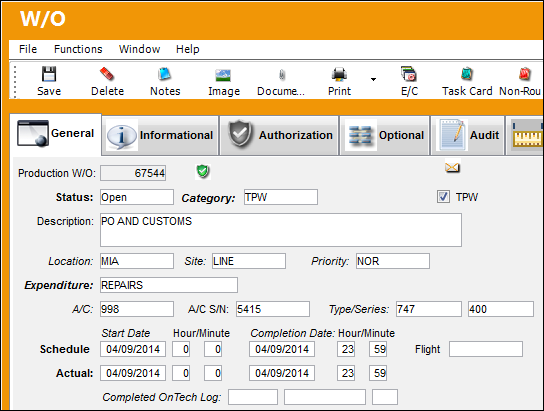
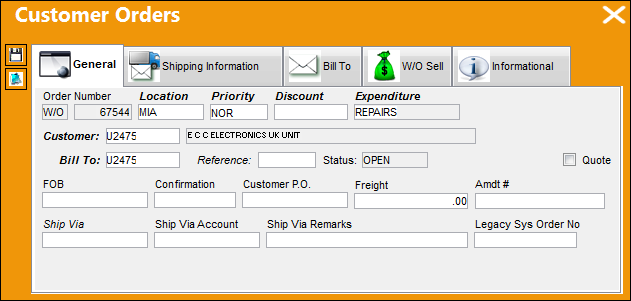
Once the third party W/O is saved the Customer Orders window appears, enter the Customer Contract information. The Contract number must be entered in the W/O Sell tab.
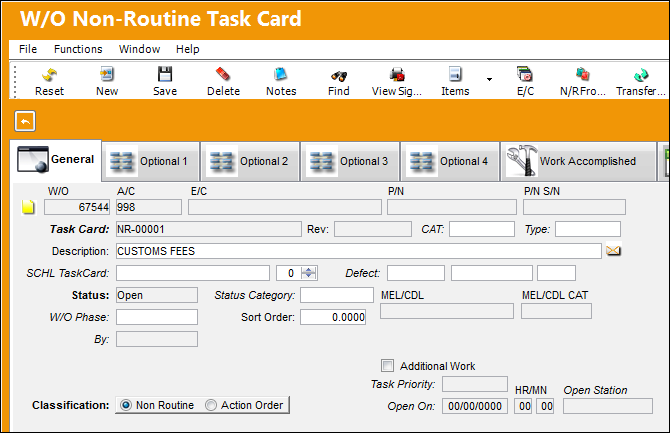
Create a N/R Task Card for the W/O.
Create a Purchase Order (P/O) for the required part. The part is ordered from a foreign vendor and is required to clear customs upon entry into the country.
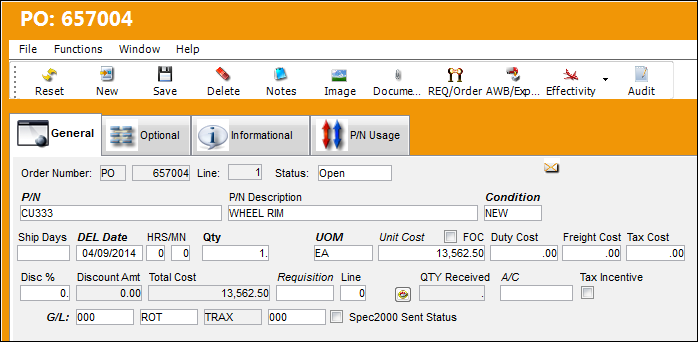
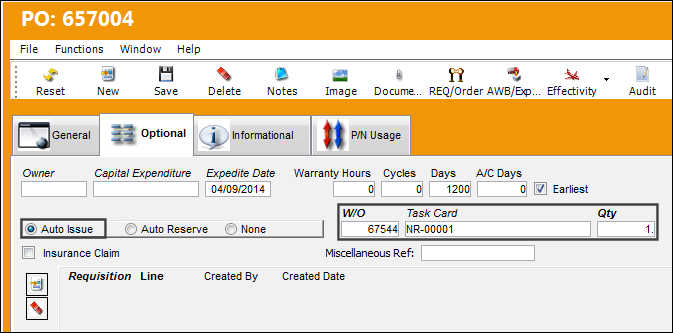
In the P/O Optional tab, select the Auto Issue radio button and enter the W/O and N/R Task Card. Once the order is received, the part will issued automatically to the W/O N/R Task Card.
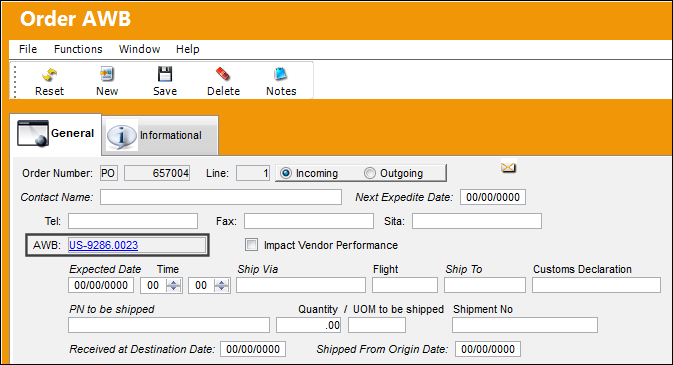
Select the AWB/Expedite  button to link the Airway Bill (AWB) to the P/O.
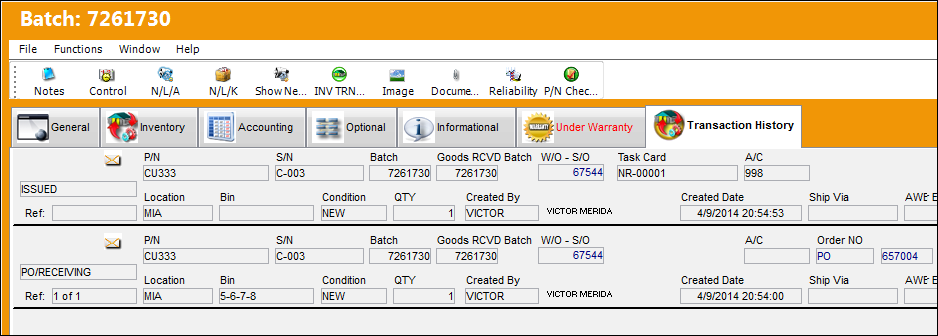
Receive the P/O and the part is auto issued to the W/O N/R Task Card.
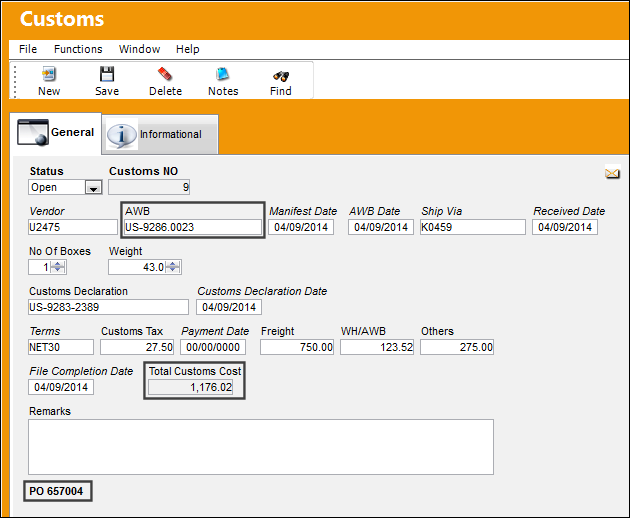
Create a Customs record. Enter the same AWB number used in the P/O to link the P/O to the Customs record. Close the Customs record to invoice the total customs cost.
Create a Customs invoice.
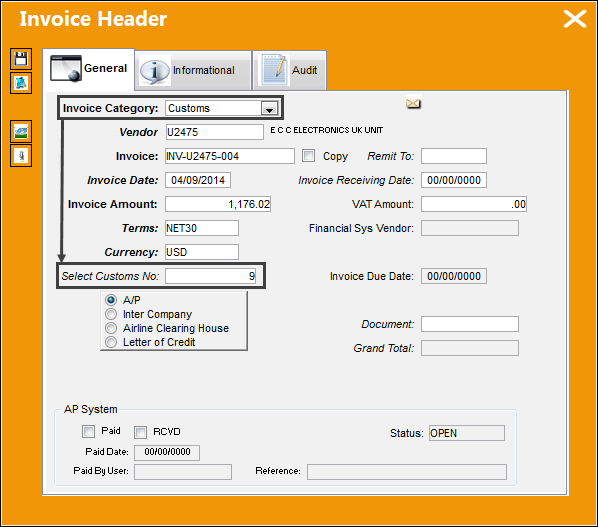
This invoice must be created in the Link module even though these fees will be paid by the MRO's customer, not the MRO. Creating this invoice through the Link module will trigger the previously created Customs Journal Entries. If the Customs record is not invoiced through the Link module, then the Customs fees can be charged directly to the customer through the Addbill functionality. If the Addbill options is used, the Customs Journal Entries will not be created, instead, only one 'Miscellaneous' fee will be charged in the customer invoice.
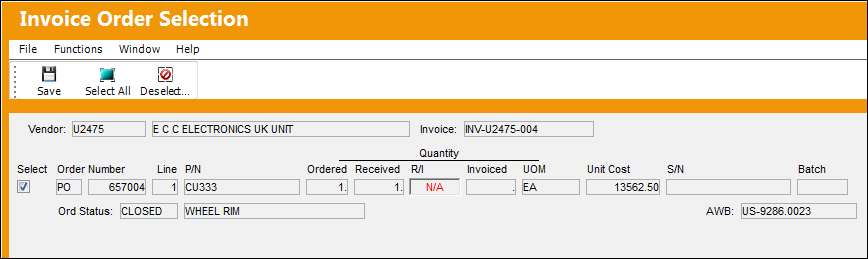
Select the applicable checkbox to link the P/O to the invoice. Notice that this order has the same AWB as the Customs record.
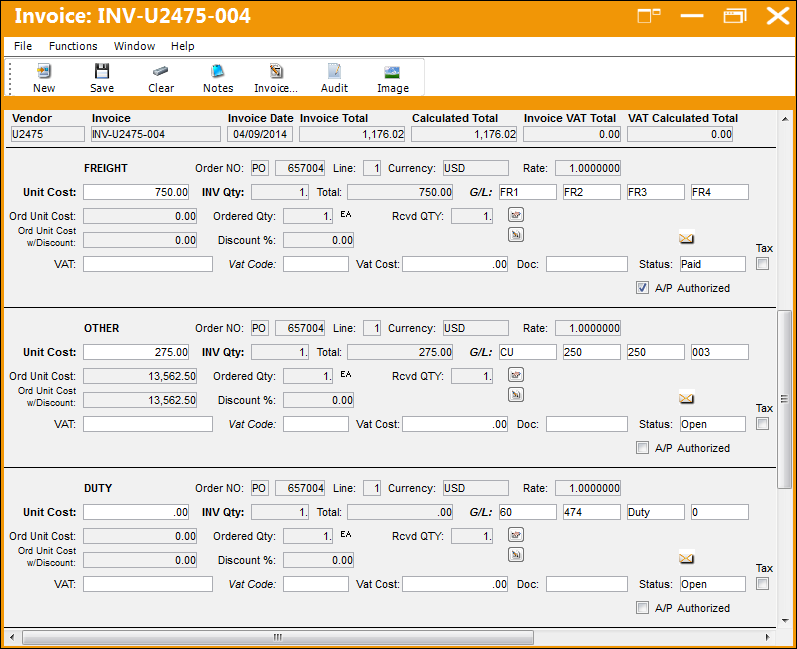
From the Invoice detail, the total customs charges are distributed through the G/L Accounts.
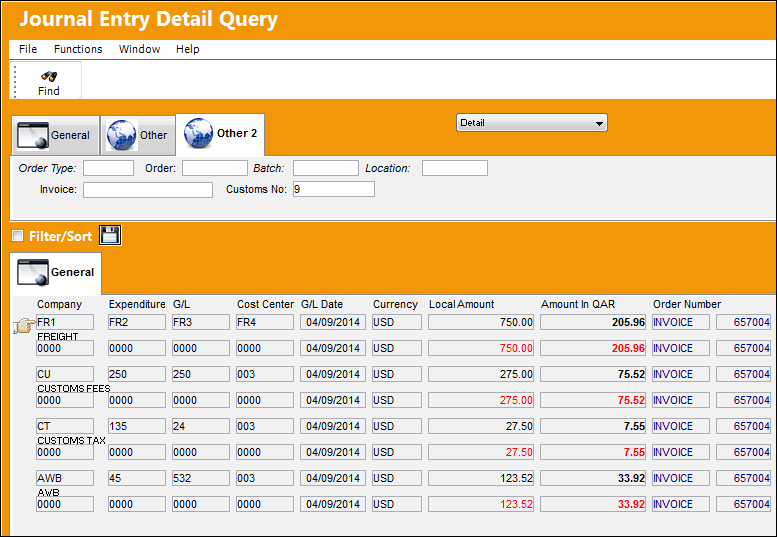
Once the invoice is posted the J/Es are created.
At this point, the third party W/O N/R Task Card can be closed and the W/O Post Completed.
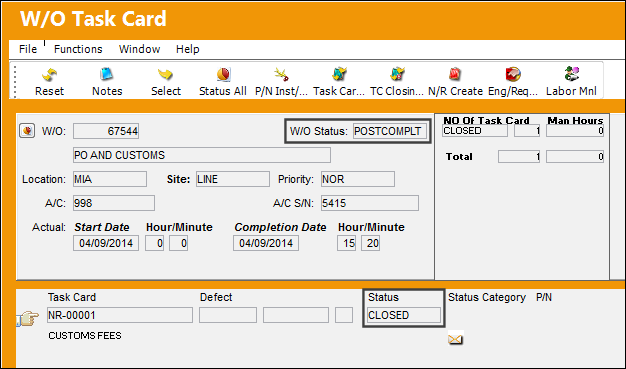
From the W/O window, select the Actuals  button to view a listing of costs and sell prices associated to the W/O. The Actuals for this W/O include the Material cost of the purchased part and the invoiced Customs fees.
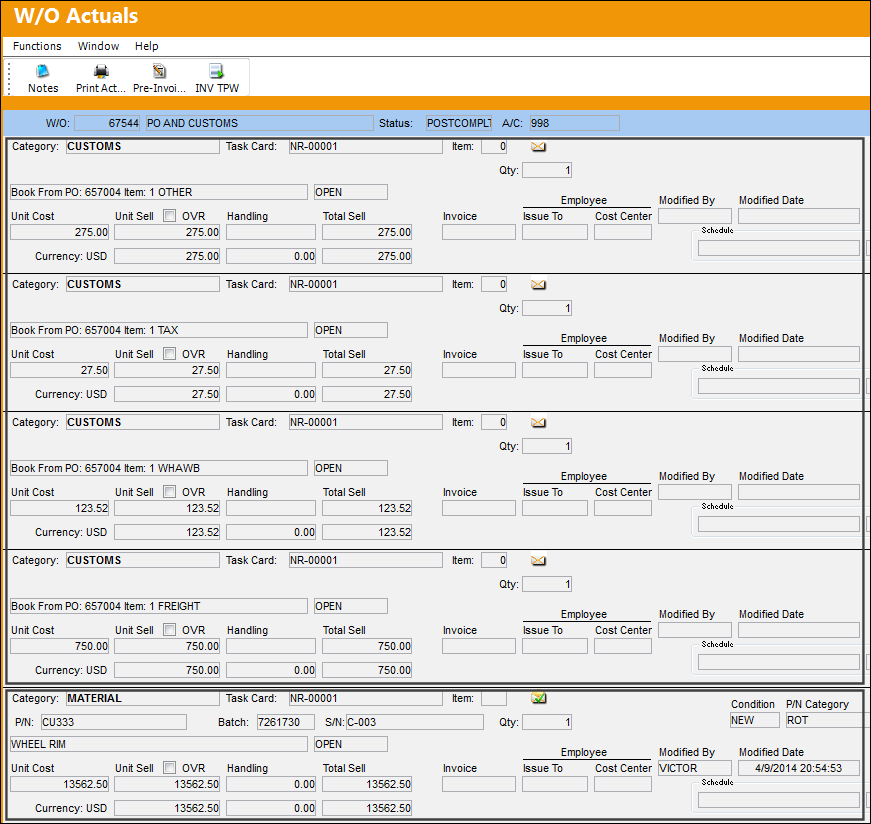
The Customs fees are linked to this W/O because both the W/O and the Customs record are linked to the same P/O. The Customs record is linked to the P/O through the AWB and the W/O is linked to the P/O through the Option tab, auto issue fields.
After closing this W/O, generate the customer invoice and it captures all of the W/O Actuals Customs fees and Material cost.
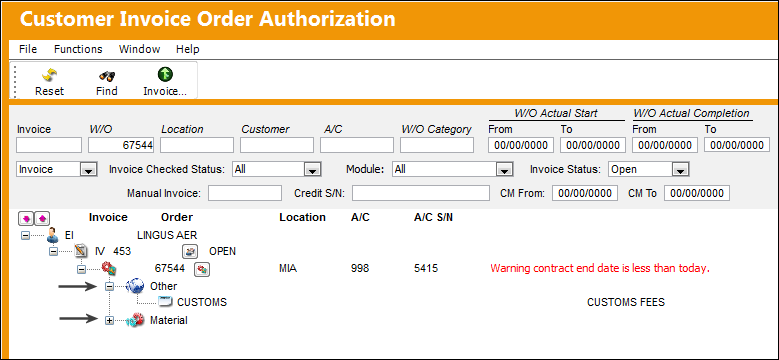
Right-click on the invoice to view all of the charges. At the top of the window all of the Customs fees are listed.
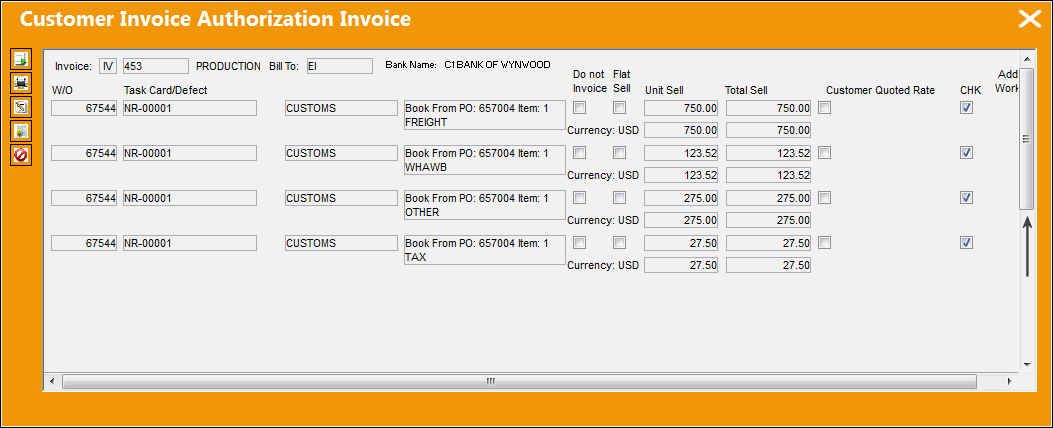
These are the same fees specified through the Link invoice.
Scroll down to view the Material cost. At the bottom of the window is the Grand Total which is made up of the Customs fees and the Material costs.
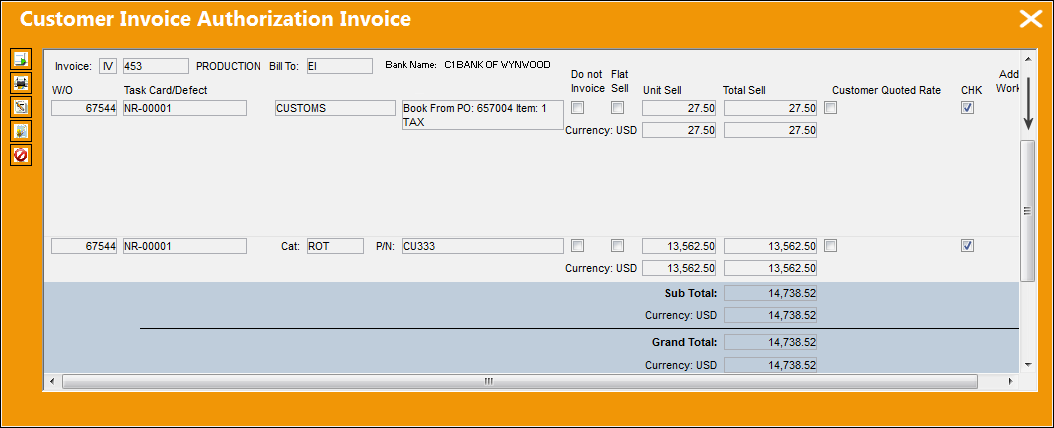
Once the Customer Invoice is authorized, a print of the invoice is generated.
Share
Print
|
©1997-2026 Trax USA Corp. All rights reserved. This manual may not be copied, photocopied, reproduced, translated, or converted to any electronic or machine-readable form, in whole or in part, without prior written approval from Trax USA Corp. |
 |