
 Share
Share
 Print
Print
|
|
|
|
|


Customs Fees: Financial Tracking

Once the third party broker clears the international order through customs they will require payment for their services. The finances associated to the customs clearance are tracked through Journal Entries (J/E) and the Link invoicing process. The invoice can be absorbed by the MRO provider or passed on to the customer for payment. For more information on customer payment, refer to Customs Fees: Invoicing the Customer.
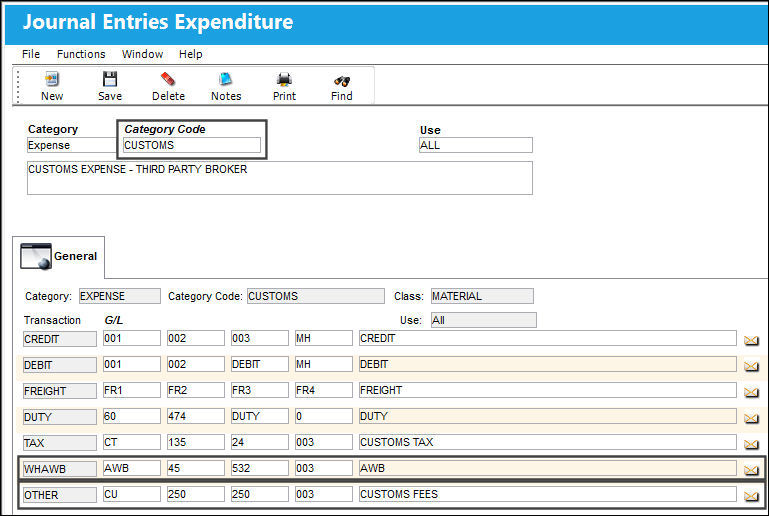
Before the Customs record can be invoiced, the J/E must be set up. The Category is Expense because the invoice will be posted as an expense, and the Category Code must be CUSTOMS. When CUSTOMS is selected, the OTHER and WHAWB accounts become available as part of the J/E.
Customs Invoice
Once the order is received and its associated Customs record is closed, the Customs record can be invoiced. The invoice is posted via Link/ Update/ Invoice Entry.
Select the New  button and the Invoice Header window appears.
From the Invoice Category field select CUSTOMS and the Customs No field becomes available. Enter the Customs number to link the invoice to the customs record; the vendor field will auto-populate with the vendor from the Customs record.
Enter the Invoice number, Invoice Date, and the Invoice Amount which should reflect the total customs cost from the Customs record. The Terms and Currency are also required and may auto-populate when the vendor field is populated. Select the Save  button
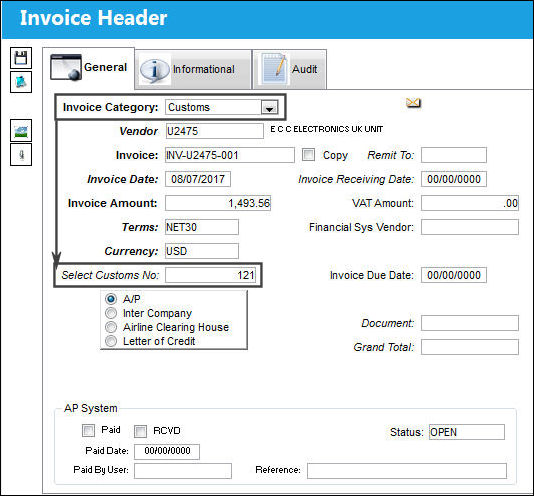
 The Customs Invoice Category is security-controlled via Link/Update/Invoice Entry/Invoice Category Customs. For more information refer to the Security Explorer via the System Administration Training Manual.
If the Customs record is not Closed, then the invoice cannot be created. When an Open Customs record is entered into the invoice's Select Customs No field, a warning will prevent the user from proceeding: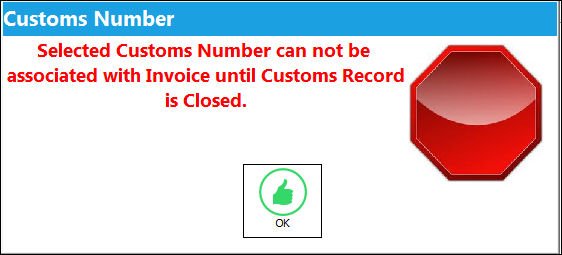
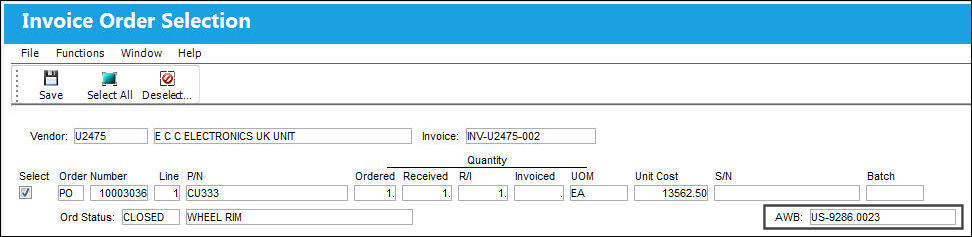
The Invoice Order Selection window appears and shows all the associated orders linked to the Customs record (linked through the AWB). Select the checkboxes for the orders to be linked to the invoice and save.
The Invoice detail window appears and all of the G/L accounts from the Customs J/E will be listed. The invoice total must be spread throughout the G/L Accounts.
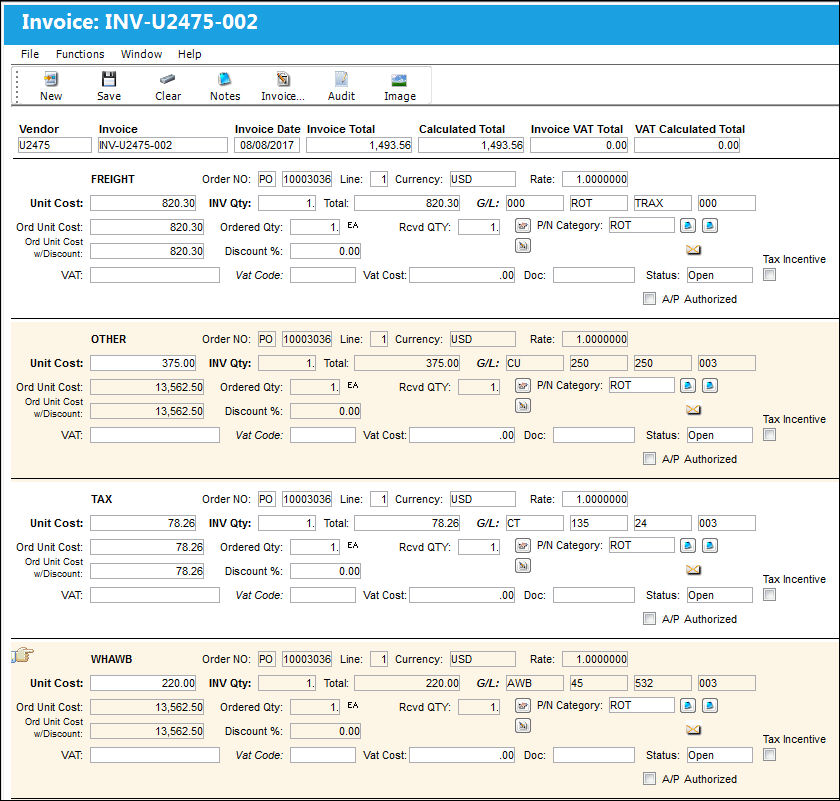
If multiple orders are linked to the Customs record, then the total customs cost must be distributed through through all of the orders G/L accounts.
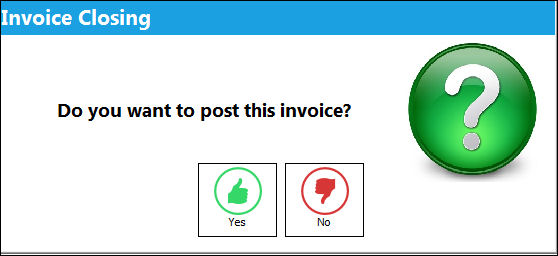
Once the invoice costs have been distributed among the G/L accounts, save the invoice. Select Yes at the prompt to post the invoice.
Note: When Switch  APINCLST-RL is set to Yes and the Config Other field is populated with RELEASED, the Invoice Closing pop up will ask to set the invoice status to Released. Select Yes and the invoice can be closed or reopened.via the Invoice Release Selection window.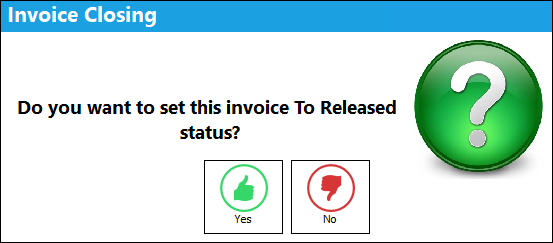
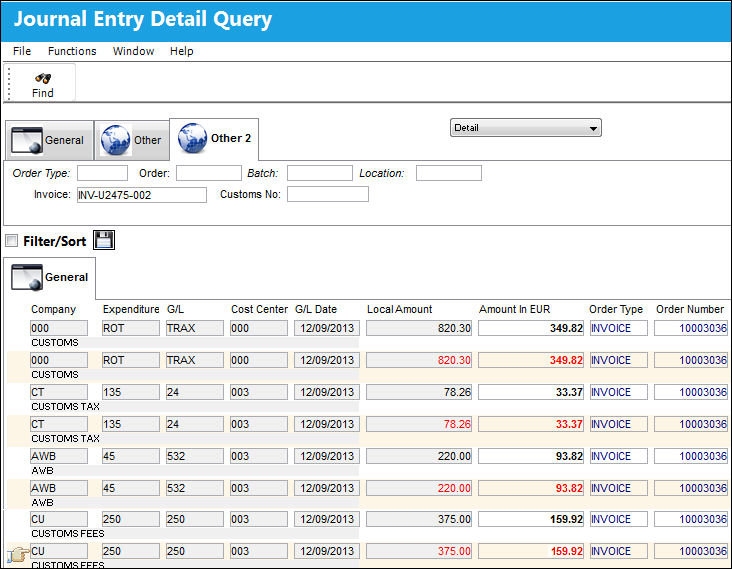
Once posted, the Customs and invoice record can be searched via G/L Interface/ Query/ Journal Entries Query. Notice that all of the Customs record's cost fields (Customs Tax, Freight, WH/AWB, and Other) have been evenly distributed through the G/L Accounts.
Share
Print
|
©1997-2026 Trax USA Corp. All rights reserved. This manual may not be copied, photocopied, reproduced, translated, or converted to any electronic or machine-readable form, in whole or in part, without prior written approval from Trax USA Corp. |
 |