
 Share
Share
 Print
Print
|
|
|
|
|


Invoice Release Selection
The Invoice Release Selection window allows users to query invoices in a Released status that they created. From here, the user is able to close or reopen invoices.
Switch  APINCLST-RL must be set to yes and RELEASED entered in the Config Other field for invoices to be sent to a Released status and appear in the Invoice Released Selection window.
Enter any of the search criteria to query for a desired invoice and select the Find  button.
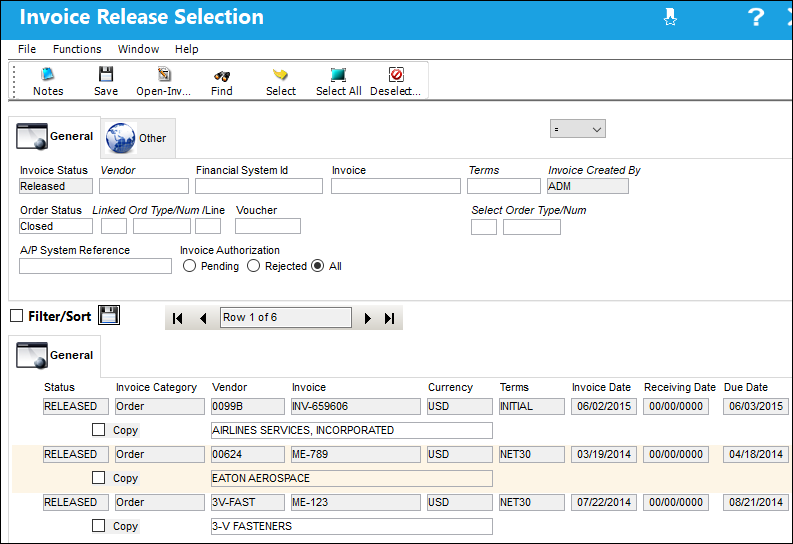
For more information on all available fields in this window refer to Invoice Selection, General Tab.
Reopen an Invoice
Select and highlight the invoice to be reopened and select the Open-Invoice button.
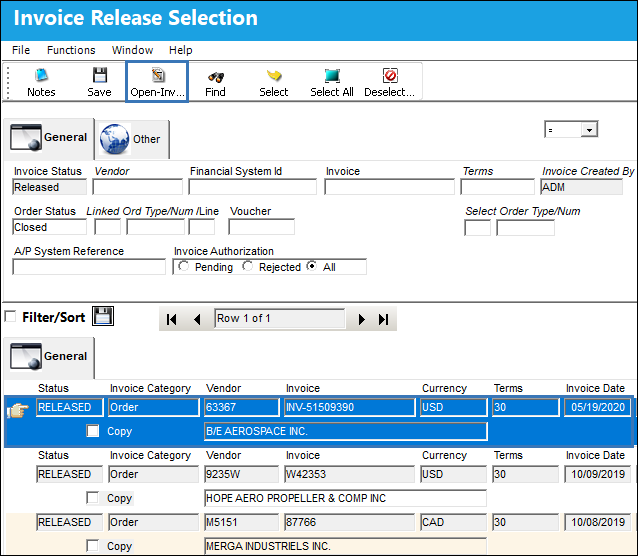
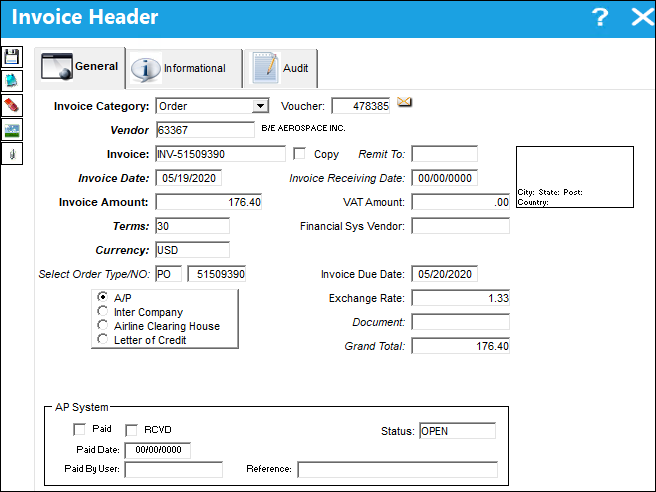
The system displays the Invoice Header, select the Save  button to continue and then OK to confirm the save.
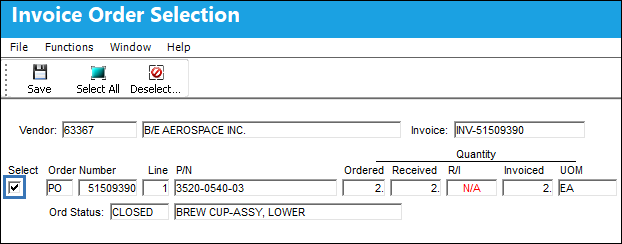
The Invoice Order Selection window appears. Select the checkbox beside the order lines to reopen and select the Save button and then OK to confirm the save.
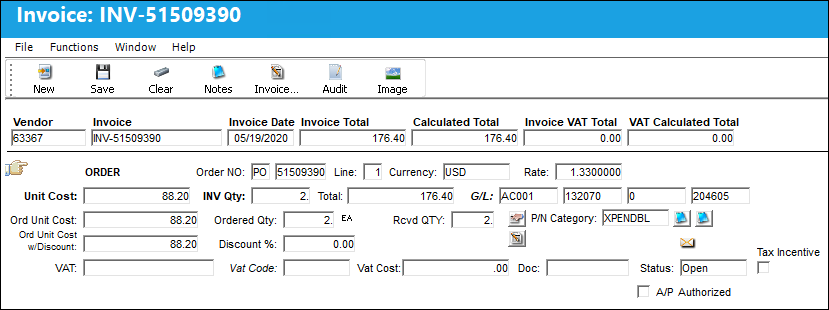
The Invoice Order Detail window appears. Adjust any details if required and select the Save button and then OK to confirm the save.
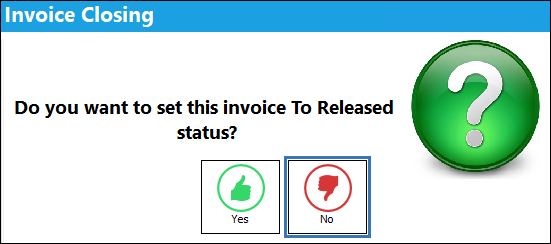
A pop up appears asking to set the invoice to released status, select No.
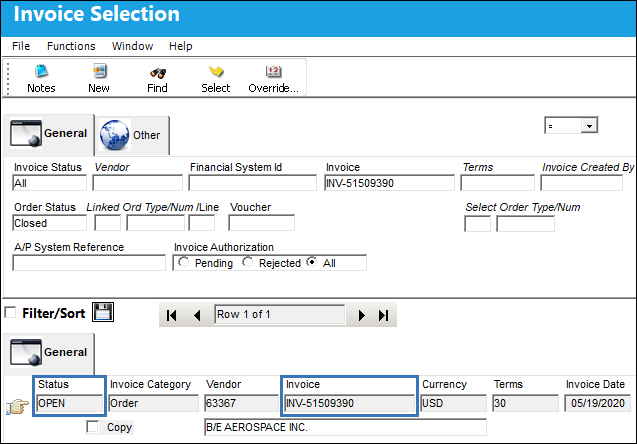
The invoice status is set to open. It will not appear in the Invoice Release Selection window again until it has been set to a released status.
Close an Invoice
Select and highlight the invoice to be closed and select the Save button and then OK to confirm the save.
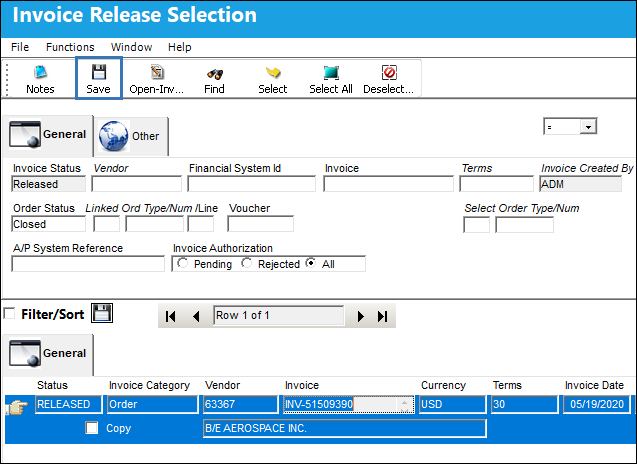
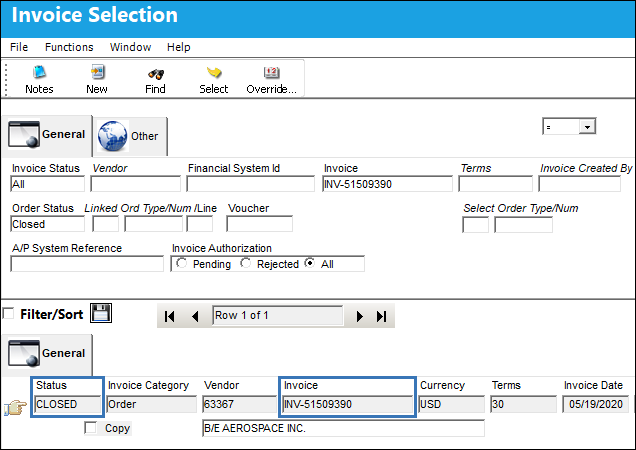
The invoice status is closed and it no longer appears in the Invoice Release Selection window.
Share
Print
|
©1997-2026 Trax USA Corp. All rights reserved. This manual may not be copied, photocopied, reproduced, translated, or converted to any electronic or machine-readable form, in whole or in part, without prior written approval from Trax USA Corp. |
 |