
 Share
Share
 Print
Print
|
|
|
|
|


MEL Authorization Explorer
Authorize the MEL in the Authorization Queue as follows:
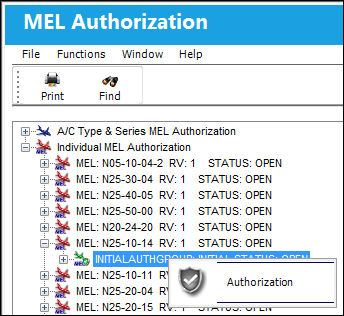
Go to Settings/Explorer/MEL Authorization Explorer. To authorize the MEL, right-click the MEL step and select the Authorization  button.
The MEL Authorization Step will only appear in the authorization queue if the user is part of the department or group that can authorize the step.
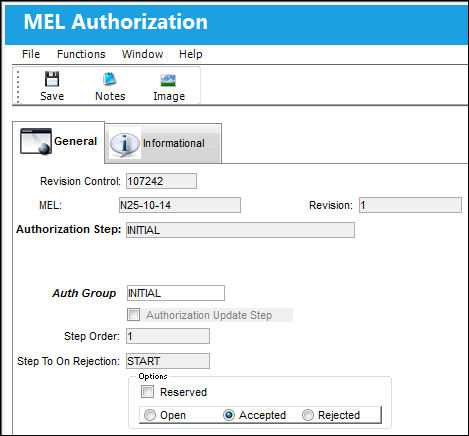
The MEL Authorization window appears. Select the Accepted or Rejected radio button and select the Save  button.
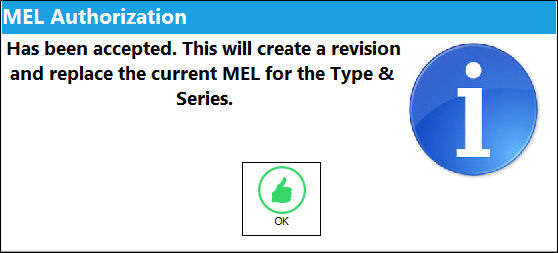
The system will display the following pop-up informing the user that the MEL has been authorized.
Once all the Authorization Steps for an MEL are accepted it will have a closed revision it can be used to defer defects.
This update window is also available in query mode where users can view the records provided in this window but cannot create new records or edit existing data. Refer to this module's Query menu.
For more information on the MEL Authorization process, refer to the MEL Authorization Management window.
Share
Print
|
©1997-2026 Trax USA Corp. All rights reserved. This manual may not be copied, photocopied, reproduced, translated, or converted to any electronic or machine-readable form, in whole or in part, without prior written approval from Trax USA Corp. |
 |