
 Share
Share
 Print
Print
|
|
|
|
|


P/N Software Configuration Explorer
The P/N Software Configuration Authorization window allows users to authorize P/N Software components that have been created via the P/N Software Configuration window and contain open revisions.
 This window is security-controlled via Settings/ Explorer/ P/N Software Configuration Explorer. For more information refer to the Security Explorer via the System Administration Training Manual.
The explorer window opens as follows. All software components that contain open revisions are listed and organized by A/C Type Series then by the component's Equipment Reference Designator (ERD) and its Software Location ID (SLID). Under the ERD and SLID, the P/N and P/N Software information is listed, followed by the open revision.
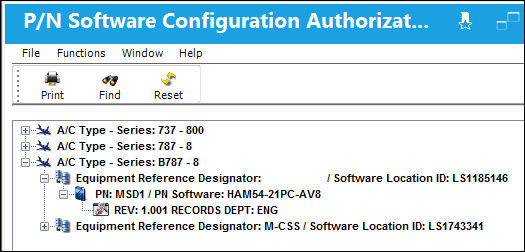
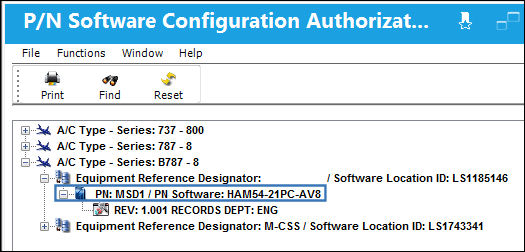
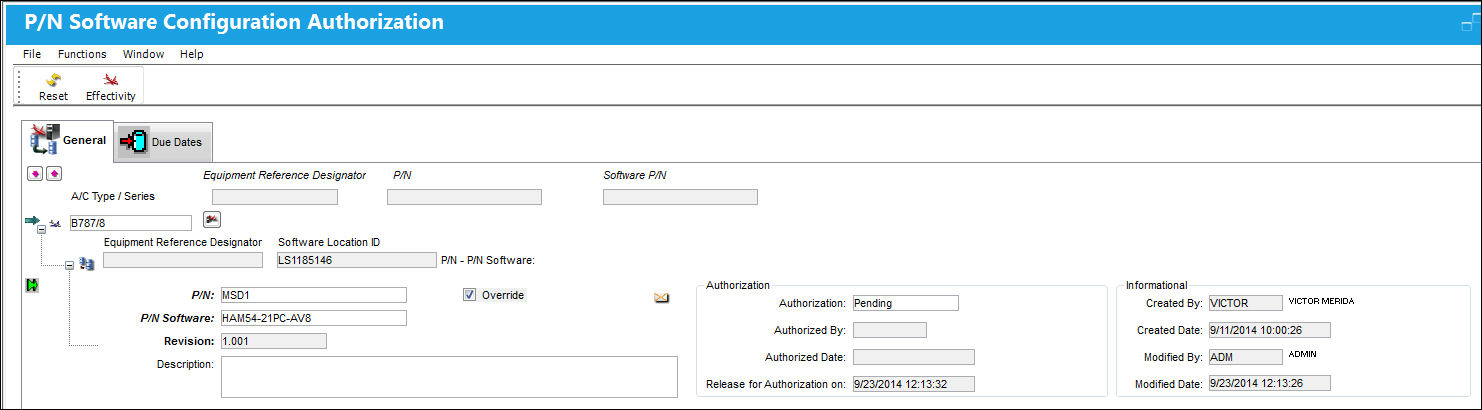
Users can right-click on the P/N - P/N Software to view the P/N Software Configuration information for the software part.
The P/N Software Configuration will appear as an informational window where users can view the configuration but cannot edit the information.
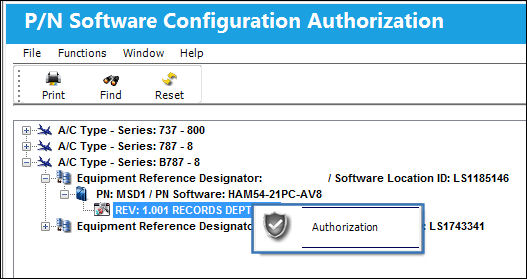
To authorize the revision, right-click on the revision then select the pop-up Authorization button.
The open revision will indicate the type of authorization process required. This includes the Authorization Steps process and the Department(s) allowed to authorize the revision. For more information regarding the P/N Software Authorization Steps, refer to the Authorization Steps Set Up Button, via P/N Software Configuration in the Settings Training Manual. For more information regarding the authorization groups, refer to the P/N Software Configuration Authorization Group Explorer via the Settings Training Manual.
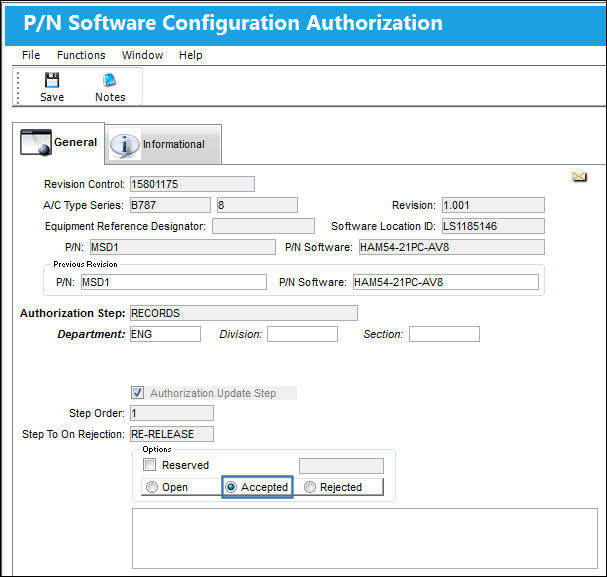
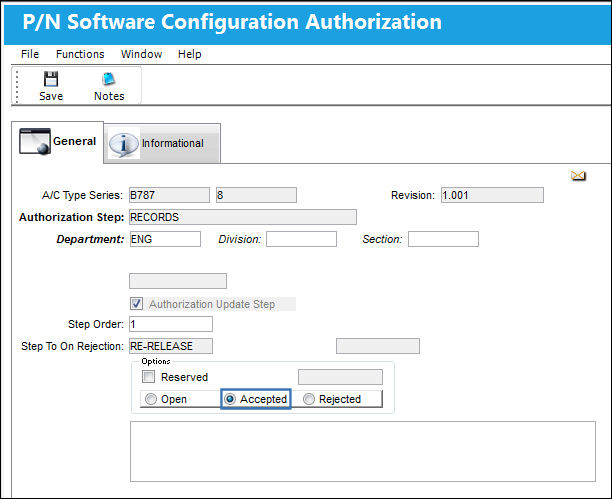
Selecting the Authorization button sends users to the P/N Software Configuration Authorization window. Select the Accepted radio button then save.
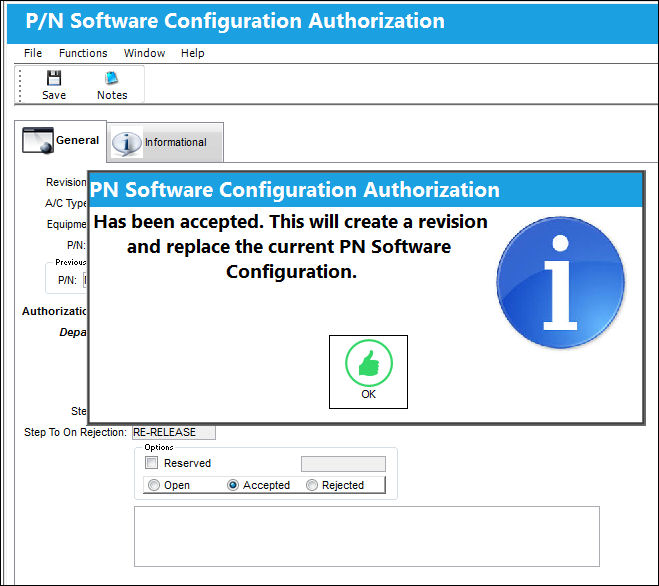
Once accepted, the following prompt appears.
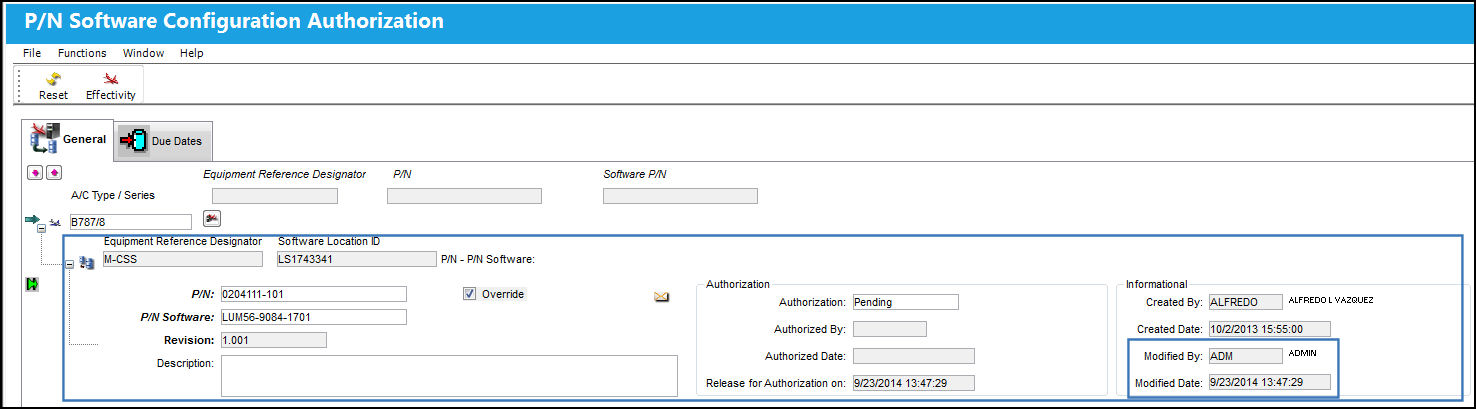
Once the revision is accepted, the information for the P/N Software in the P/N Software Configuration window is updated.
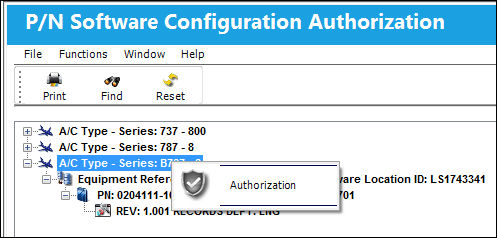
All P/N Software components with open revisions for an entire A/C Type Series can be authorized at the same time if the A/C Type Series is right-clicked.
From the P/N Software Configuration Authorization select the Accepted radio button then save.
Once a P/N Software Configuration has been authorized, the user can then view all authorized Configurations via the Authorized P/N Software Configurations print.
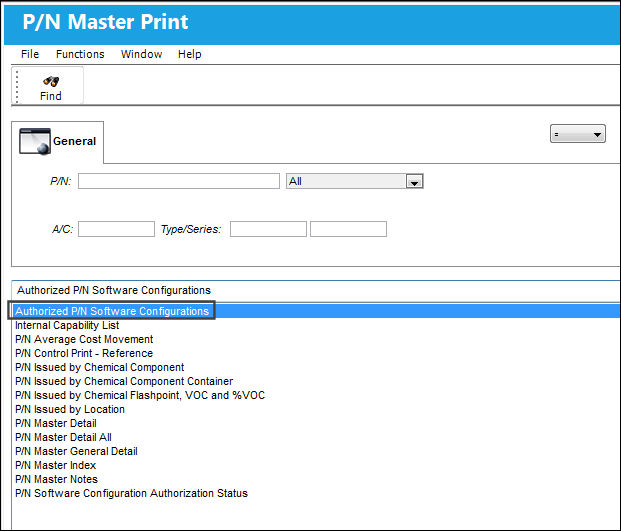
Go to Settings/ Print/ P/N Master Print.
Select the Authorized P/N Software Configuration print and select the Find  button.
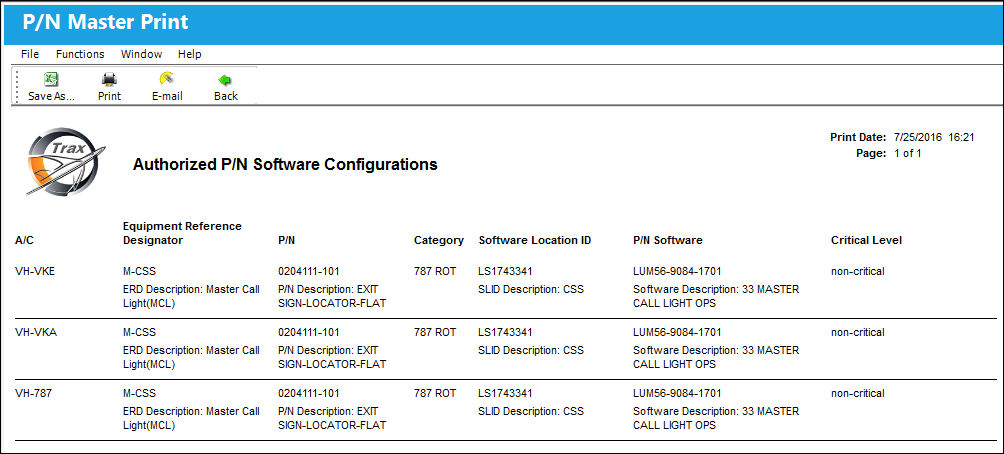
TRAX displays the Authorized P/N Software Configurations print. This print displays all authorized P/N Software Configurations available in the system.
Share
Print
|
©1997-2026 Trax USA Corp. All rights reserved. This manual may not be copied, photocopied, reproduced, translated, or converted to any electronic or machine-readable form, in whole or in part, without prior written approval from Trax USA Corp. |
 |